
Create Store Credit Automation Using Shopify Flow
Overview
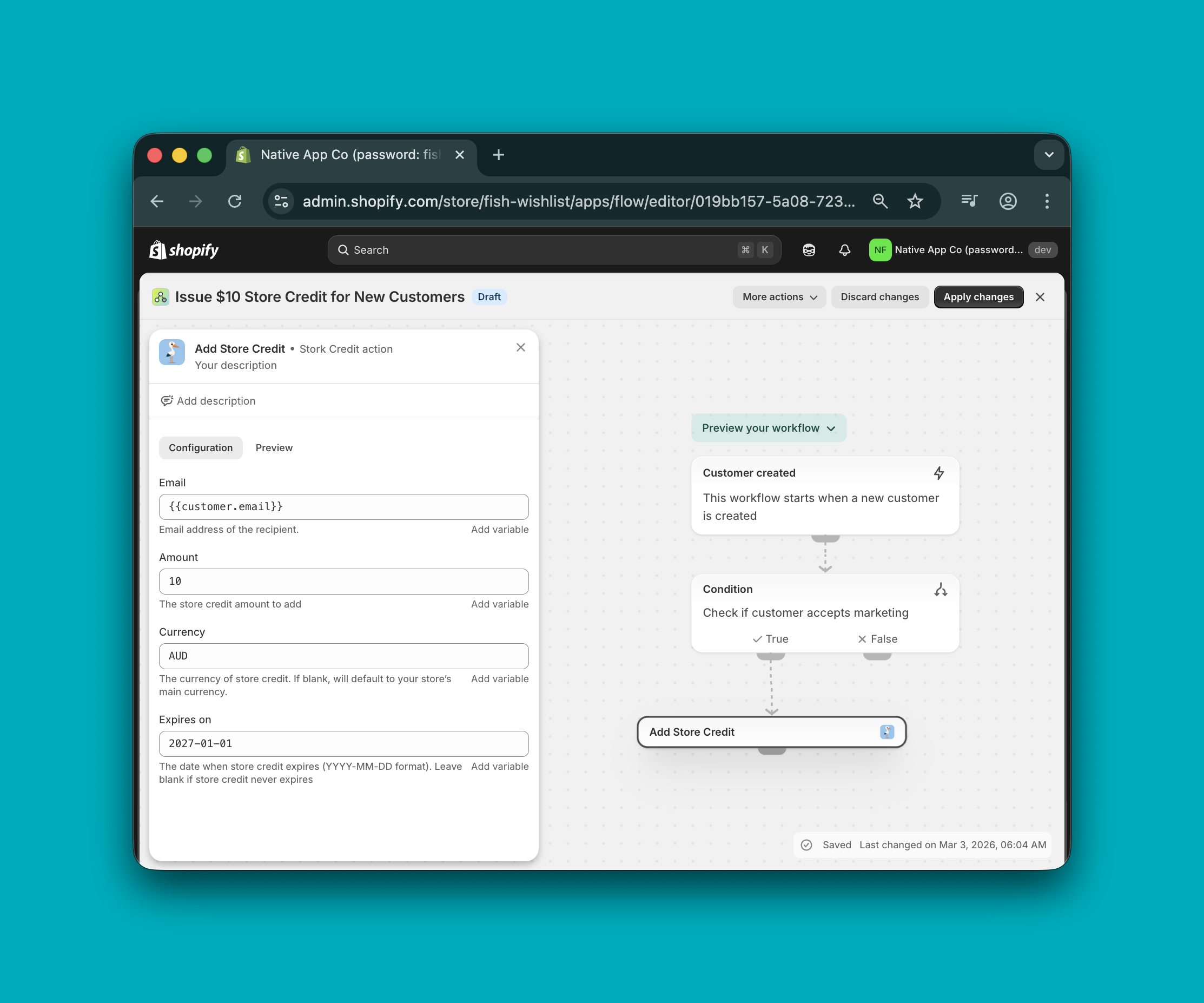
Stork Credit includes a Shopify Flow action that lets you issue store credit automatically from any Shopify Flow workflow.
You can use Shopify Flow’s native triggers (like Customer created or Order paid) or triggers from other apps, then add the Stork Credit action Add Store Credit to issue credit.
All setup happens in Shopify Flow. Stork Credit provides the Add Store Credit action that you add to your workflow.
Before you start
Install Stork Credit on your Shopify store.
Install Shopify Flow (Shopify Flow is available on supported Shopify plans).
Make sure your workflow has access to a customer email (for example, via
{{customer.email}}).
Create a workflow that issues store credit
In your Shopify admin, open Apps → Shopify Flow, then create a new workflow (or open an existing one you want to edit).
Select a trigger that matches the behavior you want to reward (for example, Customer created, Order paid, or a trigger from another installed app).
If you only want to issue credit for certain cases, add a Condition step (for example, check whether the customer accepts marketing).
Click + Add action, then select Stork Credit and choose Add Store Credit.
In the action panel, you’ll configure these fields:
Email — the customer’s email address (for example
{{customer.email}}).Amount — the store credit amount to add.
Currency — the currency of the store credit. If left blank, it defaults to your store’s main currency.
Expires on — optional expiry date in
YYYY-MM-DDformat. Leave blank if the store credit should never expire.
When you’re done, click Apply changes in Shopify Flow. Then switch the workflow from Draft to On (depending on your Flow UI) so it starts running.
Common automation examples
Use the Customer created trigger, then add Add Store Credit with:
Email:
{{customer.email}}Amount: a fixed welcome credit (for example
10)Expires on: optionally set an expiry date to encourage a first purchase
Add a Condition step before Add Store Credit (for example, a condition that checks whether the customer accepts marketing). Connect the True branch to Add Store Credit so only qualifying customers receive credit.
Use multiple Condition steps (or branches) in Flow, and add separate Add Store Credit actions on each branch with different Amount values.
Troubleshooting
No credit issued: Confirm the workflow is turned on (not in Draft) and that you clicked Apply changes.
Wrong customer credited: Double-check the Email field uses the correct variable for your trigger (for example,
{{customer.email}}for customer-based triggers).Unexpected currency: Set the Currency field explicitly if you don’t want to rely on your store’s default currency.
Shopify Flow workflows can run many times. If your trigger can fire repeatedly for the same customer, add conditions (or other safeguards) to avoid issuing credit more than intended.