
Issue Multi Currency Gift Cards using Store Credit
Shopify gift cards have an important limitation with Shopify Markets: when a gift card is sold, its value ultimately ties back to your store's master currency. That means the value a customer receives can shift between the time the gift card is purchased and the time it is redeemed.
Stork Credit solves this by issuing store credit in the currency of the order. If a customer buys the gift card product in AUD, you can issue AUD store credit. If they buy the same product in USD through a market with local pricing, you can issue USD store credit instead.
Best use case for this workflow
This setup is a strong fit if you:
Sell internationally with Shopify Markets
Want customers to receive gift cards in their purchase currency
This walkthrough demonstrates replacing a traditional gift card code with store credit, so the customer redeems the correct value in their own currency at checkout.
What this walkthrough shows
In the demo, the same gift card product is purchased twice:
Once in the store currency
Once in a Shopify Markets currency with local pricing
Each purchase creates store credit entries in the matching currency, and those balances appear on the customer's Shopify profile under Store credit.
Walkthrough
Start in Shopify admin > Orders. The walkthrough shows two recent orders on the Orders list, each containing three gift card line items. This confirms the setup can handle multiple gift card values in a single purchase.
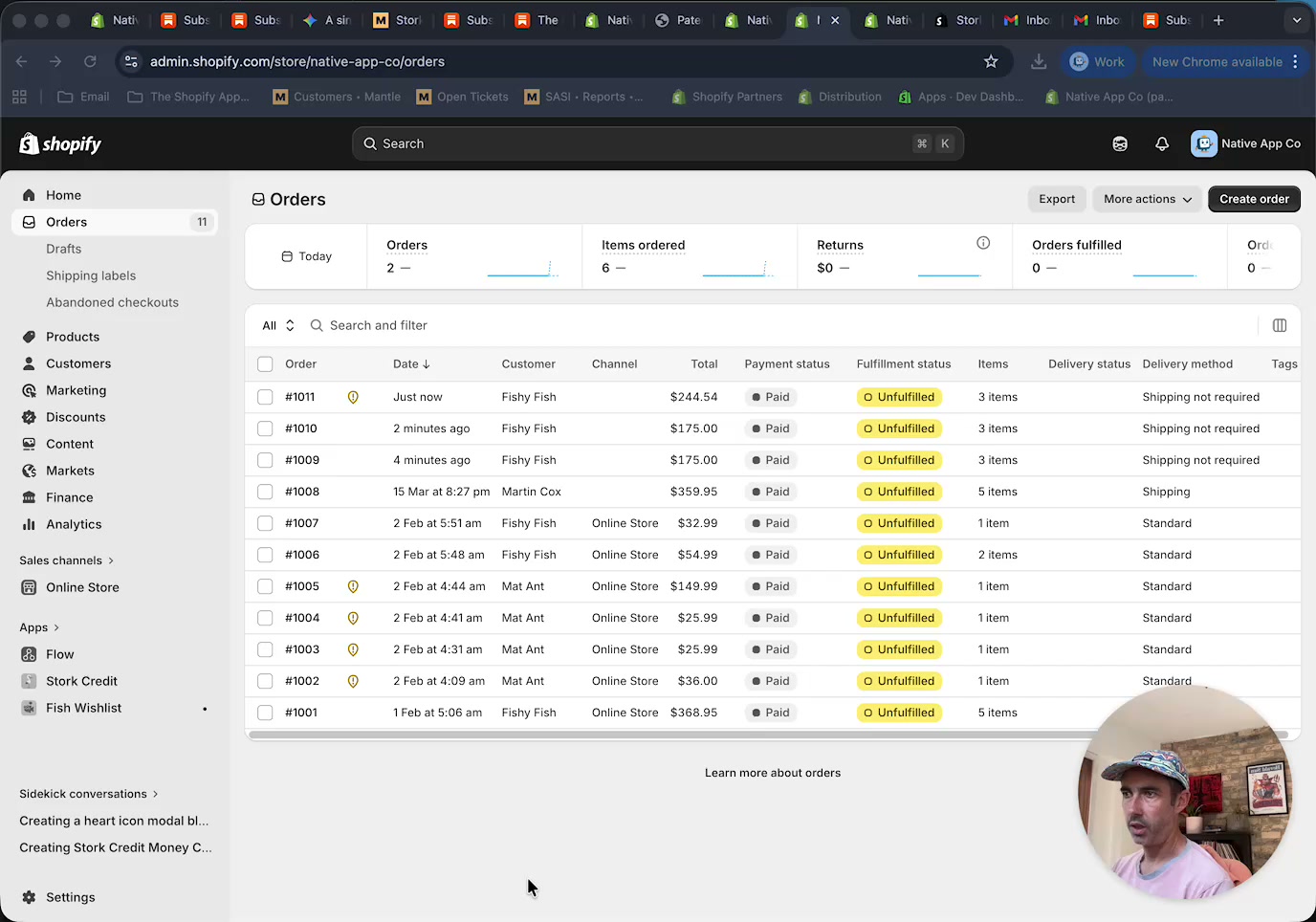
In the example, one order is placed in the store currency and another is placed in USD.
Open the first order from the Orders screen. On the order details page, the Unfulfilled section shows three separate Gift Card line items for $25, $50, and $100.
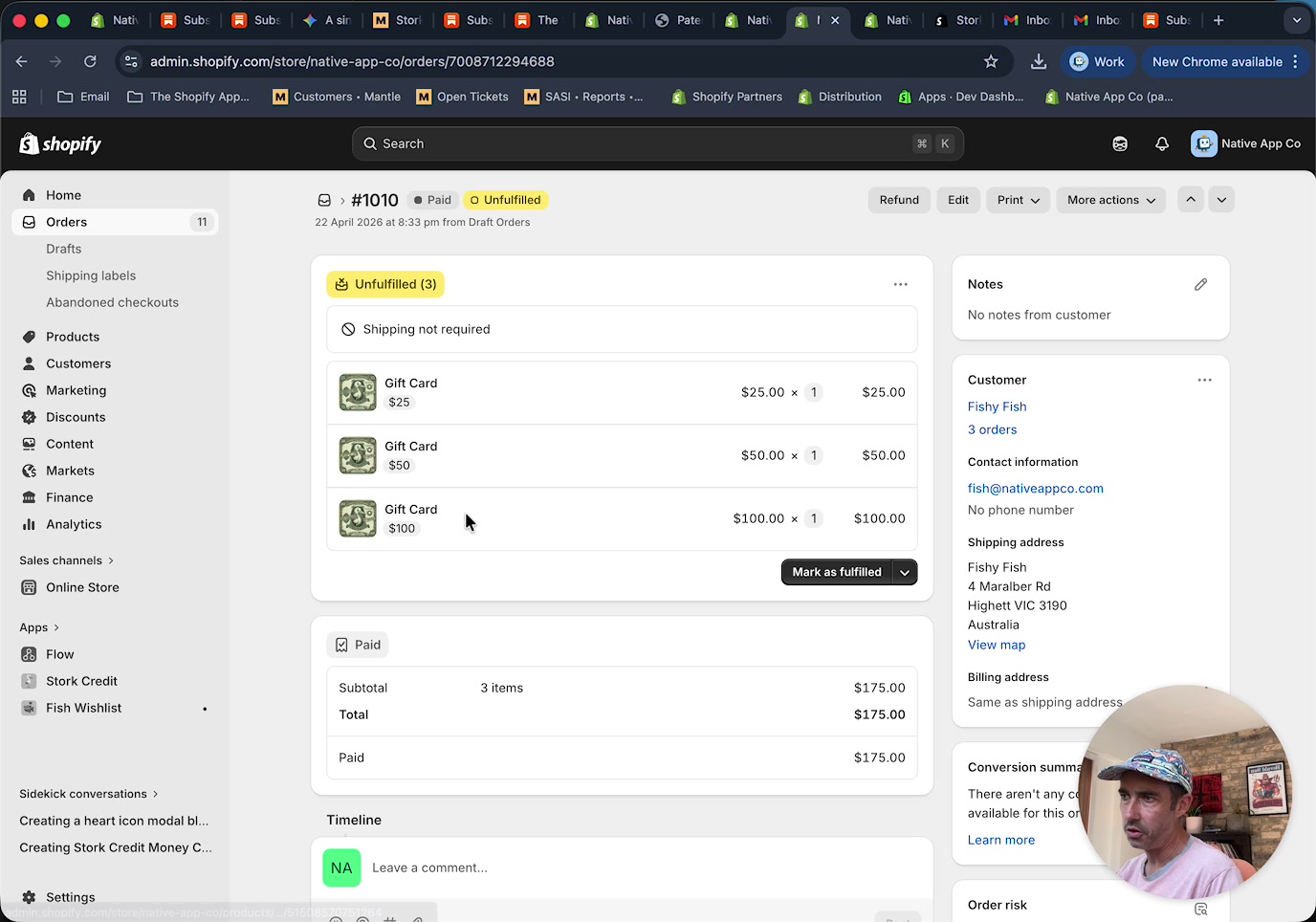
This part of the walkthrough confirms that the automation can issue store credit for each qualifying line item in the order.
Open the second order and review the same gift card product purchased in USD. On the order details page, Shopify shows the line item values in USD and the payment section shows the converted amount paid in the store currency.
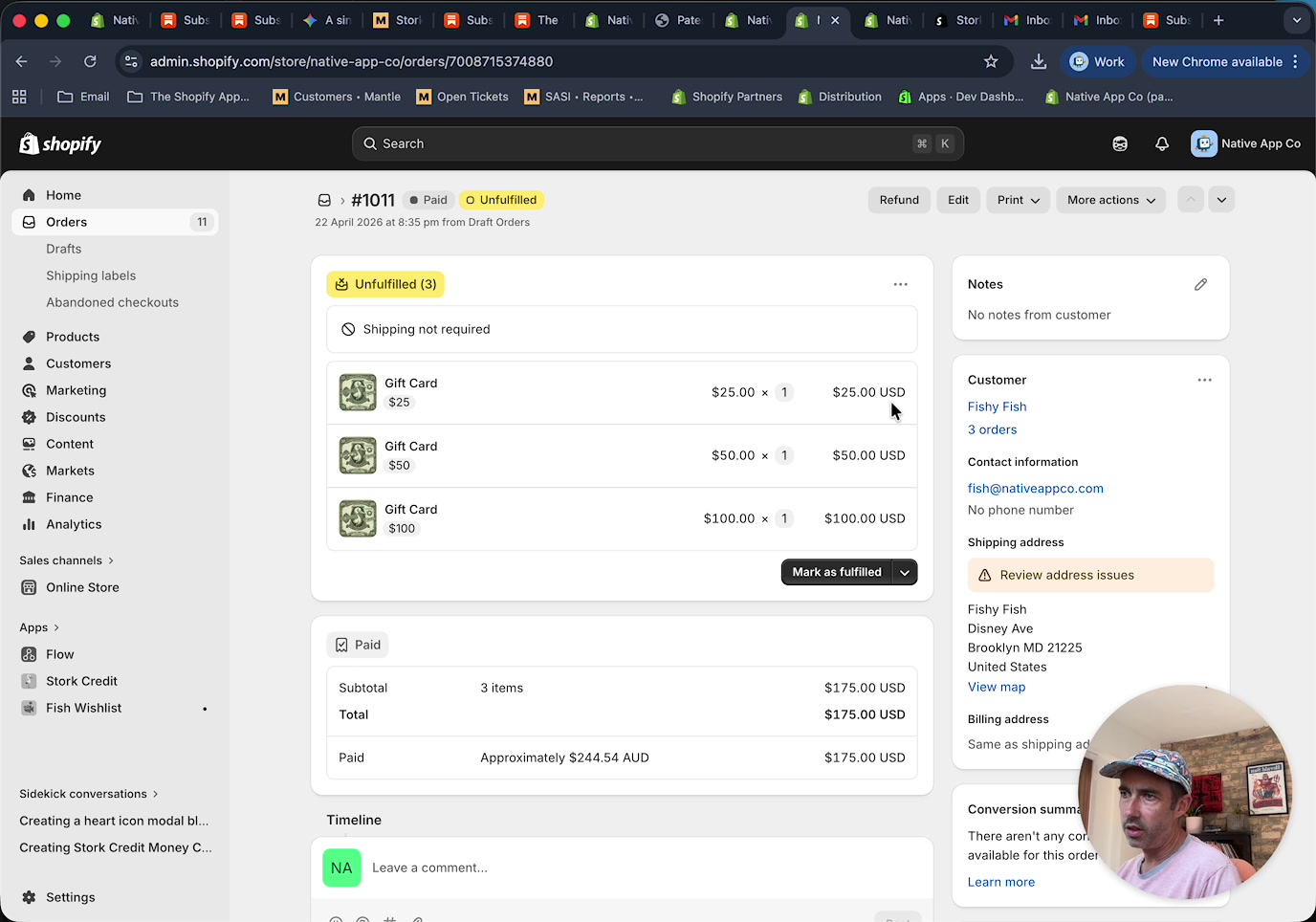
This is the key difference: instead of converting a gift card back to the master currency later, Stork Credit can issue the balance directly in USD.
From the order, open the customer record in Shopify admin > Customers. On the right side of the customer profile, the Store credit card shows separate balances for each currency.
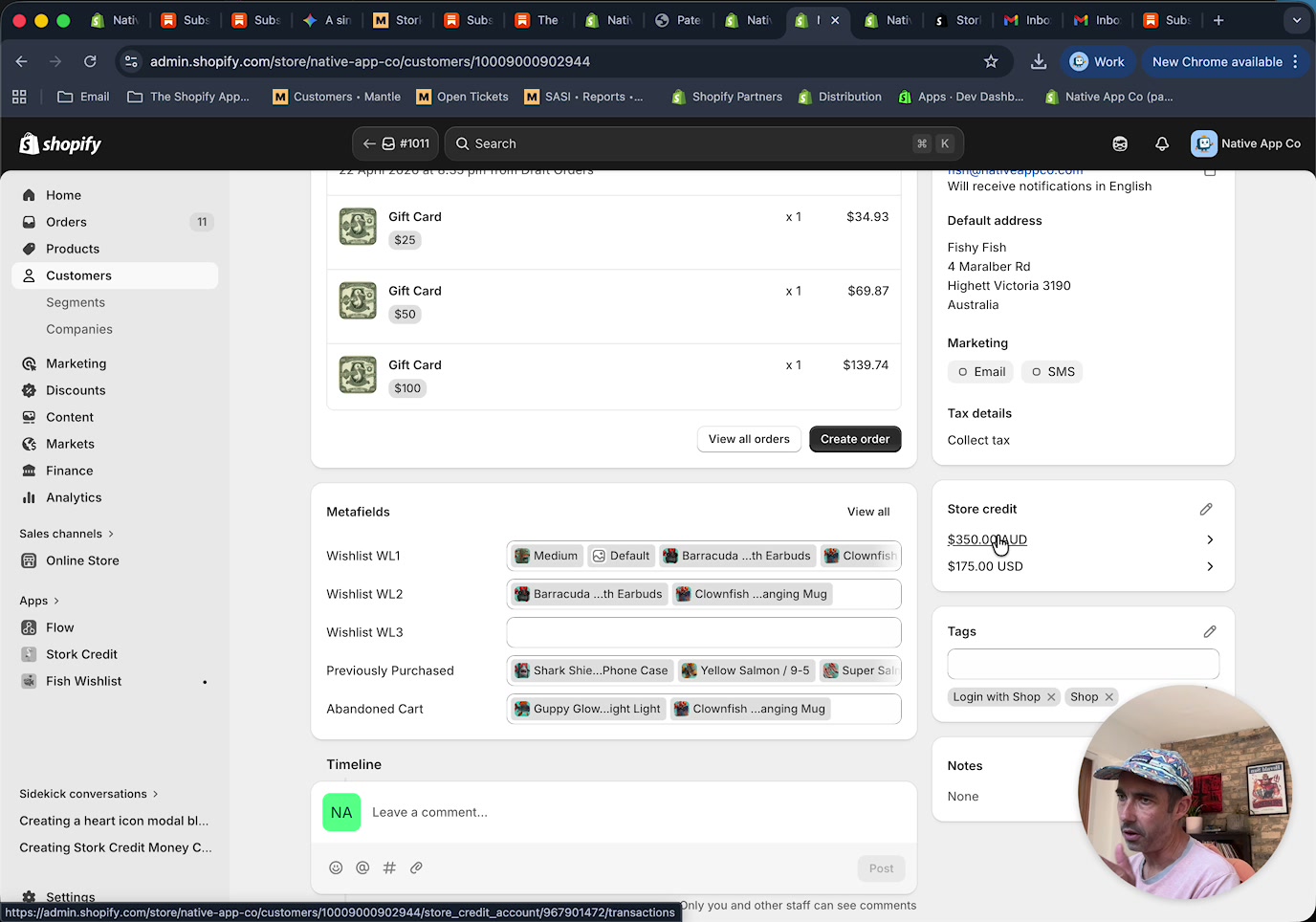
In the demo, the customer has both AUD and USD balances available.
Scroll to the customer's Timeline. You can see Stork Credit entries such as Stork Credit credited this customer $100.00 USD in store credit and equivalent entries in AUD.
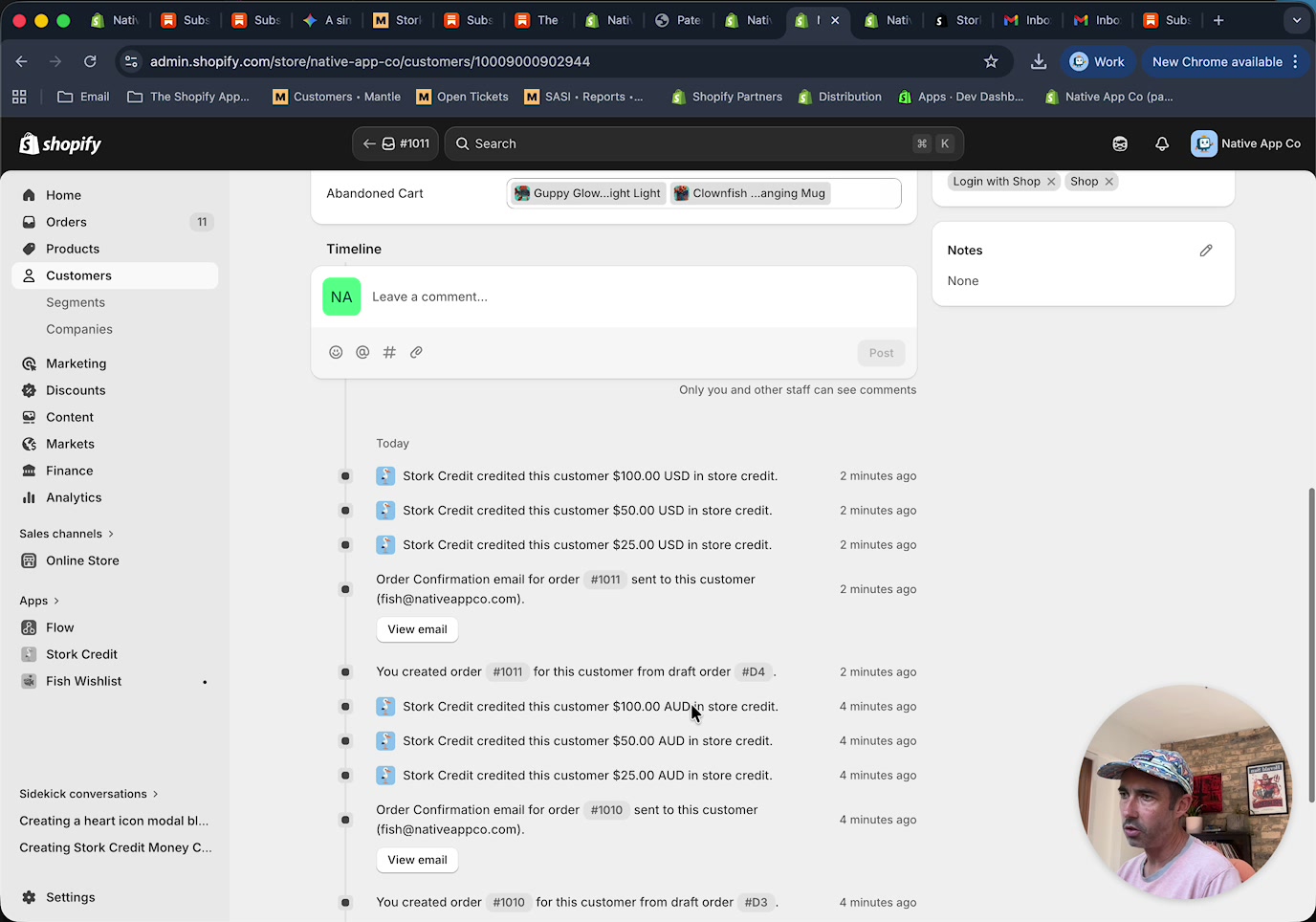
These timeline events are useful for checking that your Shopify Flow automation credited the correct amounts in the correct currency.
When the customer reaches checkout, they can redeem store credit in the currency of the order they are placing.
If they check out in AUD, they can use their AUD balance.
If they check out in USD, they can use their USD balance.
The customer cannot combine AUD and USD balances on the same order, which is usually acceptable because most customers shop in one market at a time.
What you need in your setup
Stork Credit installed
Shopify Flow automation that issues store credit when the gift card product is purchased. Note: the Gift Card product you set up should just be a digital product, not an actual Gift Card.
Shopify Markets pricing configured if you want the same product to sell in different local currencies. You can manually set different prices for each currency within Shopify Markets.
The walkthrough is based on a setup where the same product has local market pricing, and the Flow issues store credit based on the order currency.
If you are already using the gift card product as the purchase trigger, you can keep that product experience for shoppers in your primary market, and use store credit instead of a gift card code for secondary markets.
Important behavior to understand
Store credit balances are currency-specific. A customer can hold multiple balances, but they redeem only the balance that matches the currency of their current checkout.
This avoids exchange-rate changes affecting the stored value.
It also gives customers a more predictable redemption experience in Shopify Markets.
Sending credit to a friend
If you want customers to buy this as a gift for someone else, you will need an extra step in your storefront and automation.
Capture the recipient's email address as a line item property on the gift card product.
Update your Shopify Flow so the credit is issued to that recipient instead of the purchaser.
This lets you keep the same multi-currency store credit approach while supporting gifting workflows.
Emailing the recipient
By default, you can rely on Shopify's store credit notification template, but many stores prefer a more polished gift experience.
You can connect an email platform such as Klaviyo to send a more customer-friendly email after the credit is issued.
This is especially useful if you want branded gifting emails, scheduled sends, or custom messaging for the sender and recipient.
Need help?
If you need help setting this up, contact [email protected].