
Stork Credit Checkout Widget
What this checkout block does
The Stork Credit checkout block (labeled Automatic Store Credit in the editor) displays a message during checkout showing customers how much store credit they’ll earn from the current order.
This is an informational widget only. It does not change Shopify’s built-in store credit redemption experience in checkout.
Before you start
Install the Stork Credit app on your Shopify store.
Ensure you have at least one earning rule enabled in Stork Credit so the checkout message can show a non-zero earned amount.
Step 1: Open the Shopify checkout editor
In your Shopify admin, open the Checkout editor (the visual editor where you can add blocks to checkout).
If you have multiple checkout profiles or markets, make sure you’re editing the right one before you add the block.
Step 2: Find the Stork Credit block in the sidebar
In the left sidebar, open the Apps section and look for the Stork Credit entry. You should see the block named Automatic Store Credit available to add.
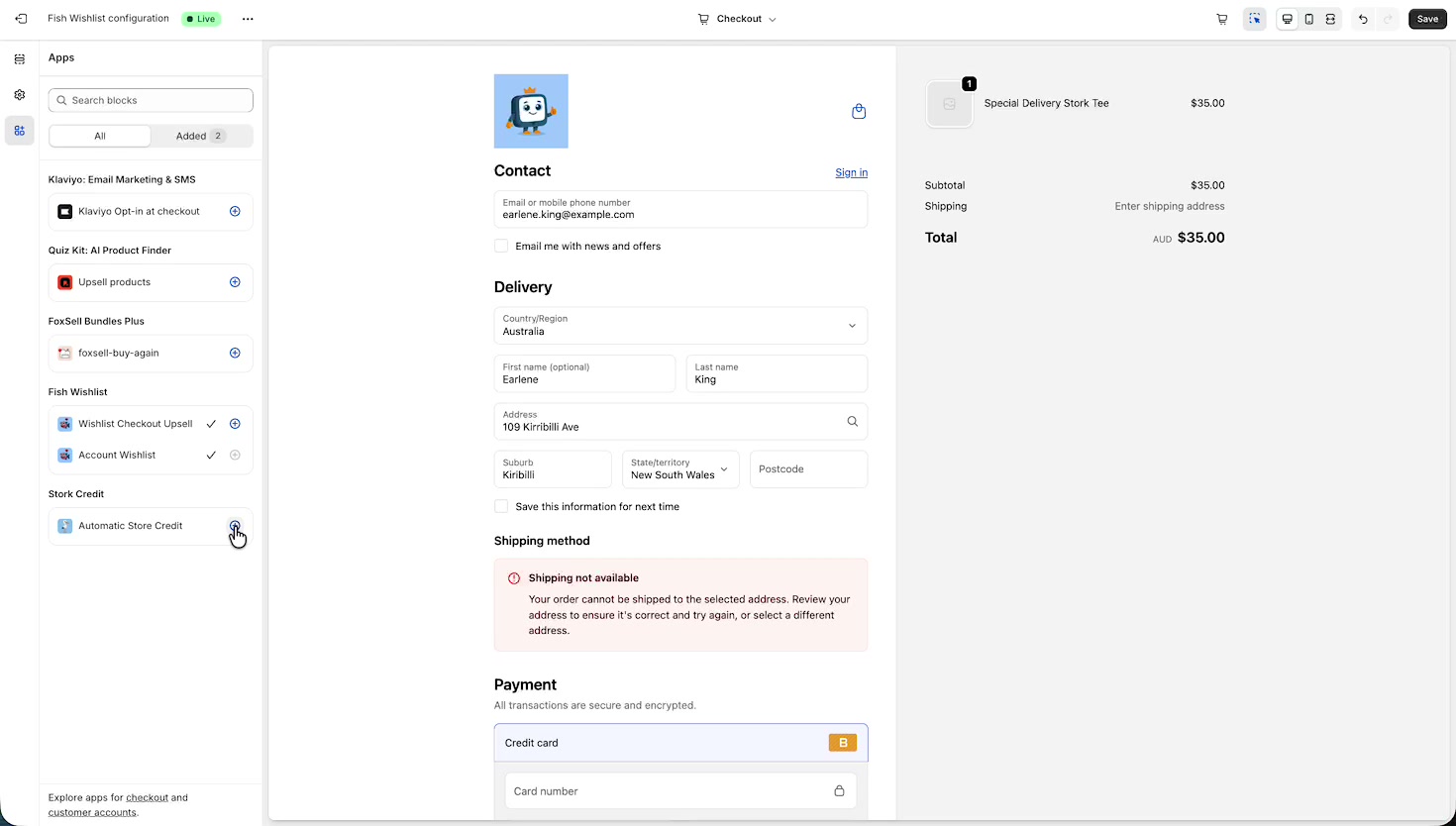
Step 3: Add the block to checkout
Click the + (add) button next to Automatic Store Credit under the Stork Credit app section.
The block appears in the checkout preview with an “earned store credit” message (for example: Earn Store Credit! and Complete this order to earn $X.XX in store credit!).
The earned store credit amount shown in the preview can change based on the order total and your Stork Credit earning rules.
Step 4: Configure the block settings
Click the block in the left sidebar (under Main) to open its settings. When selected, the settings panel shows Checkout behavior options.
Checkout behavior options
Include block in Shop Pay: Toggle this on if you want the message to appear in Shop Pay checkout.
Preview Shop Pay: Use this to preview how the block looks in the Shop Pay experience.
Manage app: Opens Stork Credit management from the editor so you can adjust app-level settings (outside of this block’s placement).
Step 5: Save your checkout changes
Click Save in the checkout editor to publish your changes.
If you navigate away without saving, Shopify won’t publish the block placement and your customers won’t see the earned store credit message.
Troubleshooting
You don’t see “Automatic Store Credit” under Apps: Confirm the Stork Credit app is installed for this store, then reload the Checkout editor.
The preview shows $0.00 (or doesn’t change): Verify you have an active earning rule in Stork Credit and that the preview order total meets the rule conditions.
The message doesn’t appear in Shop Pay: In the block settings, enable Include block in Shop Pay, then use Preview Shop Pay to confirm.
During checkout, customers will see a Stork Credit message telling them how much store credit they’ll earn by completing the order. This helps motivate checkout completion without changing how store credit redemption works in Shopify checkout.