Collection audits and AI prompts
Product Pelican helps you review and improve your Shopify collections from one place. On the Collections page, the Collection Data Quality dashboard highlights missing or weak collection content, then gives you actions to generate and apply fixes.
This matters for both SEO and GEO. Strong collection descriptions, banner images, alt text, and search engine fields make your collection pages clearer for shoppers, more understandable to search engines, and easier for AI systems to interpret.
This guide follows the same order as the walkthrough: start on Collections, work through the collection audits, then finish on AI Prompts to customize future AI output.
Start on the Collections dashboard
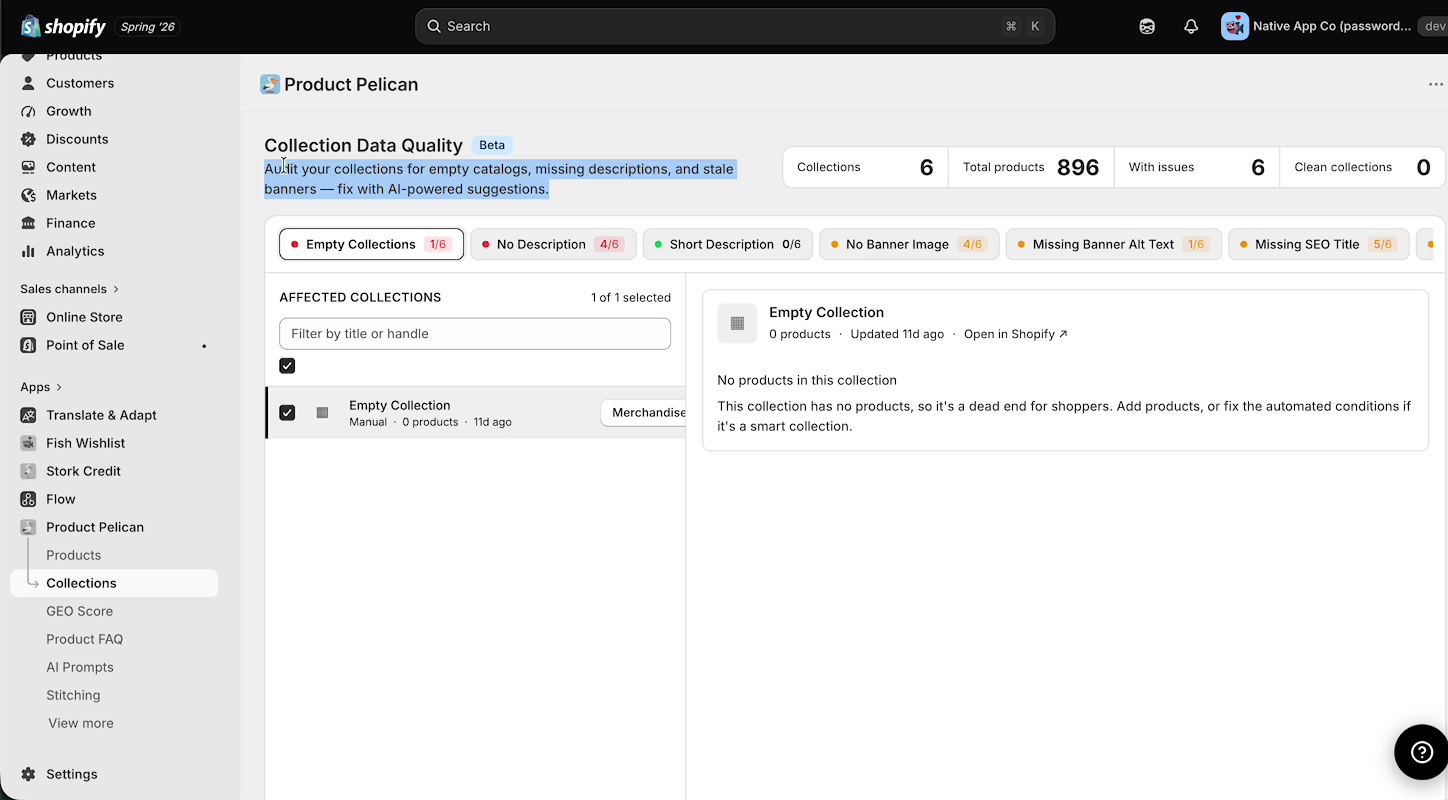
In Shopify admin, open Product Pelican and select Collections in the left navigation. The main page heading is Collection Data Quality and it is marked Beta.
Below that, the dashboard groups collection issues into audit tabs. The walkthrough shows these collection checks:
Empty Collections
No Description
Short Description
No Banner Image
Missing Banner Alt Text
Missing SEO Title
Missing Meta Description
Stale (90d+)
When you open an audit, the left side shows AFFECTED COLLECTIONS with a filter box labeled Filter by title or handle. The right side shows details and actions for the selected collection.
Start with the audits that block shoppers or leave a collection page looking unfinished: Empty Collections, No Description, No Banner Image, and missing SEO fields.
1. Review empty collections
The walkthrough starts with Empty Collections. This audit identifies collections with no products and explains why they need attention.
When you select an empty collection, the details panel explains that the collection has no products and can become a dead end for shoppers. From that panel, you can use the Open in Shopify link to jump to the collection in Shopify admin.
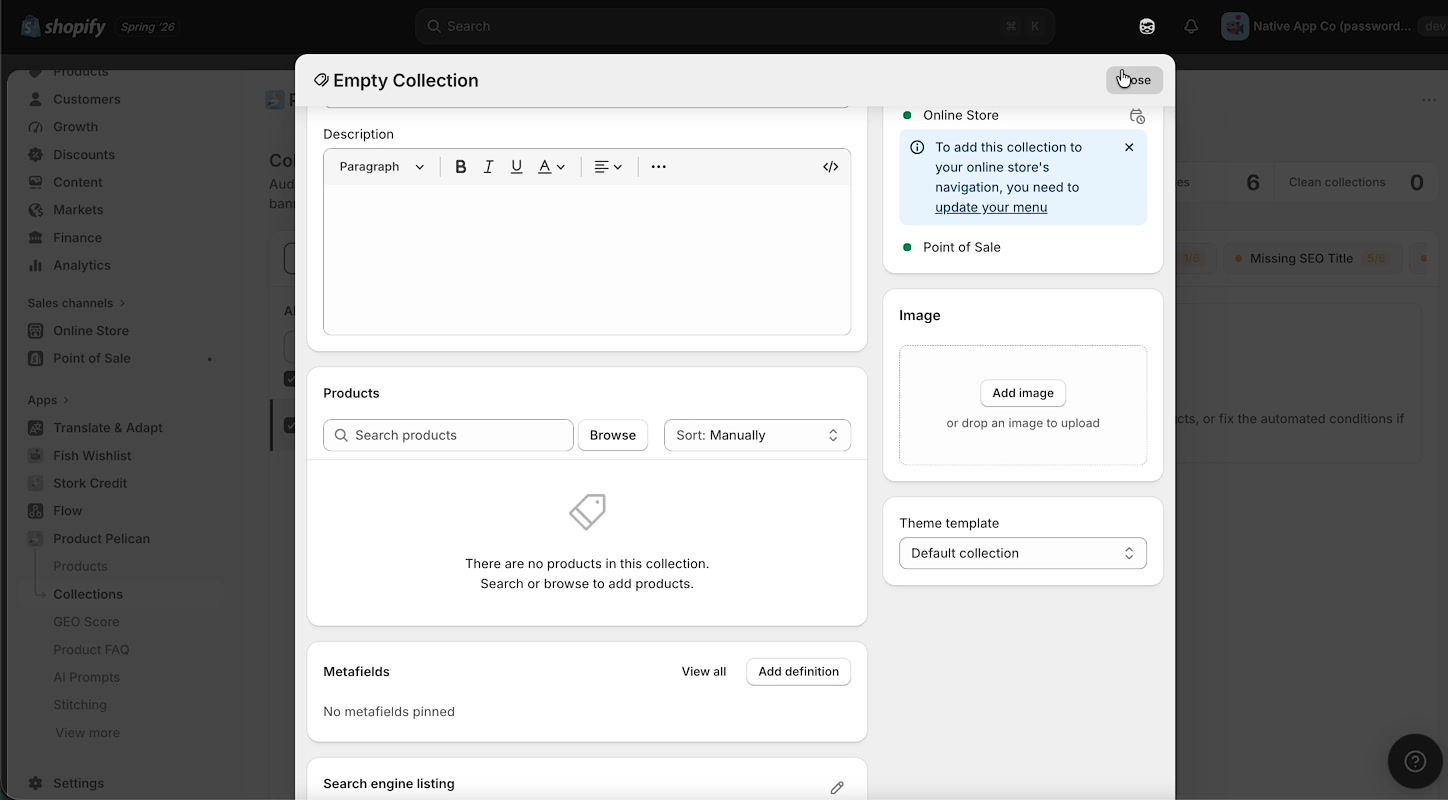
Product Pelican can help you improve collection content, but an empty collection still needs products or working collection conditions in Shopify.
2. Fill in missing collection descriptions
Next, the walkthrough moves to the No Description audit. This is where Product Pelican helps you write collection descriptions with AI.
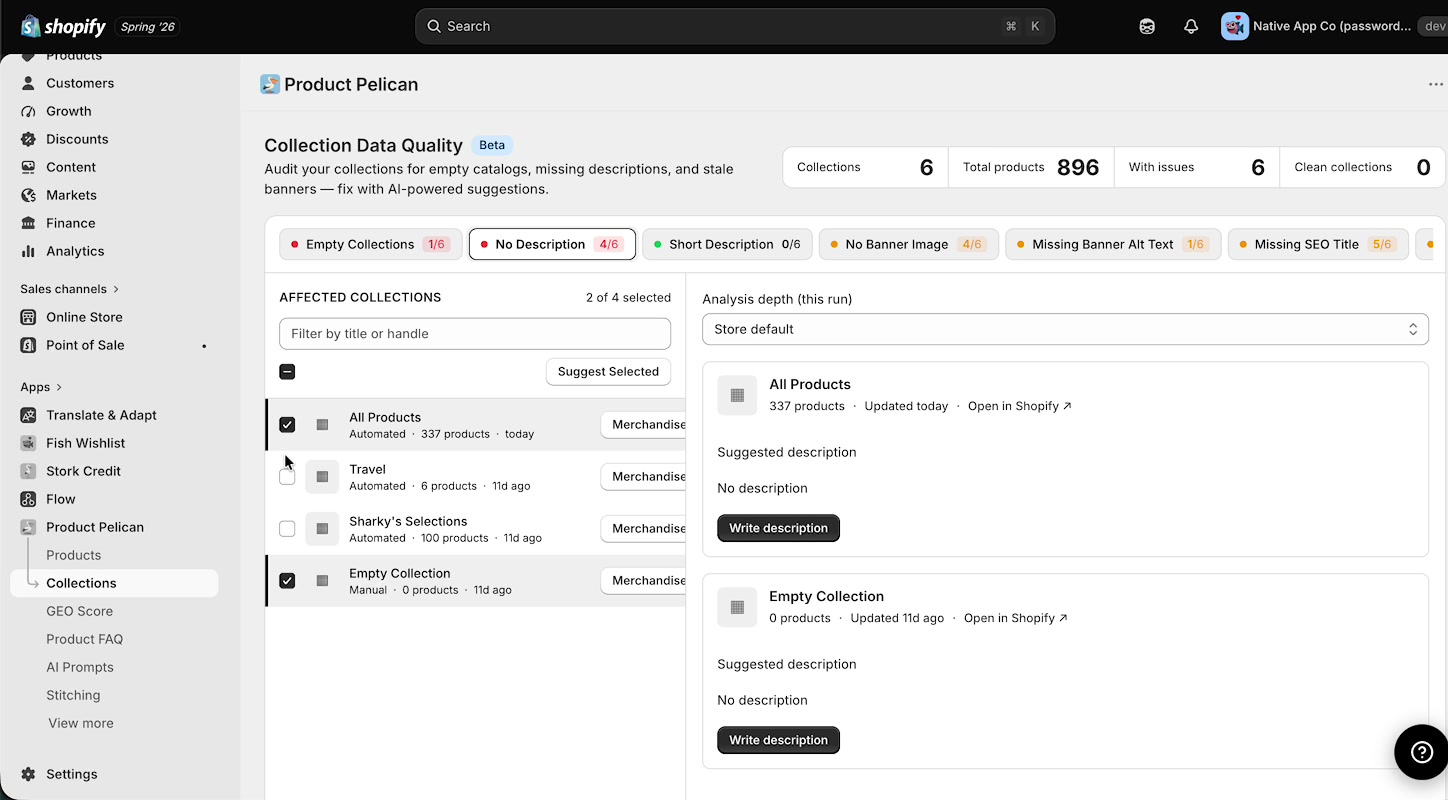
You can select one or more collections in AFFECTED COLLECTIONS, then use:
Suggest Selected to generate descriptions for the selected rows
Write description on an individual collection
Accept Selected once you are happy with the generated content
The right side of the screen also shows Analysis depth (this run), with the walkthrough using Store default.
After generation, Product Pelican shows the full suggested text inside the collection detail panel. The walkthrough then shows the controls you use to finish the job:
Apply to save that suggestion
Redo to generate a different version
Accept Selected for multi-select review workflows
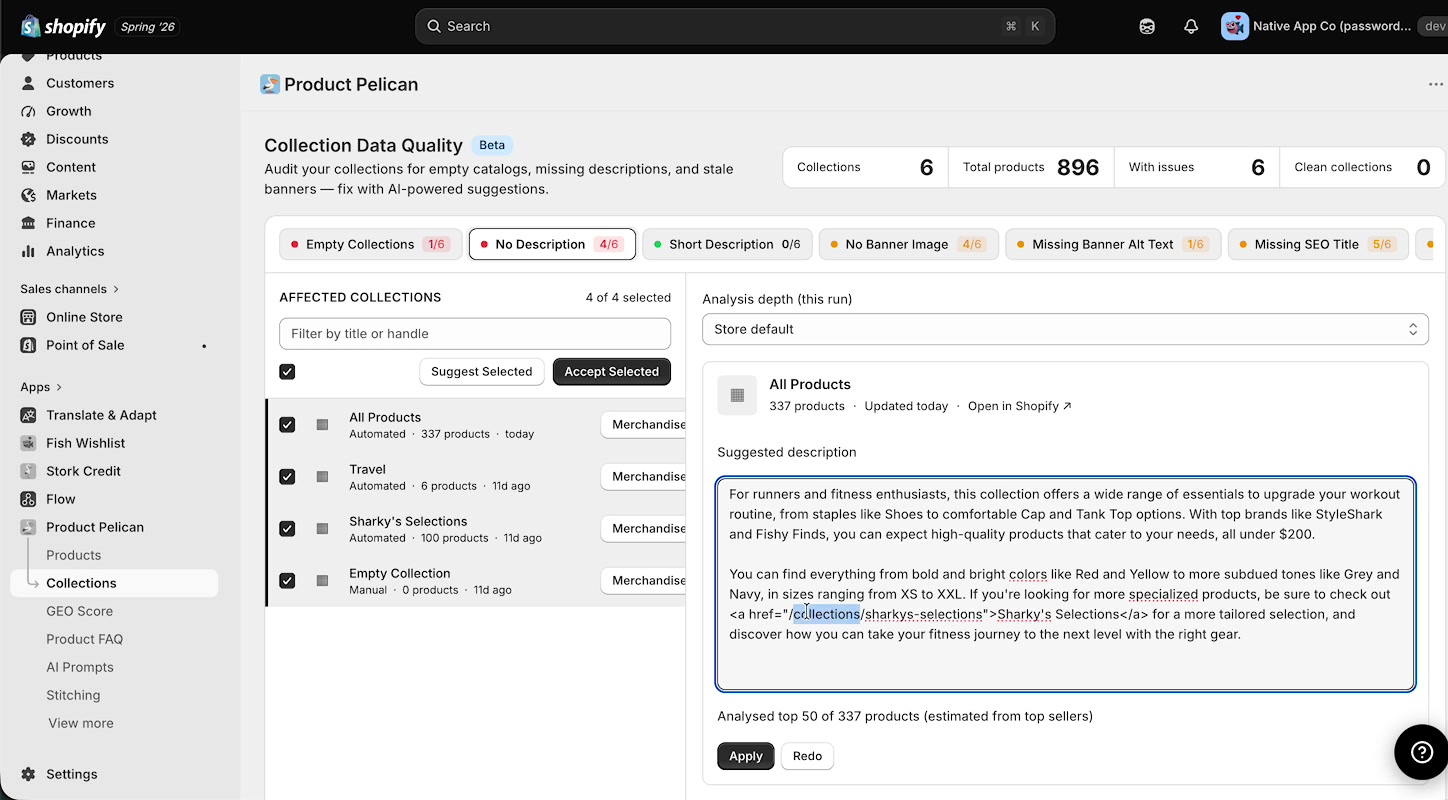
Always review generated collection copy before applying it. Collections often represent broad product groups, so the description should match what is actually in the collection.
3. Add missing banner images
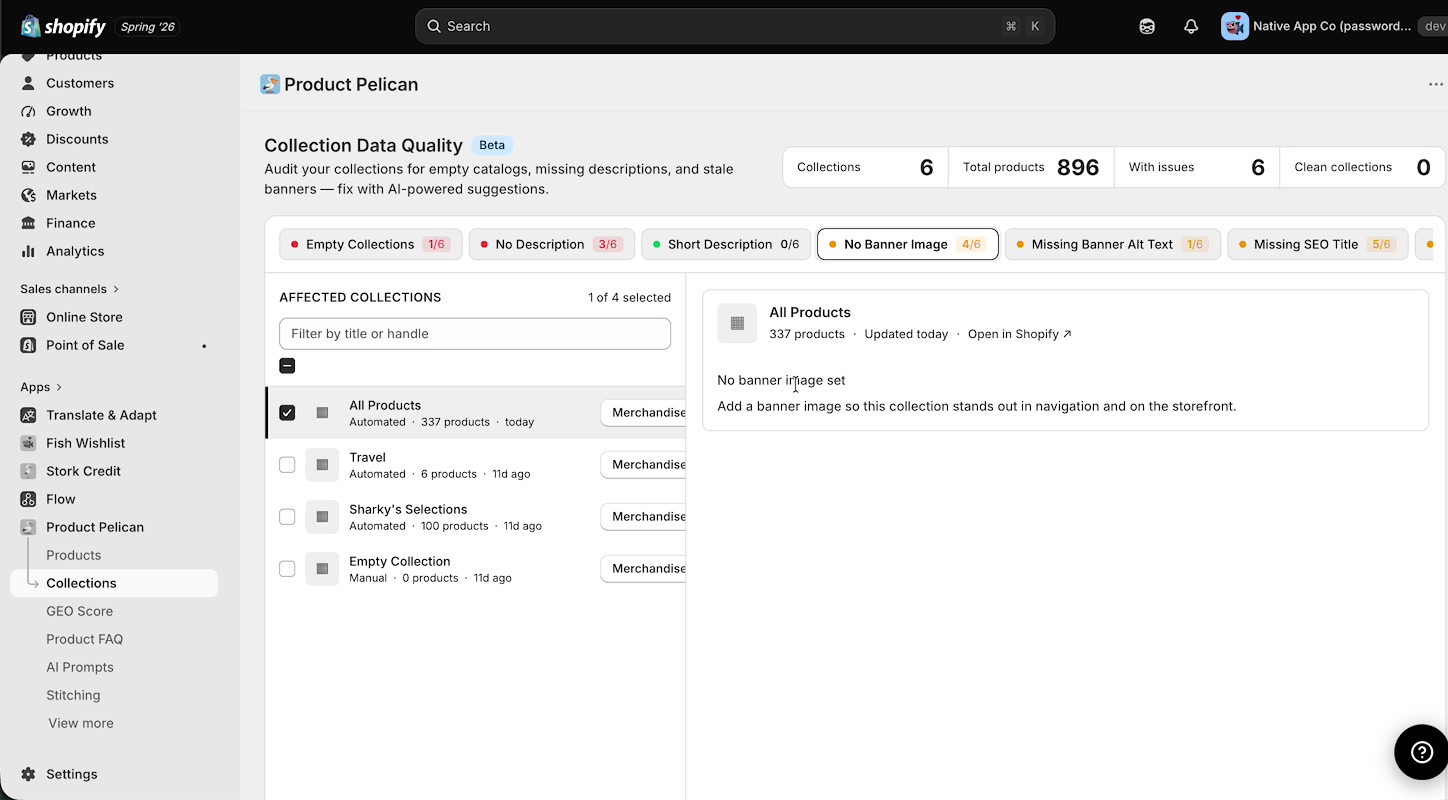
After the description is in place, the walkthrough moves to No Banner Image. This audit shows collections that do not yet have a banner image set.
When you select a collection, Product Pelican explains the issue in plain language, such as No banner image set, and prompts you to add a banner so the collection stands out in navigation and on the storefront.
From there, the walkthrough opens the Shopify collection editor again. You can see the new AI-written description already in place, plus the Image area where the banner image can be uploaded.
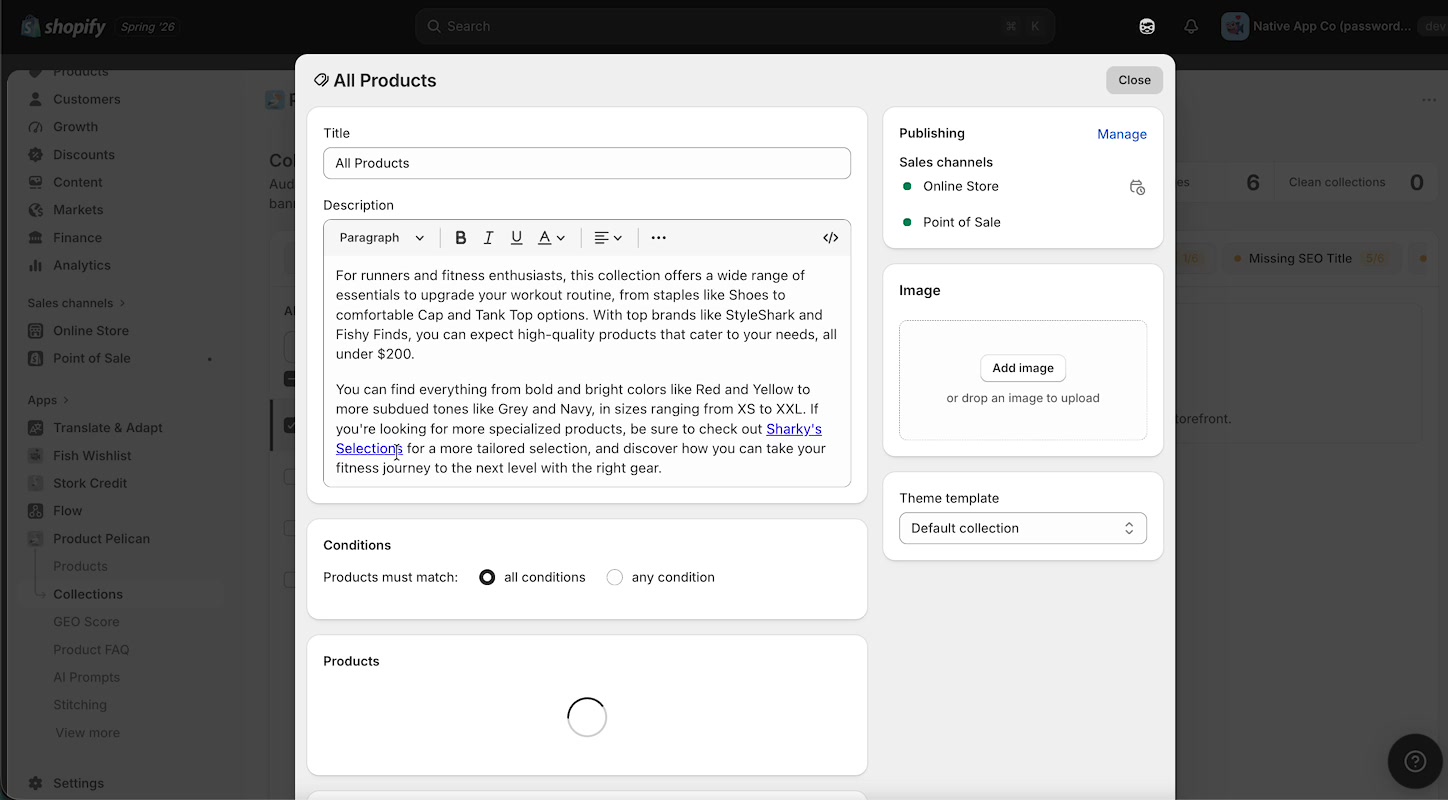
Use this workflow when a collection already has products and copy, but still needs a visual banner to feel complete.
4. Generate missing banner alt text
Once banner images exist, Product Pelican can help you fill in missing image alt text through the Missing Banner Alt Text audit.
The walkthrough shows a selected collection with a status of Generating... while Product Pelican creates a suggested alt text for the banner image.
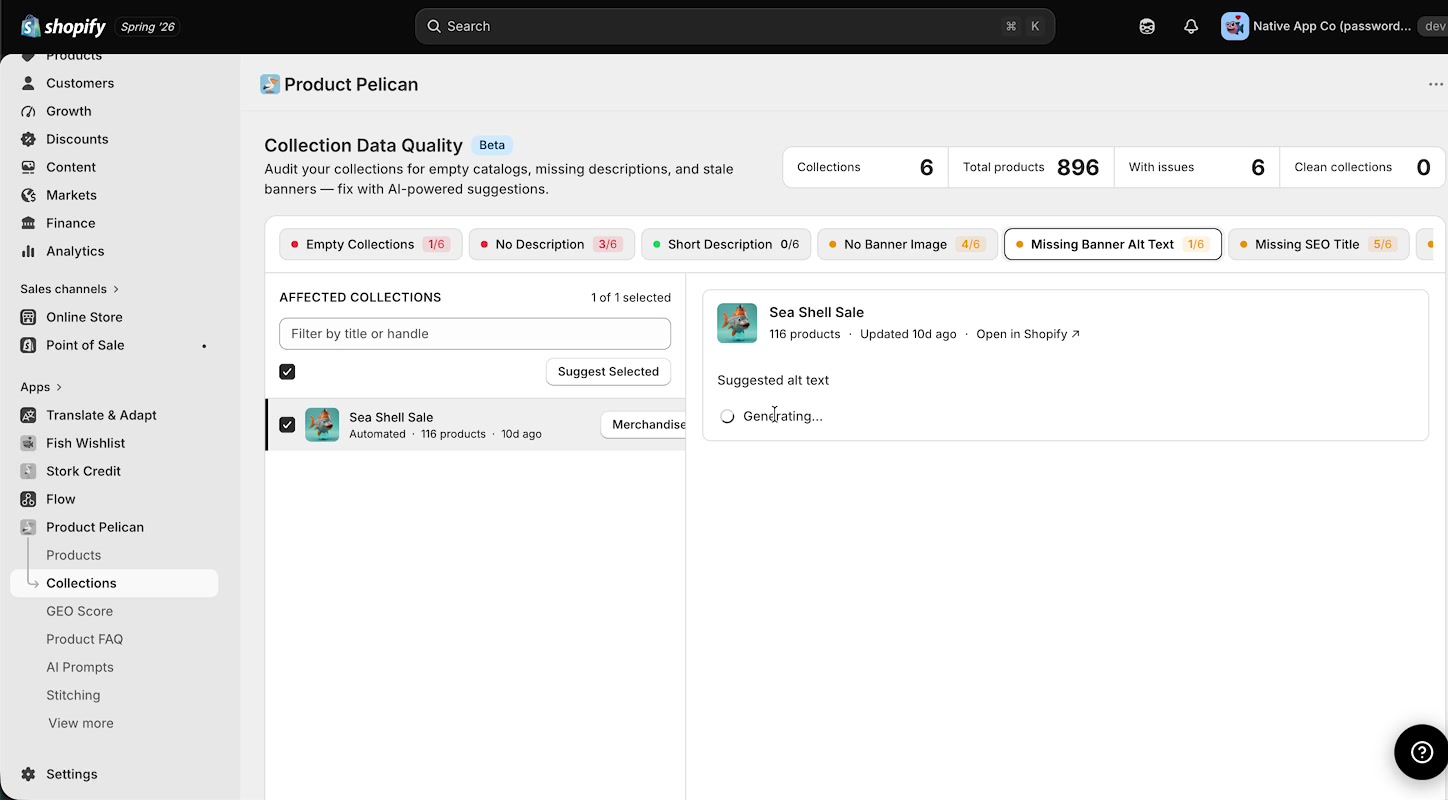
This audit is useful for both accessibility and discoverability. Good alt text helps describe the banner image clearly while reinforcing the collection topic.
Banner alt text should describe the image and the collection theme naturally. Avoid stuffing keywords into the text just to rank.
5. Apply missing SEO title and meta description
The walkthrough then moves to collection SEO fields. Product Pelican surfaces missing search engine content through audits including Missing SEO Title and Missing Meta Description.
In the Missing SEO Title view, Product Pelican prepares the search fields so you can review and apply them without writing everything from scratch.
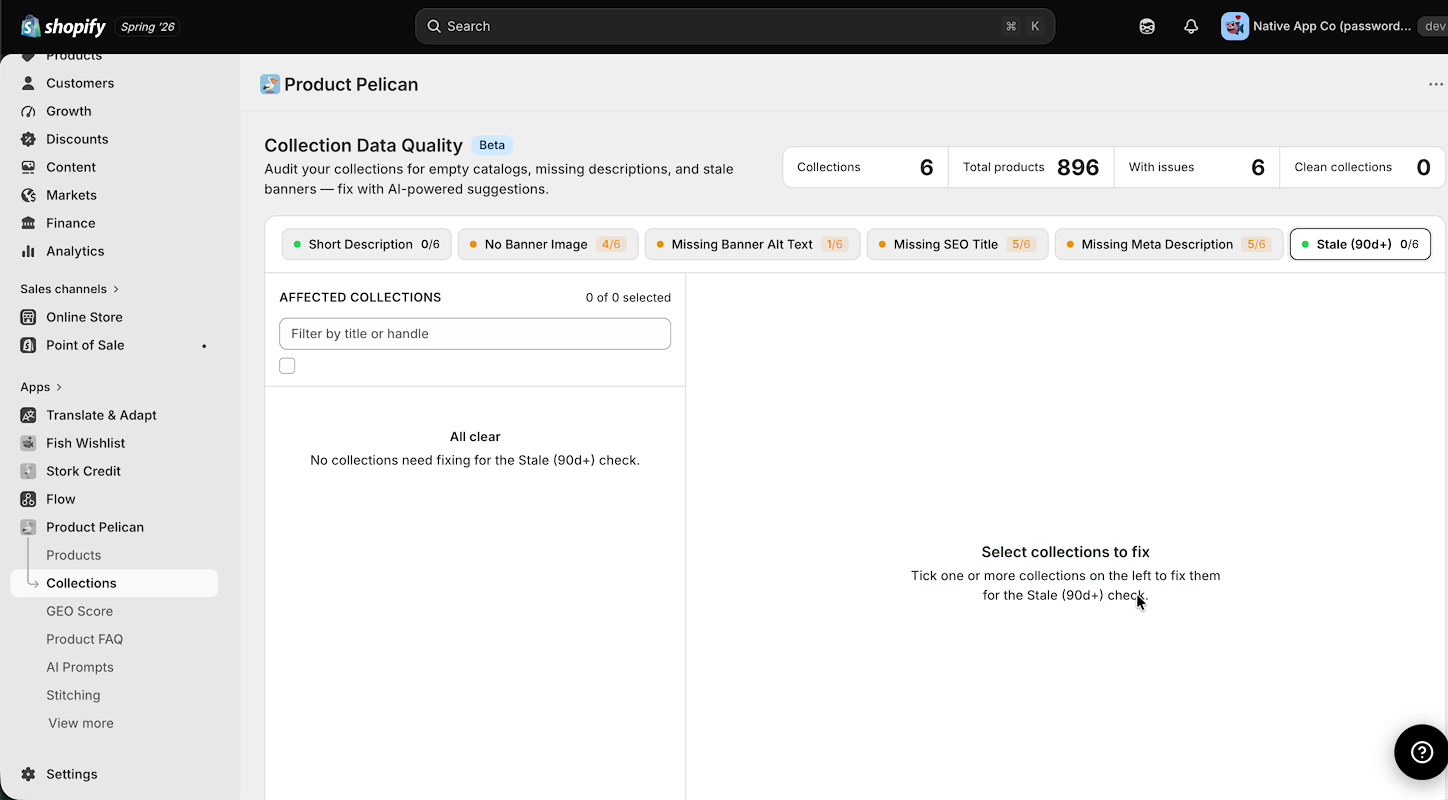
Use these audits to improve how collection pages appear in search results. Strong SEO titles and meta descriptions can make collection pages more descriptive, easier to understand, and more clickable.
6. Customize collection AI prompts
The walkthrough finishes on AI Prompts in the left navigation. This is where you control how Product Pelican generates future AI suggestions.
For collections, the prompt list shown in the walkthrough includes:
Collection Description
Collection Banner Alt Text
Collection SEO
The screen also shows other prompt types for products, but for collection work, these three are the key ones to review.
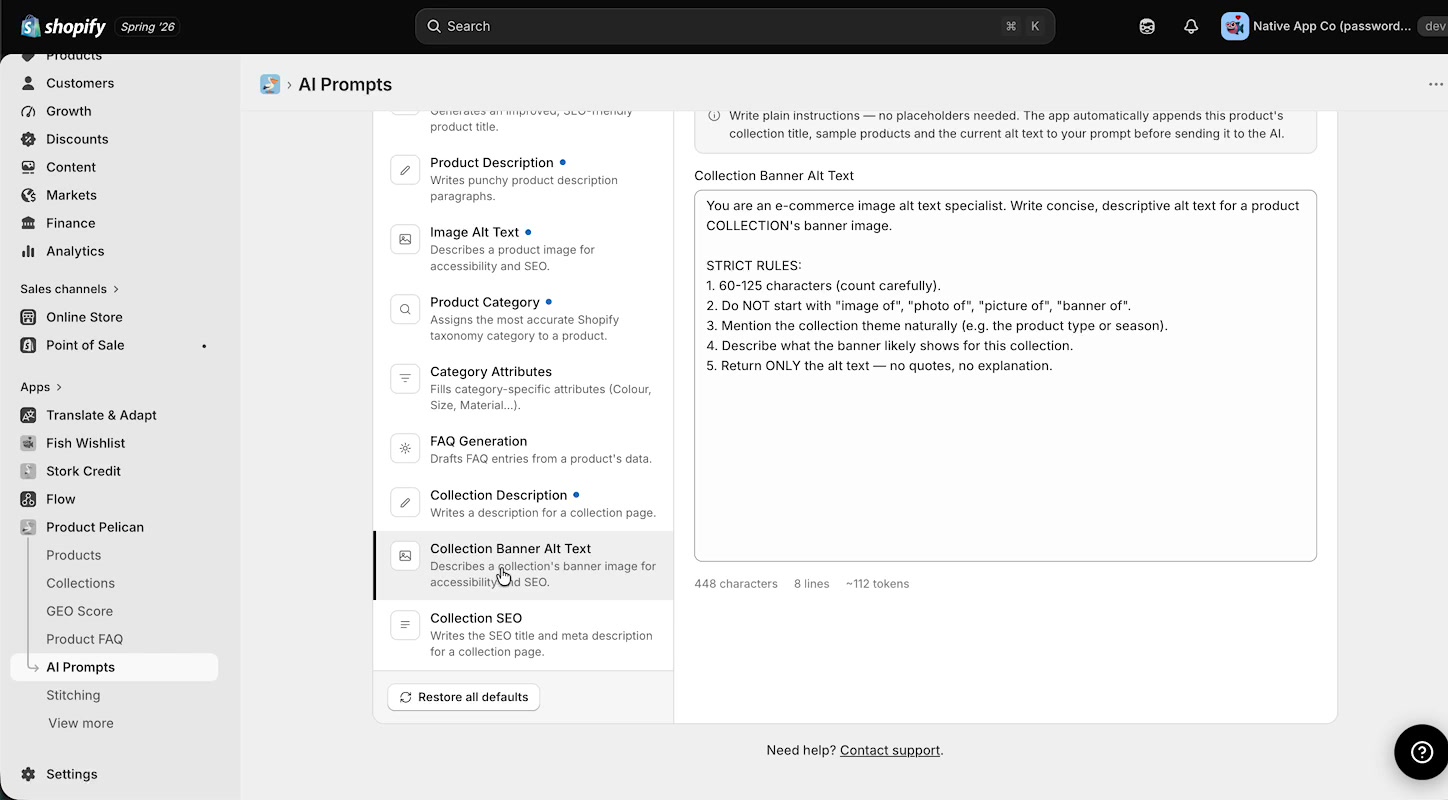
When you open Collection Banner Alt Text, the prompt editor lets you define the rules Product Pelican should follow. The walkthrough shows prompt instructions that control things like character length, phrasing, and how the collection theme should be reflected.
Use the prompt settings when you want collection content to consistently match your brand, merchandising style, and SEO priorities.
Prompt changes affect future suggestions. If you want updated descriptions, alt text, or SEO fields, return to the audit and generate them again after saving your prompt changes.
Why these audits matter for SEO and GEO
Descriptions help explain what the collection contains and why it is useful.
Banner images make collection pages feel complete and more engaging.
Banner alt text improves accessibility and helps image content make sense to search systems.
SEO titles and meta descriptions improve how collection pages are represented in search results.
Prompt customization helps you keep AI-generated collection content aligned with your store’s voice and standards.
Optimizing collections is not just a content cleanup task. It improves how your collection pages are understood by shoppers, search engines, and AI-driven discovery tools.