
Product Pelican walkthrough
What Product Pelican helps you do
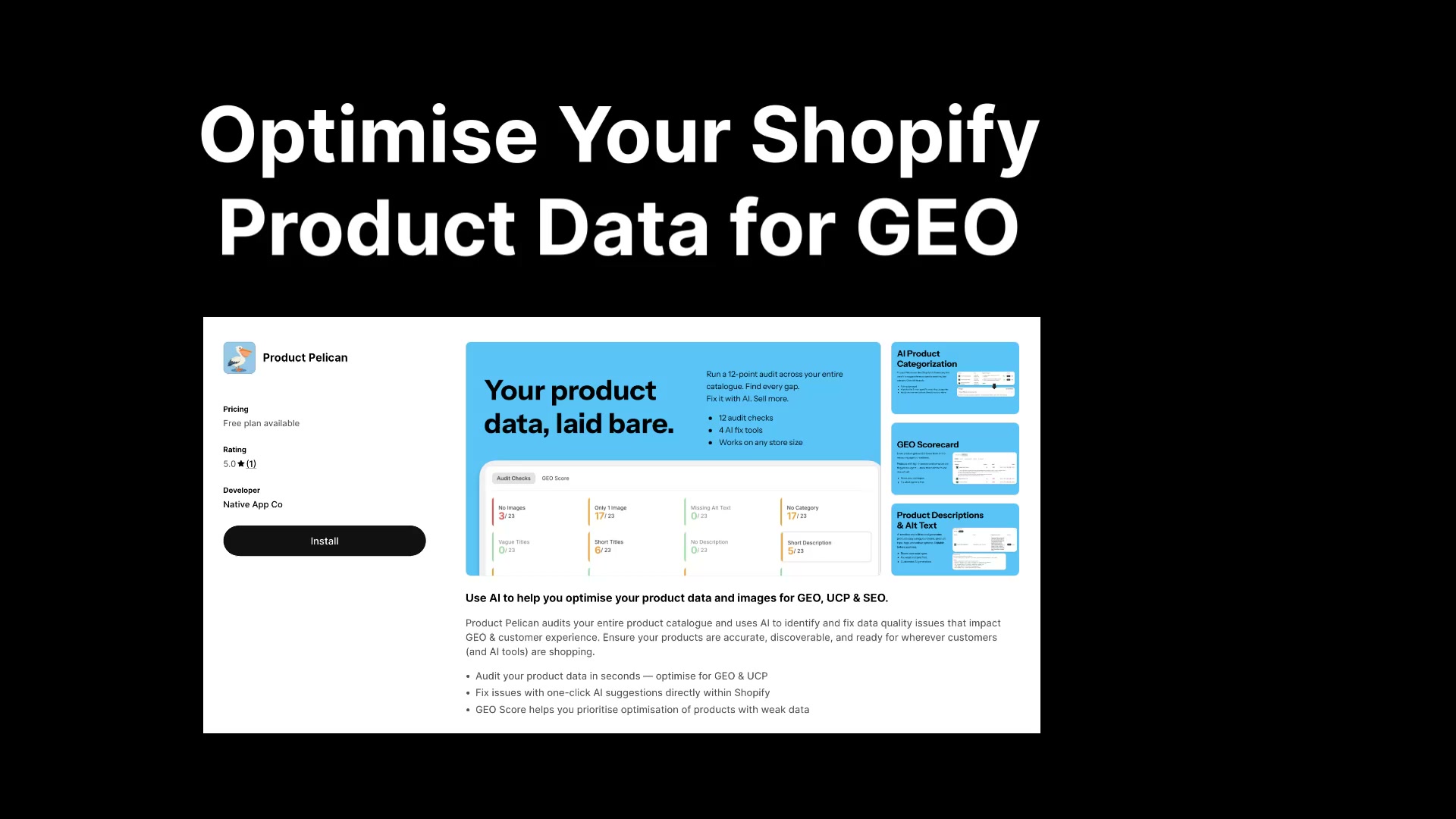
Product Pelican is built to help you review product data, fix common catalog issues in bulk, and use AI suggestions without leaving the app. In the Shopify admin, the main workspace appears under Product Pelican with pages including Product Health, AI Prompts, and Plans.
Feature summary
Product Health dashboard: shows catalog totals and the full set of audit checks in one place.
Audit Checks tab: organizes issues like missing images, missing alt text, no category, short titles, short descriptions, missing SKUs, and zero price variants.
GEO Score tab: helps you prioritize products by quality band and score.
Bulk image fixes: lets you upload missing images and generate alt text without opening each product separately.
Category suggestions: recommends Shopify taxonomy categories and shows confidence indicators.
AI title suggestions: expands short titles into clearer, more descriptive product names.
AI description writing: creates longer product descriptions with row-level and bulk actions.
AI Prompts: gives you direct control over how future AI suggestions are generated.
This walkthrough shows all the features of Product Pelican: starting from the Product Data Quality Dashboard, opening key audits, and finishing with prompt tuning on the AI Prompts page.
Product Pelican audits your catalog across 12 checks and surfaces AI-powered suggestions for titles, descriptions, categories, and image alt text.
Start on Product Health
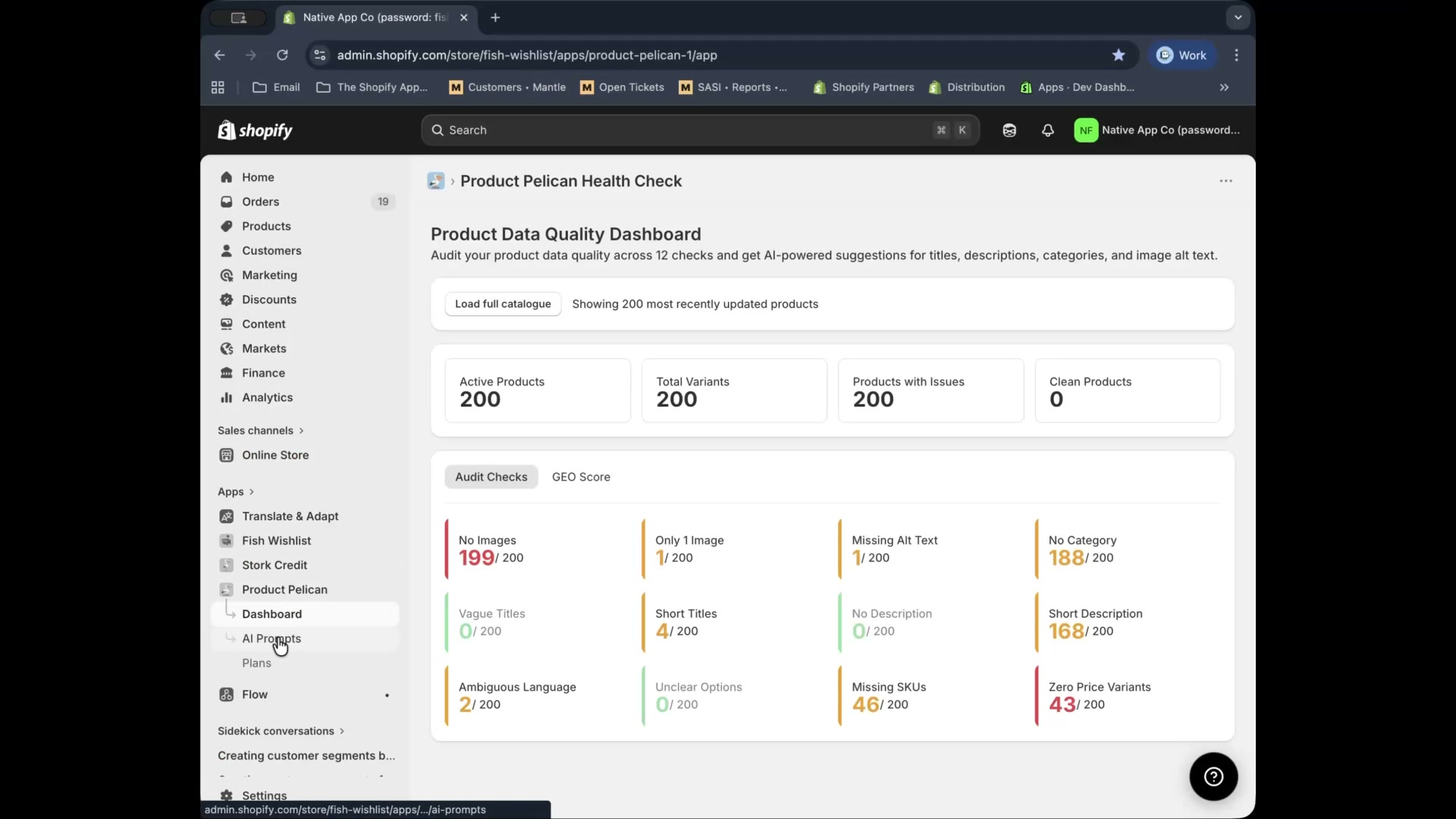
When you open the app, you land on Product Health. The page heading is Product Data Quality Dashboard, and it gives you a quick snapshot of overall catalog quality.
At the top of the dashboard, Product Pelican shows summary cards for:
Active Products
Total Variants
Products with Issues
Clean Products
Below the summary, the dashboard is split into two tabs:
Audit Checks
GEO Score
The Audit Checks tab shows 12 issue cards, including No Images, Only 1 Image, Missing Alt Text, No Category, Short Titles, No Description, Short Description, Missing SKUs, and Zero Price Variants.
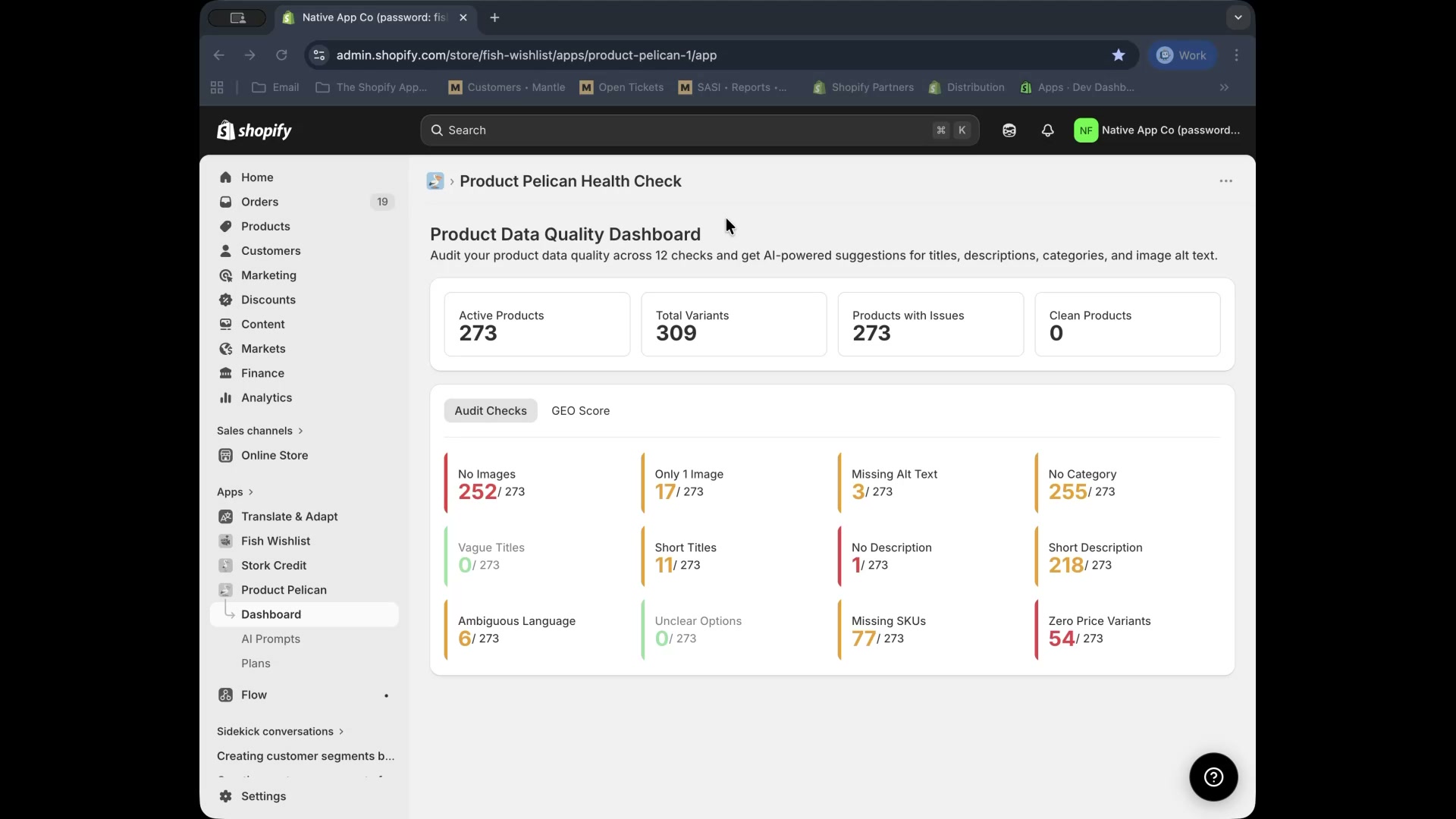
Start with the issue cards showing the highest counts. That is usually the fastest way to improve the largest number of products.
Use GEO Score to prioritize products
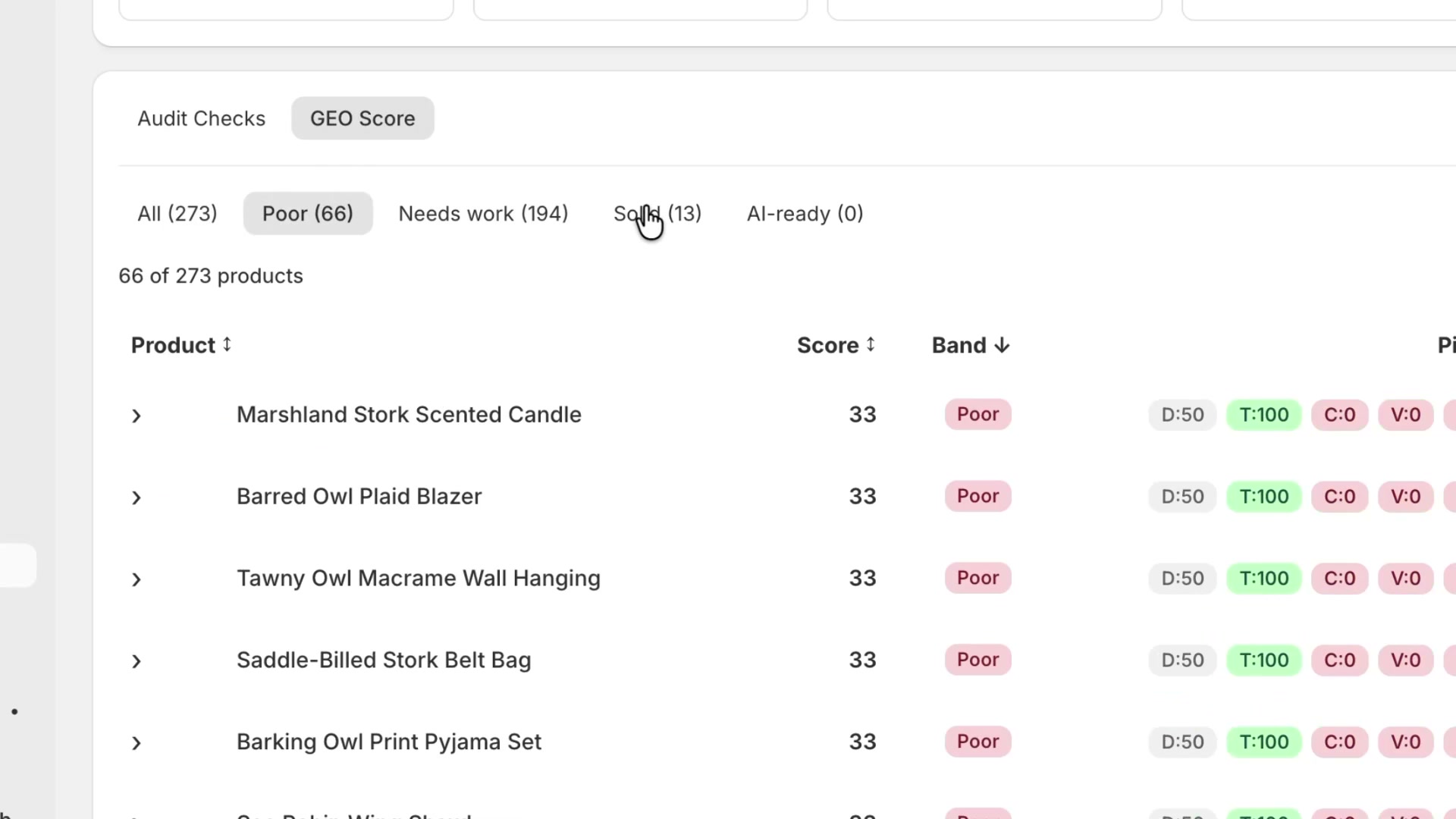
The GEO Score tab helps you review products by quality band instead of by issue type. In the walkthrough, products are grouped into:
All
Poor
Needs work
Solid
AI-ready
The table also shows sortable columns such as Product, Score, and Band, along with metric chips for each product. This makes it easier to sort, filter, and focus on the products most in need of improvement.
Fix image issues from the dashboard
No Images
Opening the No Images card expands a list of affected products directly on the dashboard. In the walkthrough, each row includes the product name and an Add Images area with an Add files button.
This workflow is designed for fast fixes. Instead of opening each product in Shopify, you can upload images directly from the audit panel.
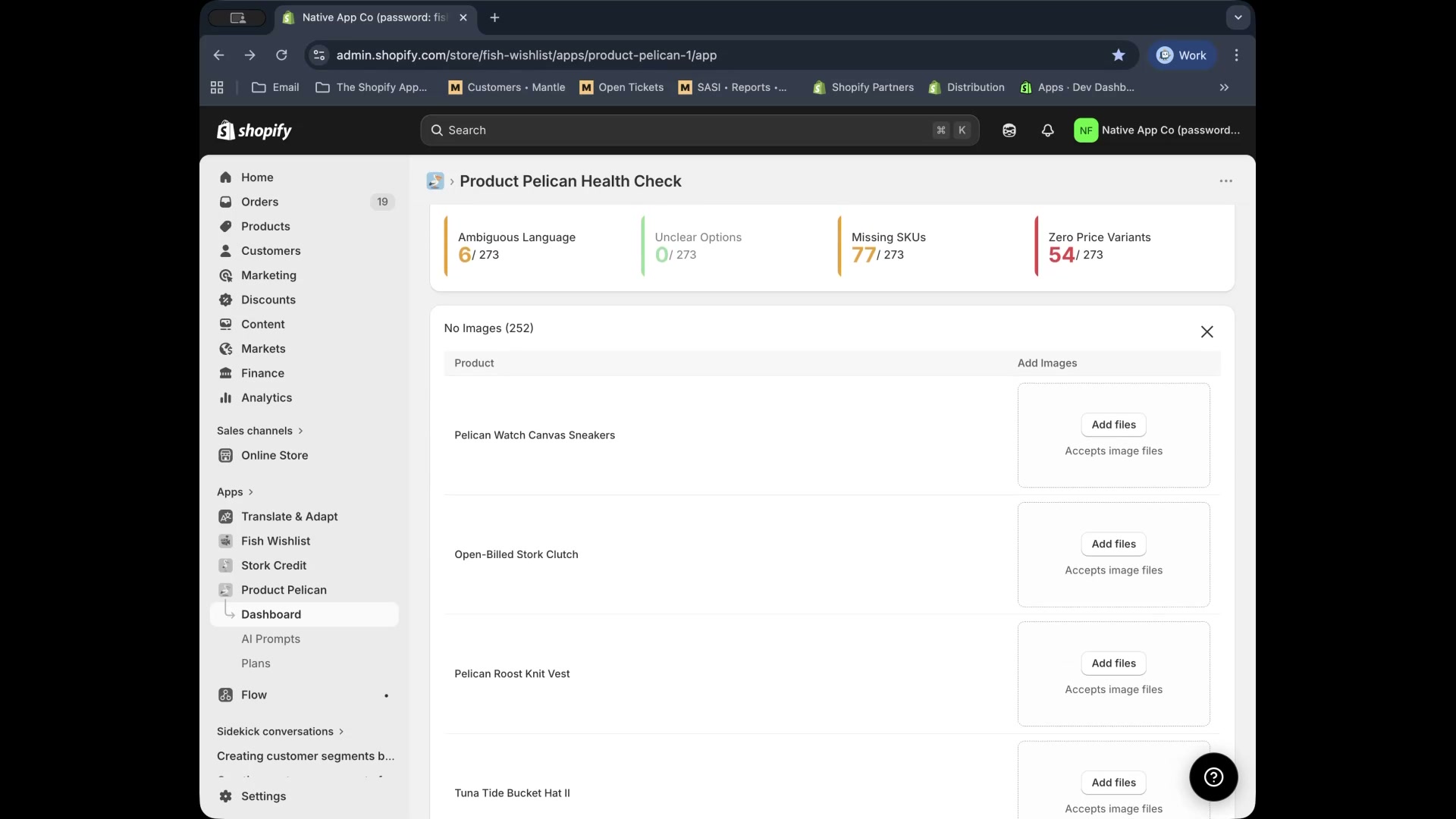
From Product Health, select No Images.
Use the Add files area for each product that needs an image.
The uploaded image is added to the product without opening the Shopify product editor separately.
Missing Alt Text
The Missing Alt Text audit shows image cards with the product name, filename, current issue, and a text field for the suggestion. At the top of the panel, you can switch between Missing / Poor and All Images.
The actions shown in the walkthrough include:
Generate Alt Text on individual images
Generate All for bulk generation
Save All for bulk saving
Apply, Regen, and Copy on individual suggestions
You can review the AI suggestion, edit it if needed, and then apply it directly to the product image.
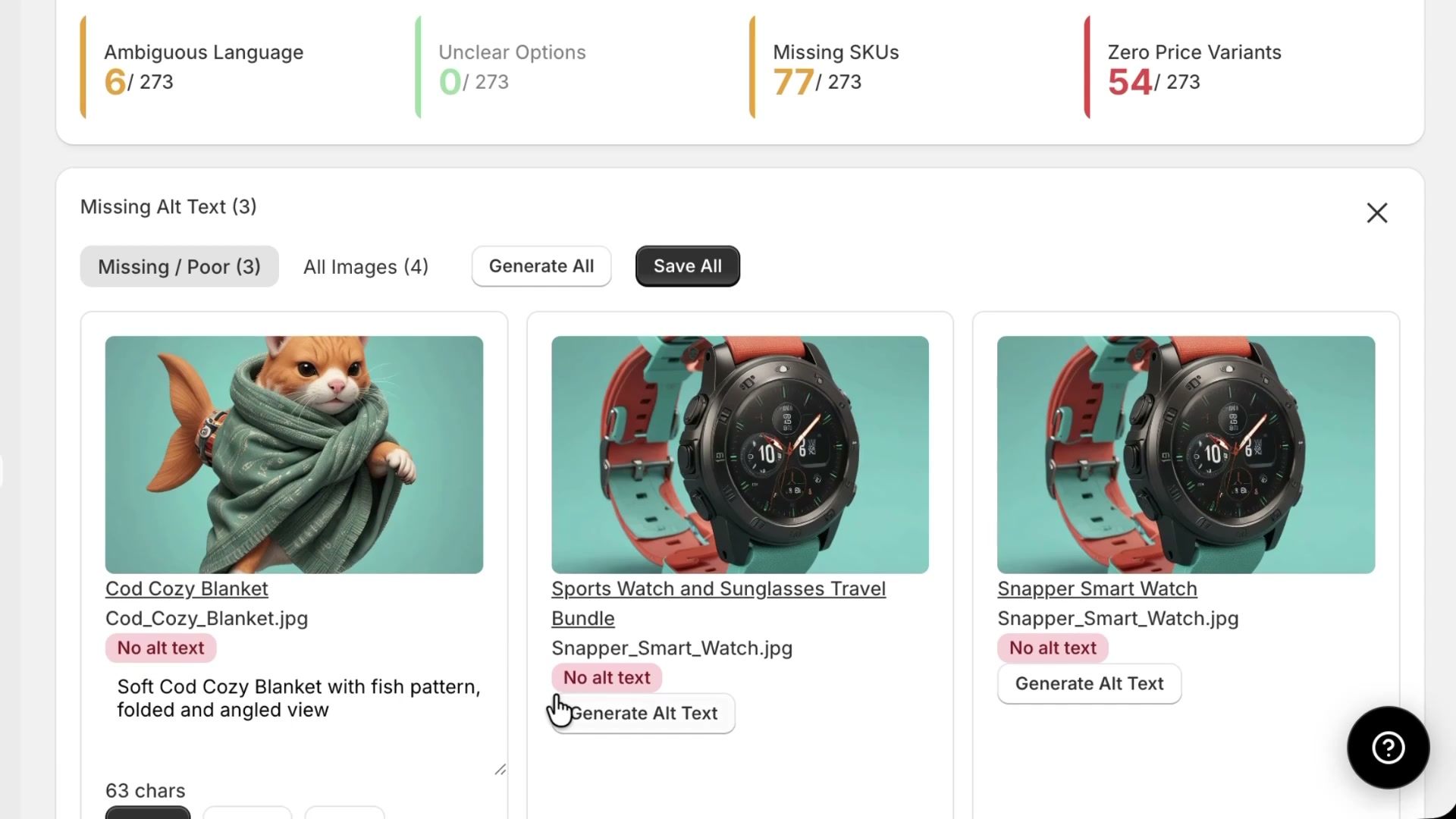
The alt text workflow is useful both for accessibility and for making product imagery easier for search engines and AI systems to interpret.
Fill in missing Shopify categories
The No Category audit looks for products without a Shopify category set. The panel includes a table with columns such as Product, Suggested Category, and Actions.
To generate recommendations, use:
Suggest All for the full list
Suggest on individual rows
Apply to accept a recommendation
Redo to generate a new suggestion
Apply All Selected when multiple suggestions are ready
The walkthrough also shows confidence badges such as Low, with applied rows marked as Applied.
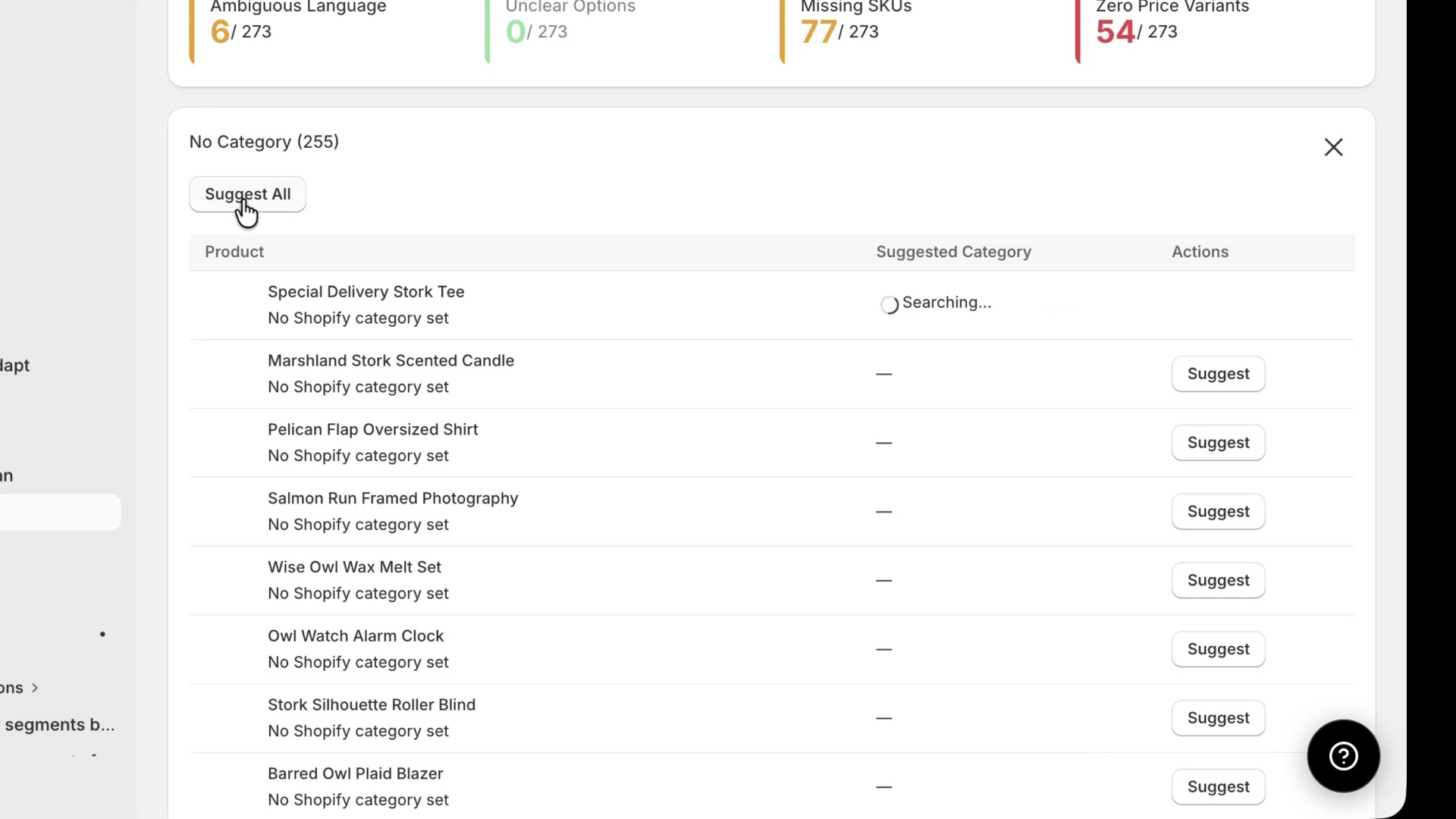
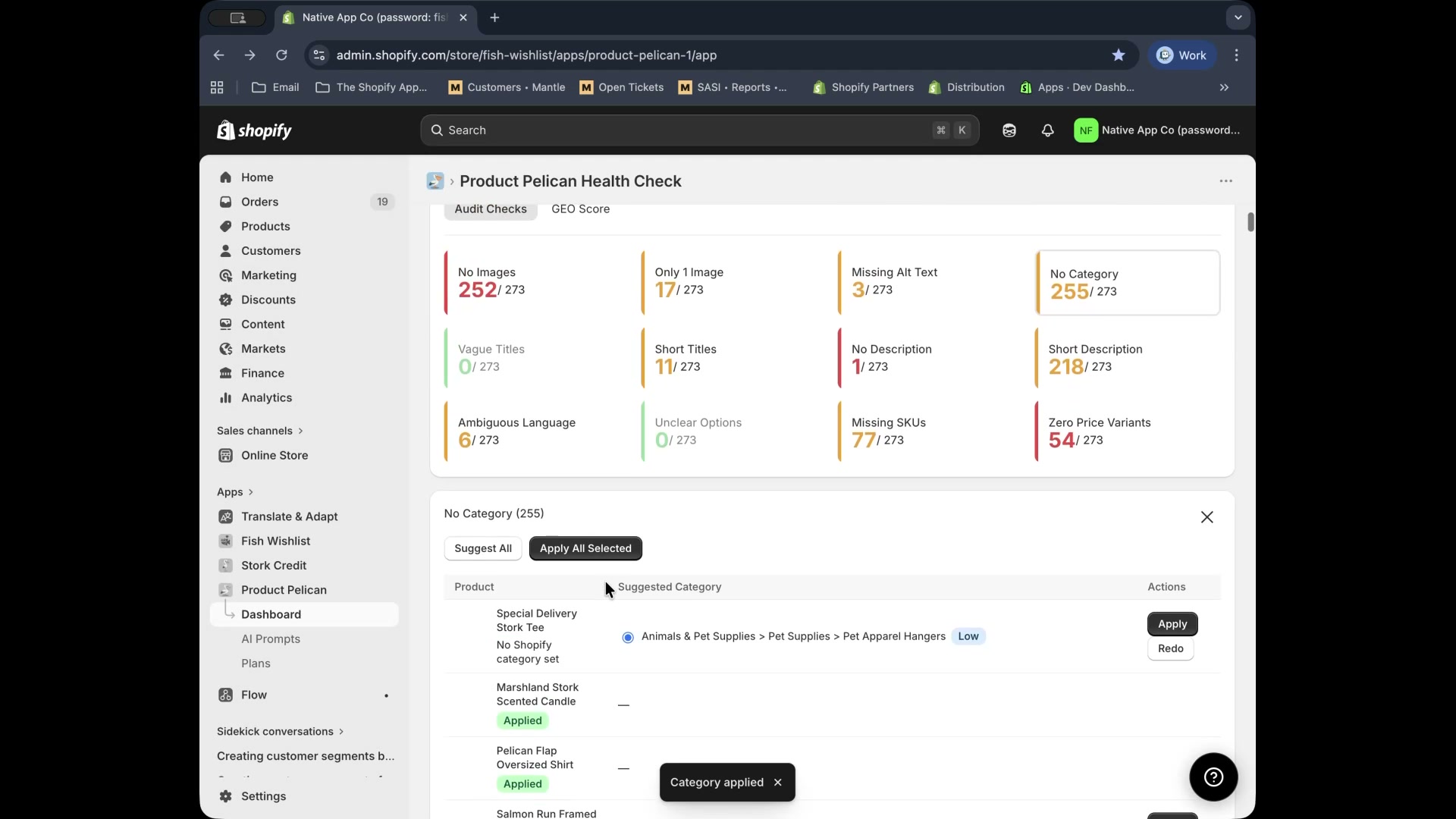
Review lower-confidence suggestions before applying them in bulk. They are useful prompts, but they may need a quick manual check.
Improve short product titles
The Short Titles audit highlights products whose current titles are too short to be descriptive. Each row shows the original product title, the issue length, the Suggested Title, and action buttons.
Common actions in this audit are:
Suggest
Suggest All
Apply
Redo
Save All
This is especially helpful for products with short names that do not clearly explain what the item is.
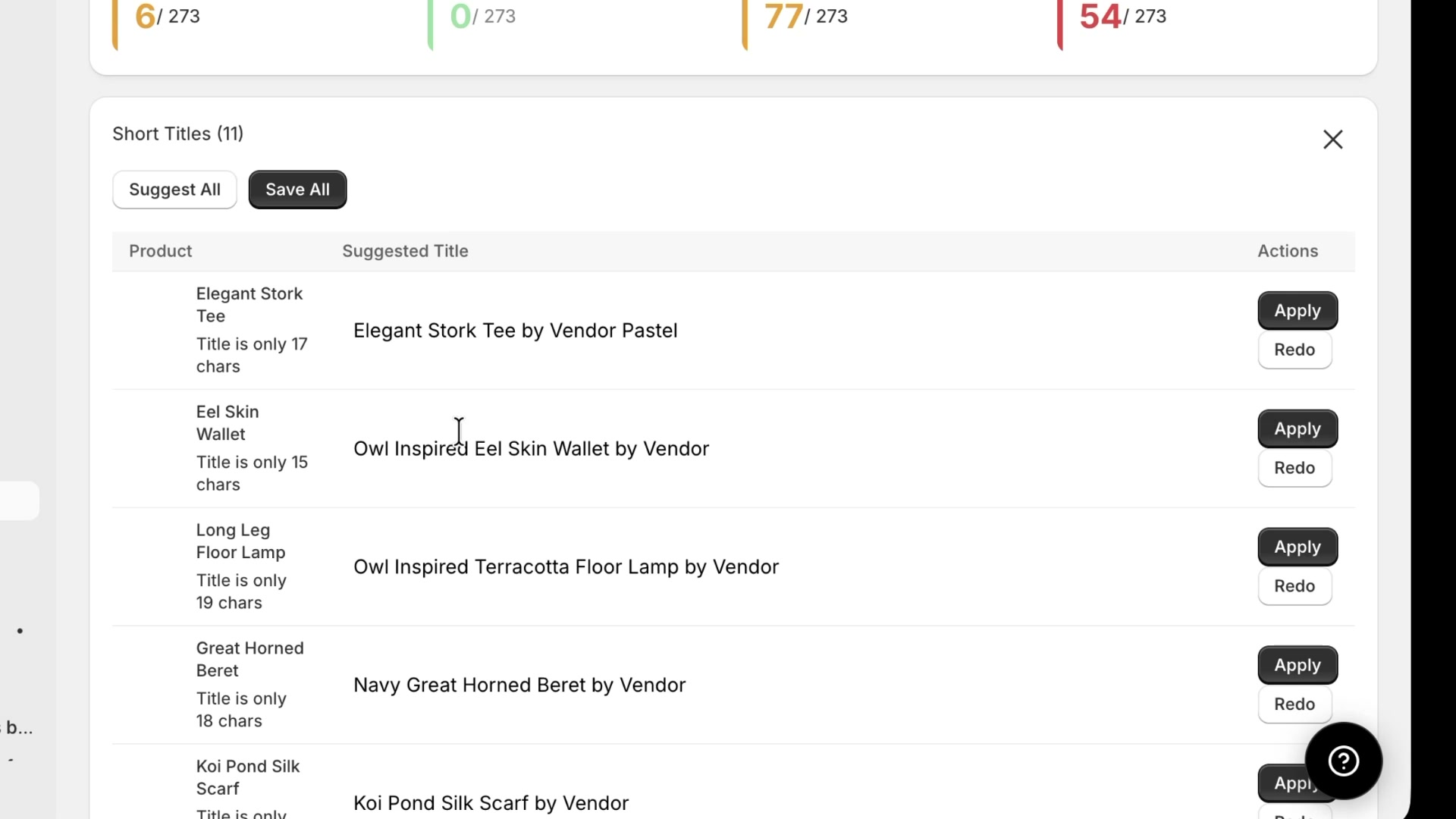
If a title suggestion is close but not perfect, edit it before applying. The walkthrough specifically shows a case where an unwanted vendor reference needed to be removed.
Write longer product descriptions
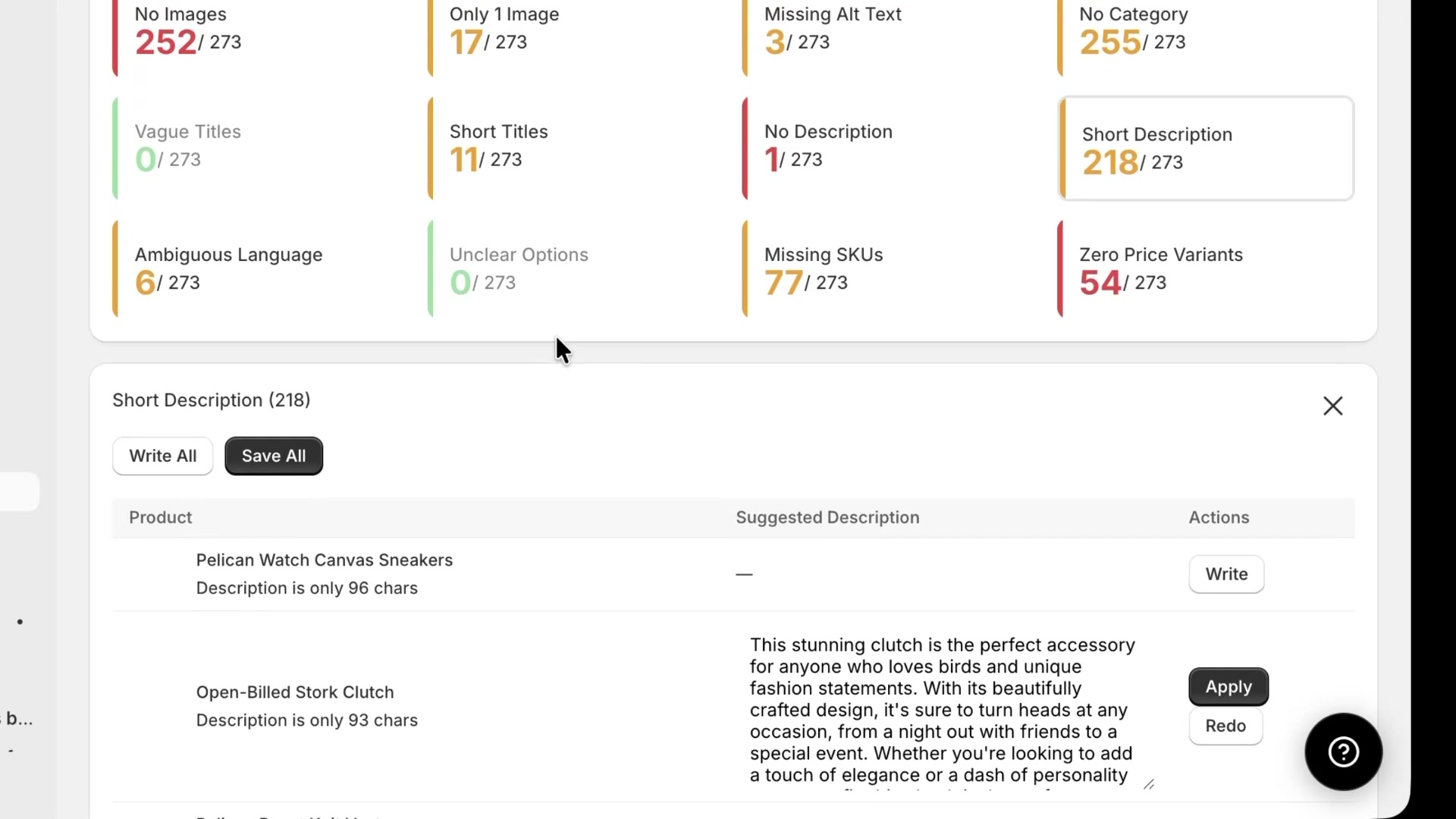
The dashboard also flags No Description and Short Description. In the walkthrough, the Short Description panel includes a table with the current issue, a Suggested Description area, and row-level actions.
Available actions include:
Write for one product
Write All for bulk generation
Apply to save the result
Redo to request a new version
Save All after reviewing multiple generated descriptions
This workflow is useful when descriptions are missing or too thin to explain the product properly.
Refresh the dashboard after loading a bigger catalog
The walkthrough also shows the dashboard refreshing after selecting Load full catalogue. A status message appears on the page, such as Showing 200 most recently updated products, and the issue counts update to match the loaded dataset.
This helps explain why totals may change after loading more products into the dashboard view.
Customize how AI suggestions are written
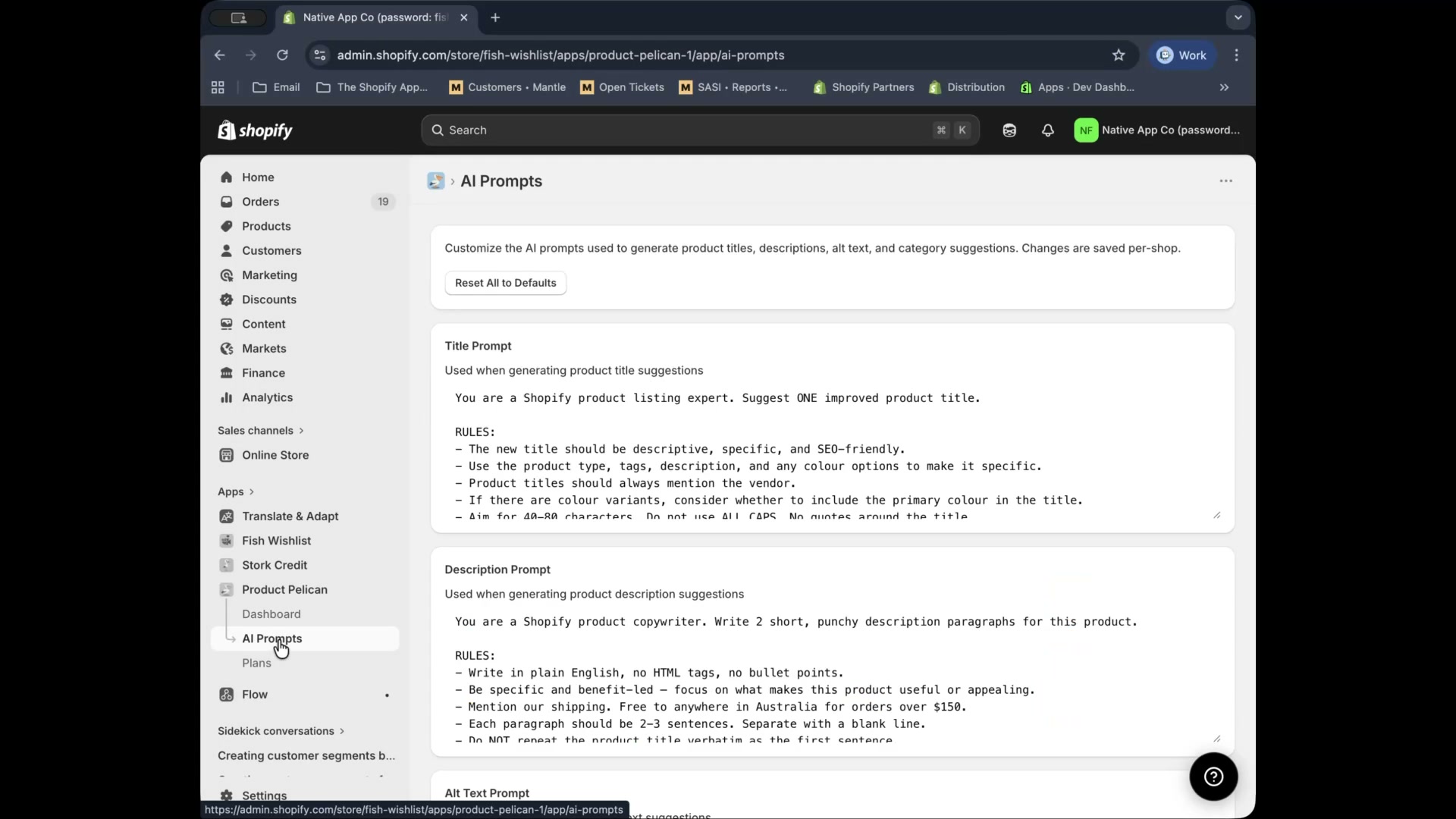
After reviewing the dashboard workflows, the walkthrough moves to AI Prompts in the left navigation. This page controls how Product Pelican generates future suggestions.
The page includes editable prompt sections for:
Title Prompt
Description Prompt
Alt Text Prompt
Category Prompt
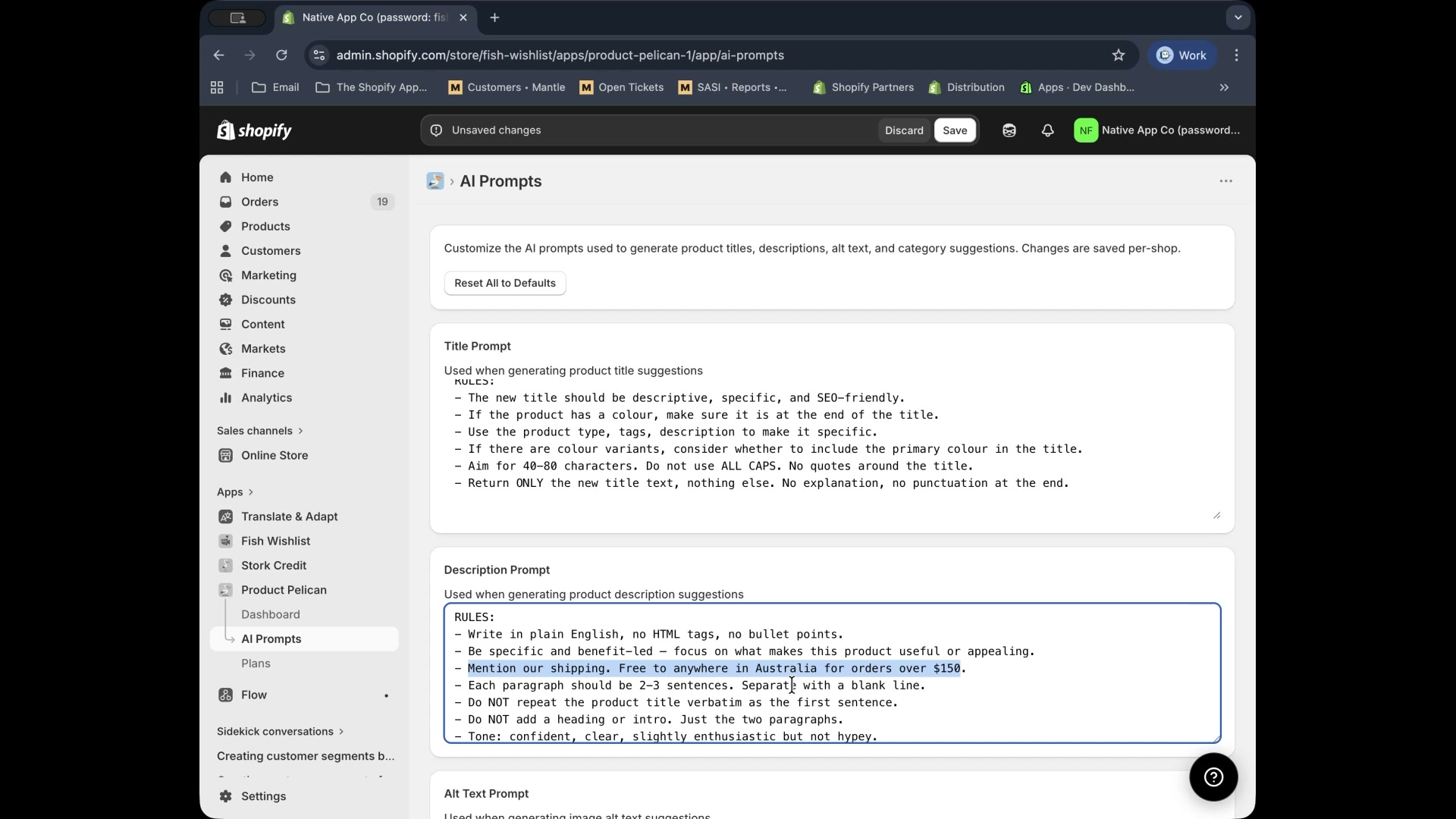
At the top of the page, there is also a Reset All to Defaults button. When you edit a prompt, the page shows an Unsaved changes banner with Discard and Save actions.
Title Prompt
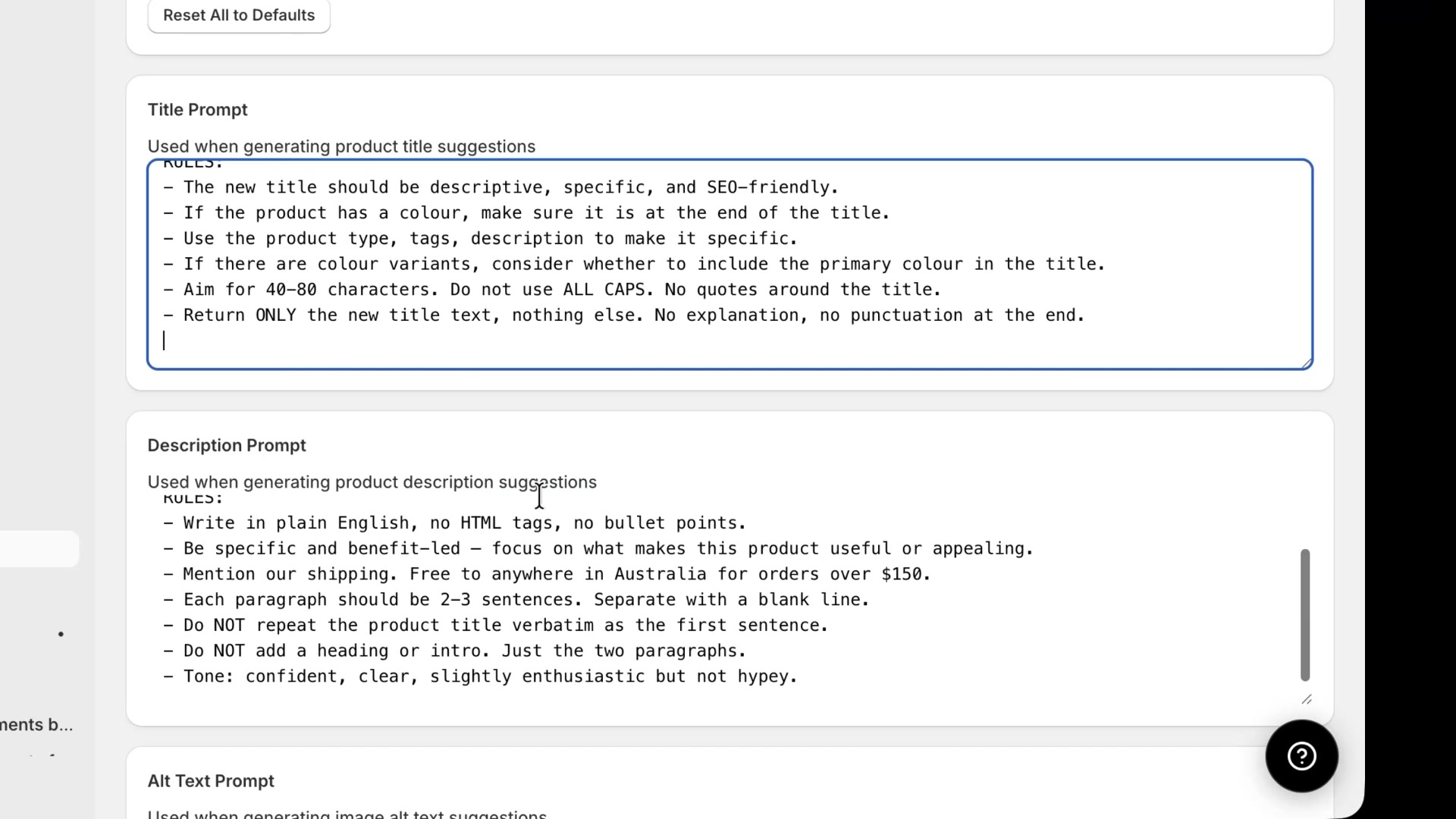
The Title Prompt section is used when generating product title suggestions. In the walkthrough, the rules shown in this prompt include instructions such as making the title descriptive, using product details to make it specific, keeping color at the end when relevant, and returning only the title text.
This explains why title suggestions can change significantly when you adjust the prompt rules.
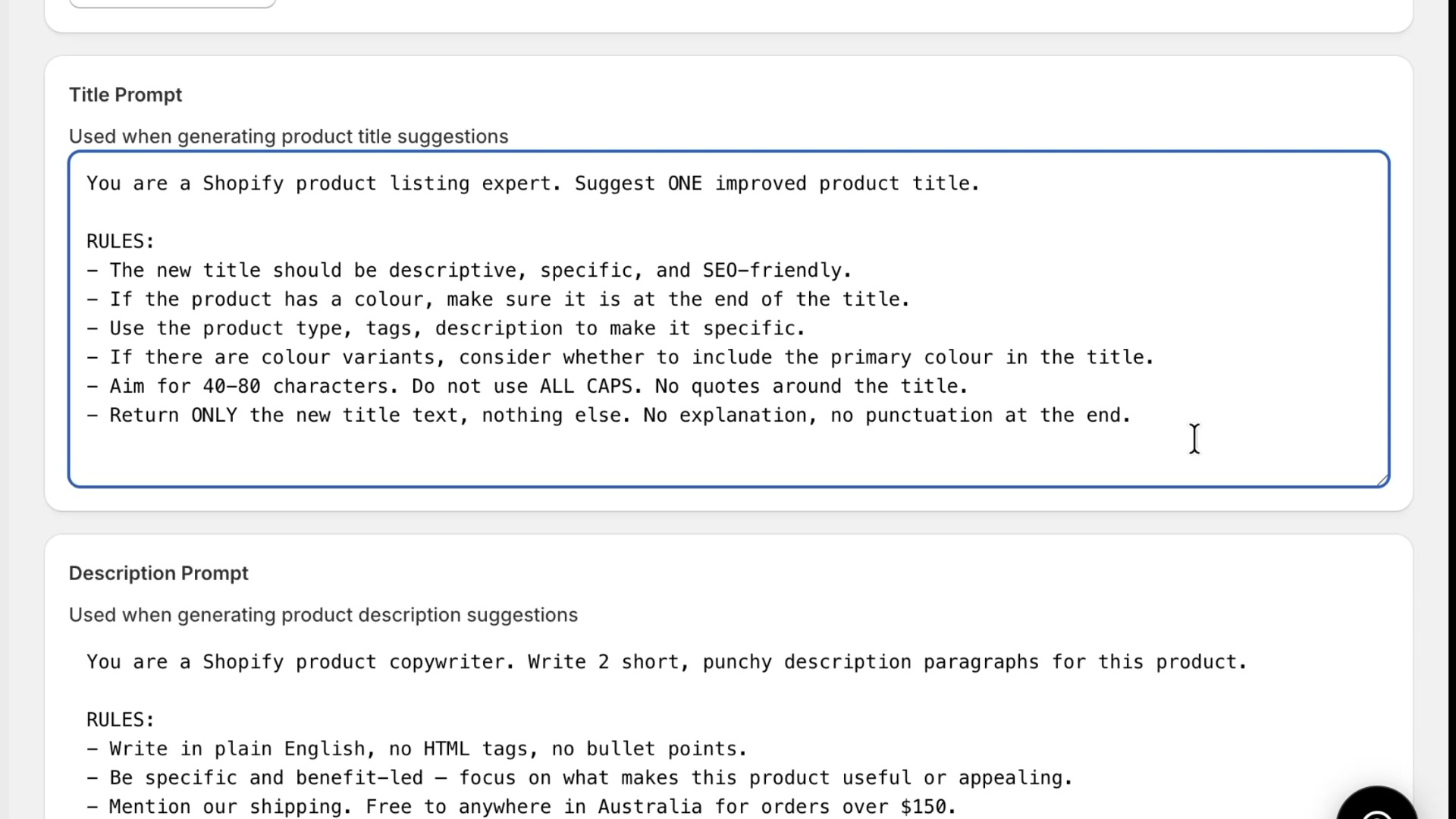
The walkthrough also demonstrates prompt tuning by showing poor title output after a deliberately bad instruction was added. This is a useful reminder that prompt rules directly affect suggestion quality.
Description Prompt
The Description Prompt section is used when generating product description suggestions. In the walkthrough, the rules include instructions about tone, paragraph length, and including store-specific shipping information.
This is useful when you want generated descriptions to include practical information such as shipping, warranty details, or pickup instructions instead of generic marketing copy.
Alt Text Prompt and Category Prompt
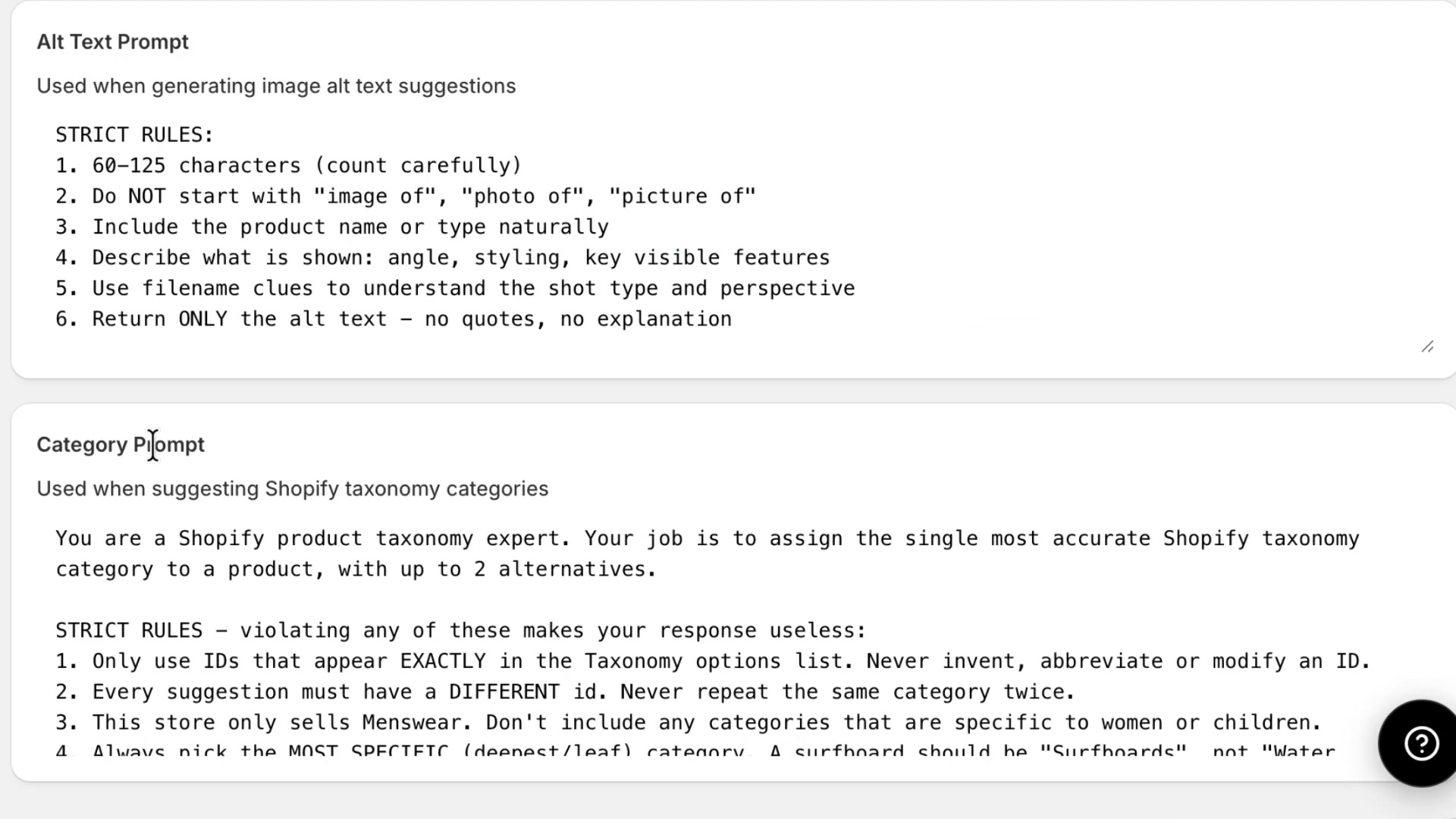
The Alt Text Prompt and Category Prompt sections let you set rules for image descriptions and Shopify taxonomy suggestions. In the walkthrough, the prompt editors show detailed instructions like character guidance for alt text and strict category rules for choosing the most accurate taxonomy match.
This is especially helpful if your catalog has consistent requirements, such as category restrictions or preferred phrasing for image descriptions.
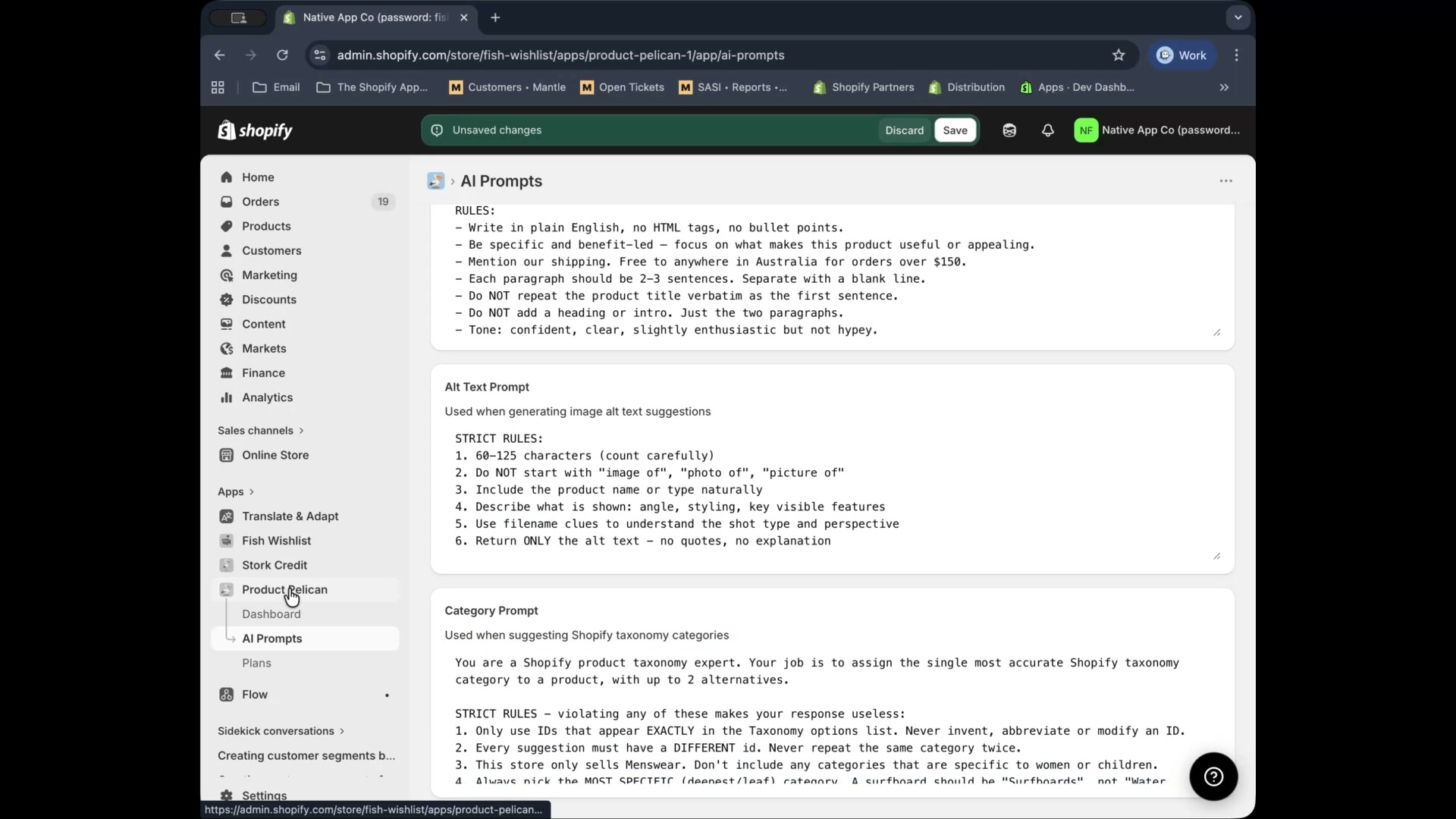
In the left navigation, select AI Prompts.
Update Title Prompt, Description Prompt, Alt Text Prompt, or Category Prompt.
Use Save from the Unsaved changes banner.
Go back to the relevant audit and generate fresh suggestions so the new prompt rules are applied.
Typical workflow in Product Pelican
Open Product Health and check the summary cards and audit counts.
Use Audit Checks for issue-by-issue cleanup or GEO Score to focus on the weakest products first.
Use actions like Generate All, Suggest All, Write All, or row-level actions such as Generate Alt Text, Suggest, and Write.
Approve suggestions with Apply, Save All, or Apply All Selected.
If results need improvement, update the relevant rules in AI Prompts and generate fresh suggestions.
Changes to AI prompts affect future suggestions. If you want updated results, return to the related audit and regenerate them after saving your prompt edits.