
Set up Product FAQs
Bulk generate and manage product FAQs
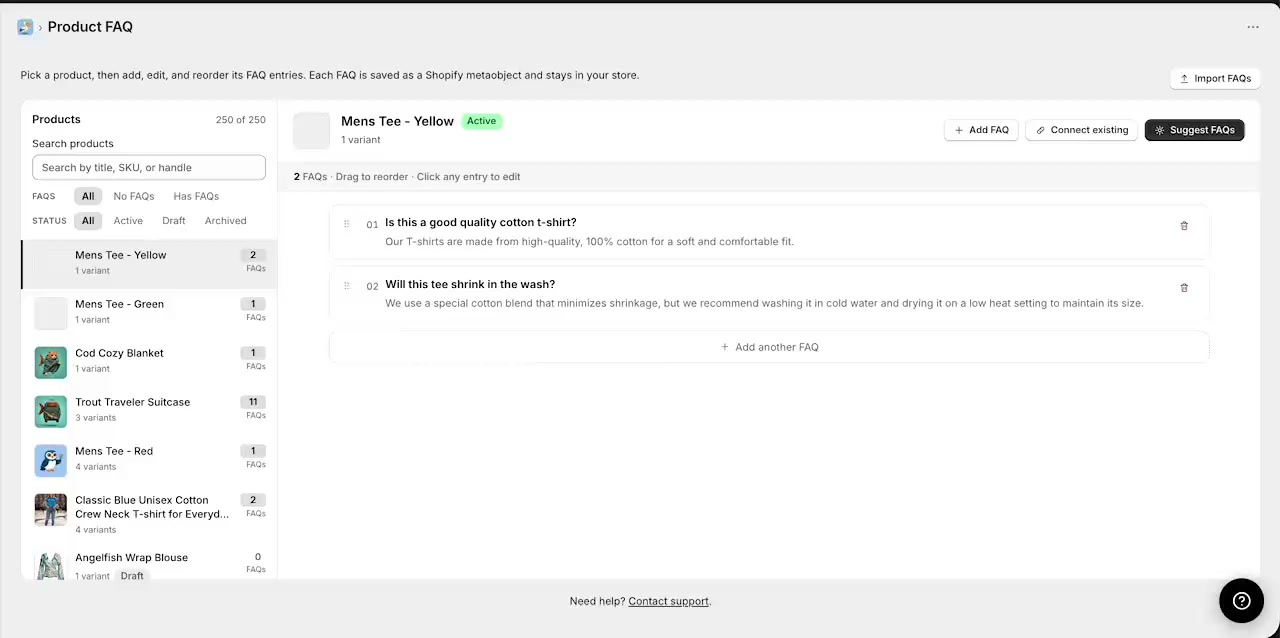
Use the Product FAQ screen in Product Pelican to generate FAQ suggestions for a product, review and edit them, reuse existing FAQs across multiple products, and import FAQs from CSV. This workflow follows the same order you see in the walkthrough, so you can move through the screen the same way in your store.
Before you start
- Open the Product FAQ area in Product Pelican.
- Pick the product you want to work on from the Products sidebar.
- For each selected product, you can use + Add FAQ, Connect existing, Suggest FAQs, or Import FAQs.
Find the right products first
The left sidebar is designed to help you quickly narrow down which products need FAQ work.
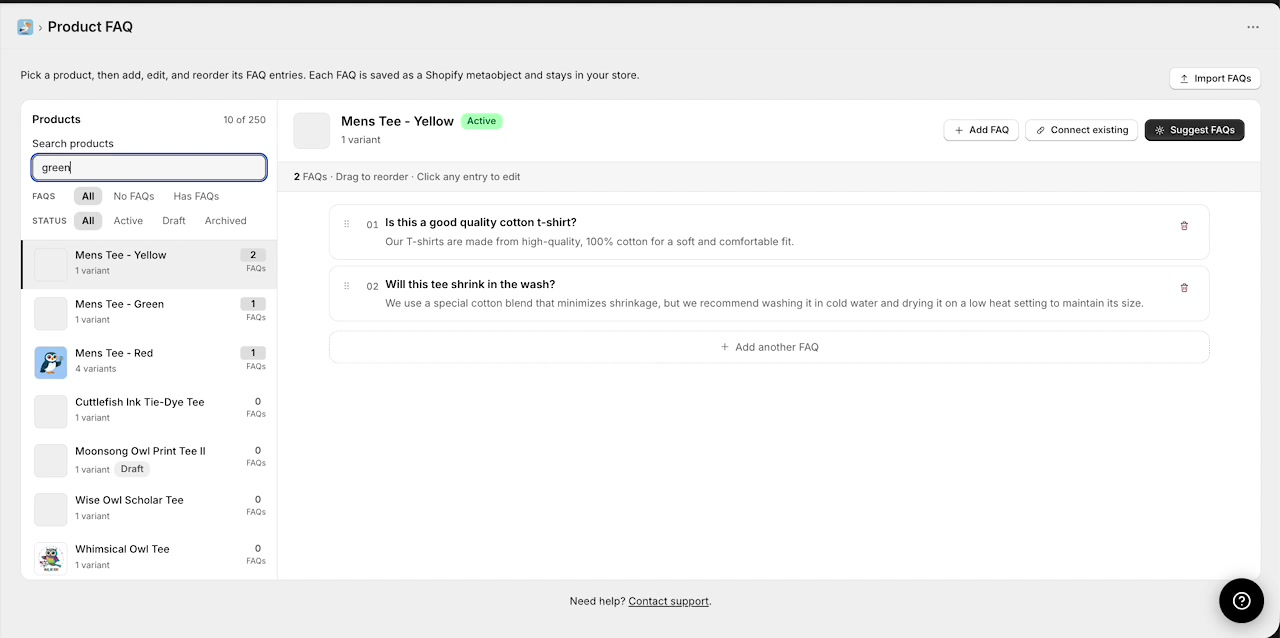
Search by product name, SKU, or handle
Use the Search products field to filter the product list. The search box supports the placeholder text Search by title, SKU, or handle, so you can find products in the way that is most convenient for your catalog.
Filter by FAQ coverage or product status
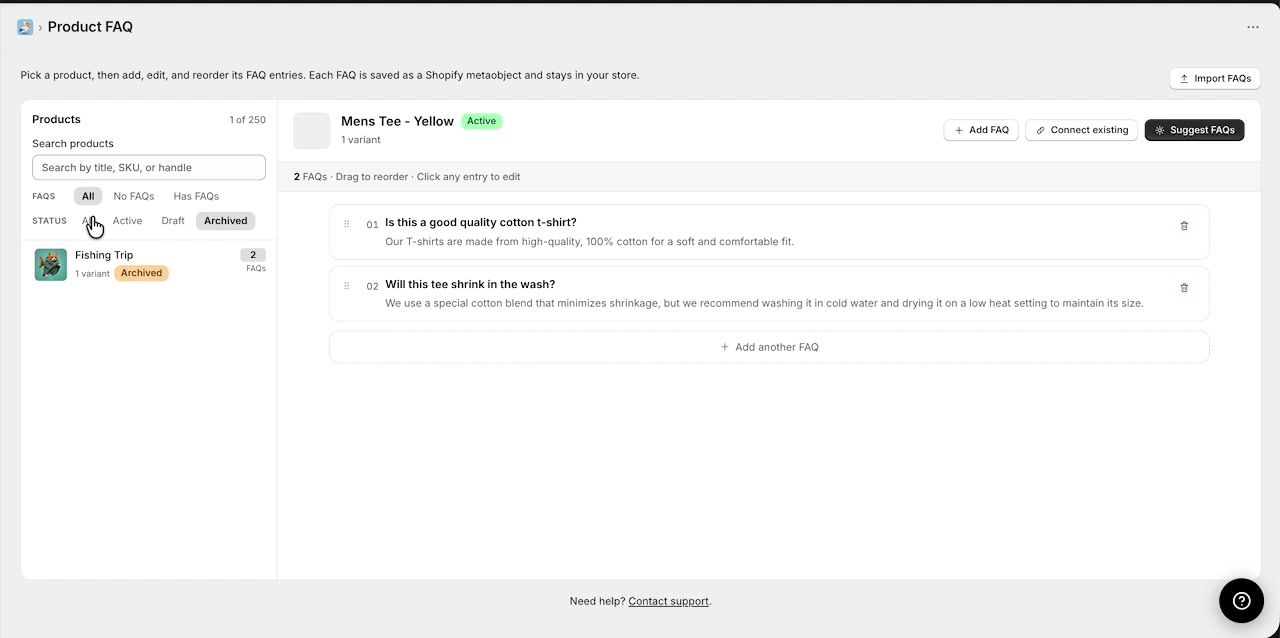
Below the search box, use the FAQ filters to focus your work:
- All
- No FAQs
- Has FAQs
You can also filter by product status:
- All
- Active
- Draft
- Archived
This is especially useful when you want to bulk work through products that are missing FAQs or review archived products separately.
Generate FAQs with AI suggestions
Once you select a product, the main panel shows its current FAQ list and the actions available for that product.
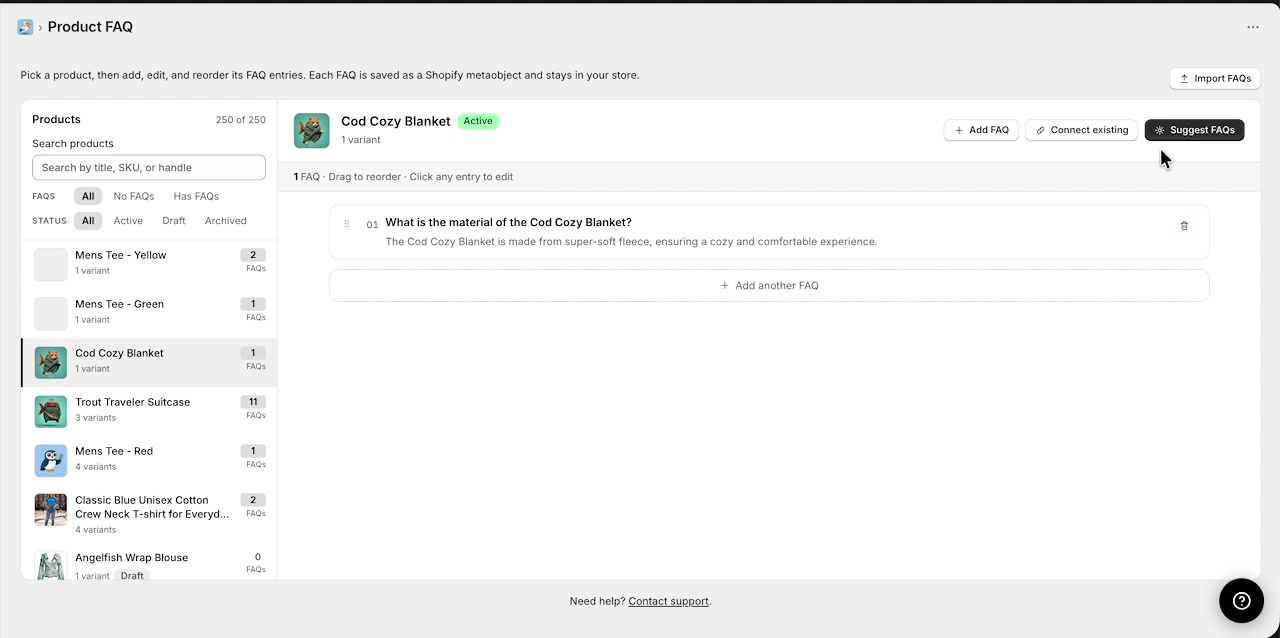
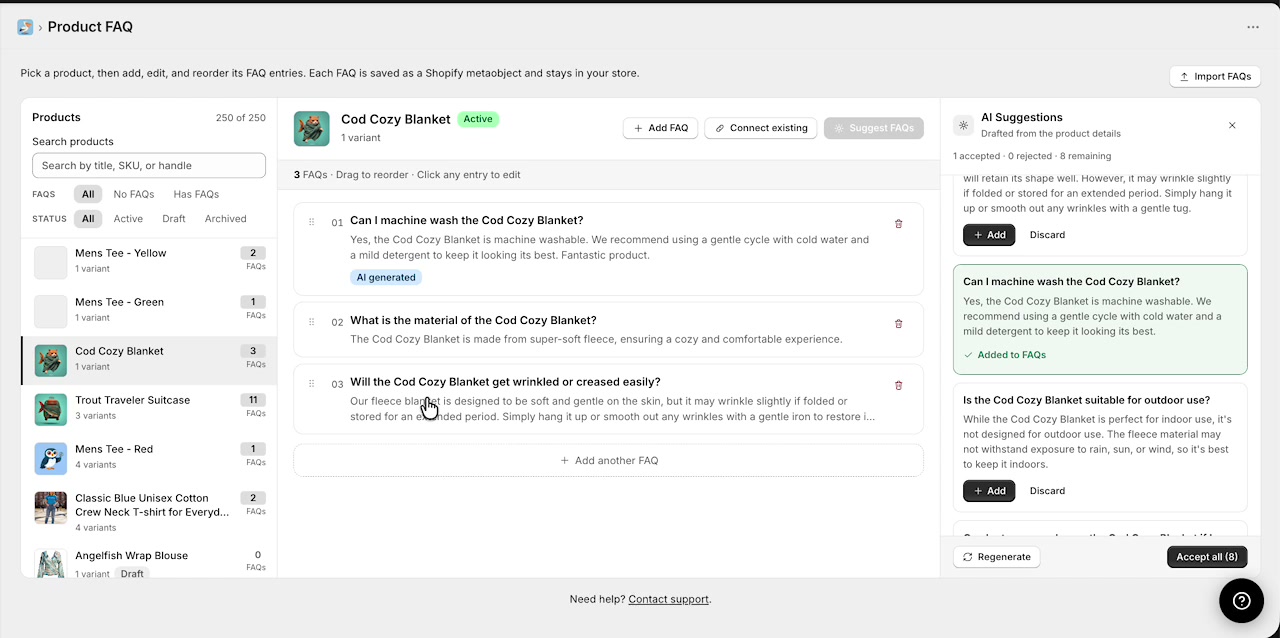
Select a product from the sidebar, then click Suggest FAQs in the top-right of the product detail area.
Product Pelican opens the AI Suggestions panel on the right side. Suggestions are labeled as being Drafted from the product details. For each suggestion, you can choose Add or Discard.
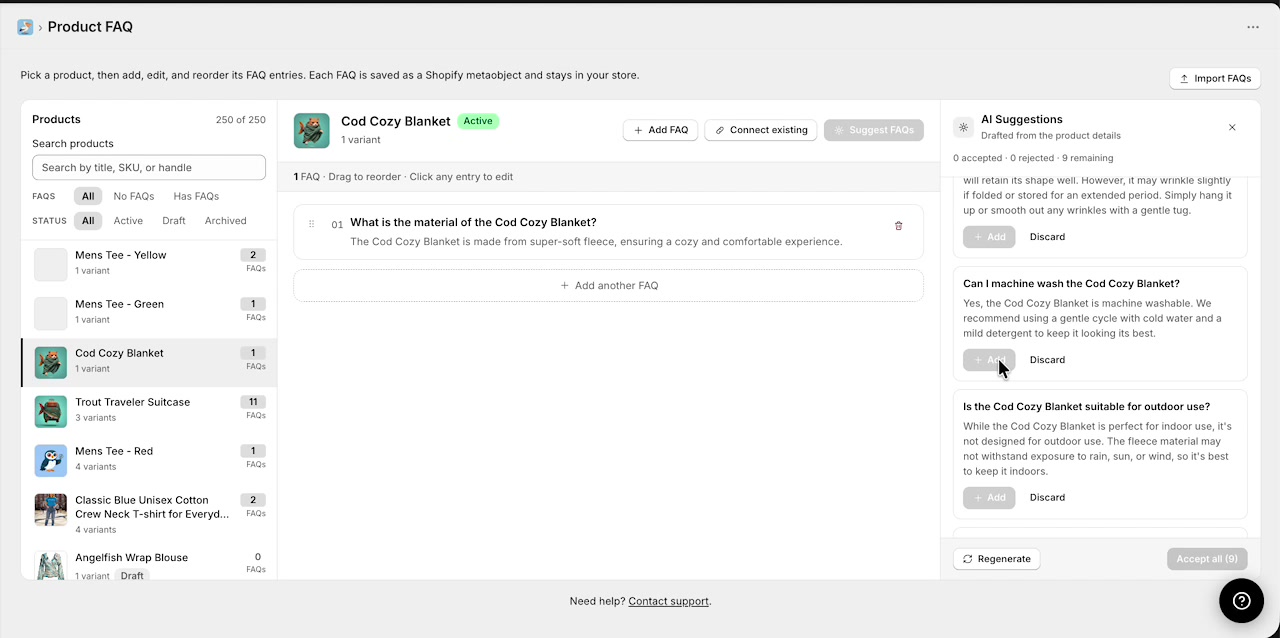
Click Add on any suggestion you want to keep. The FAQ is immediately added to the selected product and appears in the main FAQ list.
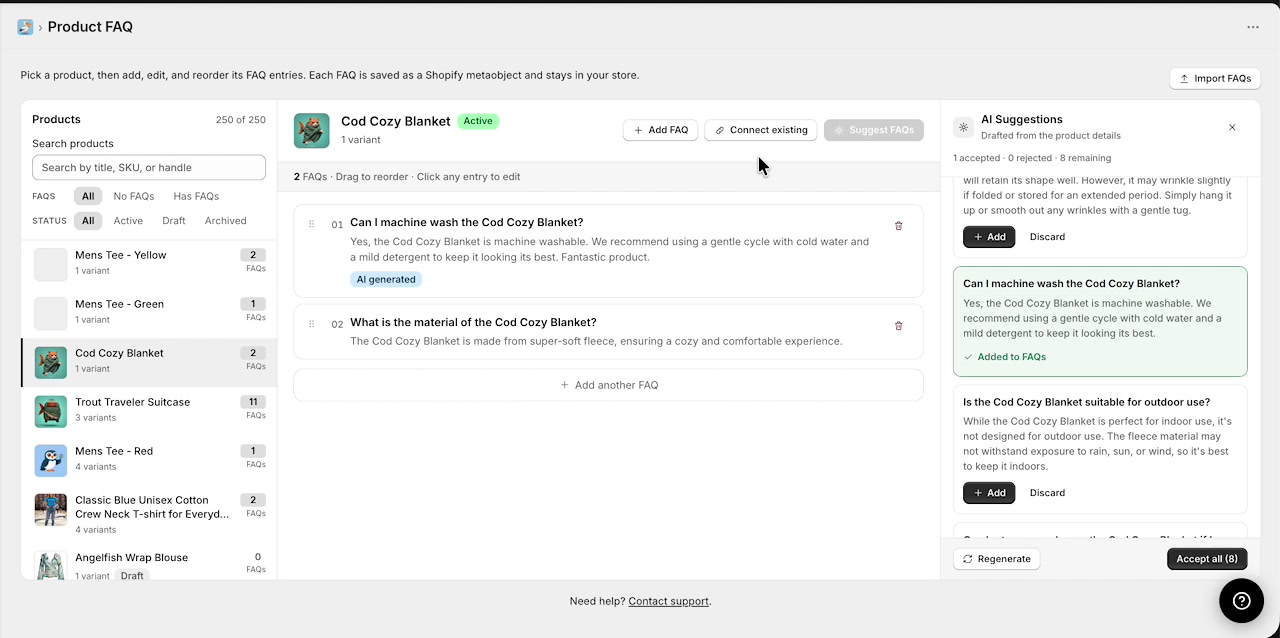
If the remaining suggestions look good, click Accept all at the bottom of the panel. This is the fastest way to bulk generate FAQs for the selected product.
Regenerate if you need a different set
If the suggestions are not a good fit, click Regenerate in the AI Suggestions panel to create a new batch before you start adding them.
Reuse existing FAQs across multiple products
Because FAQs are stored centrally and assigned to products, you do not need to recreate the same answer for every similar item.
With a product selected, click Connect existing.
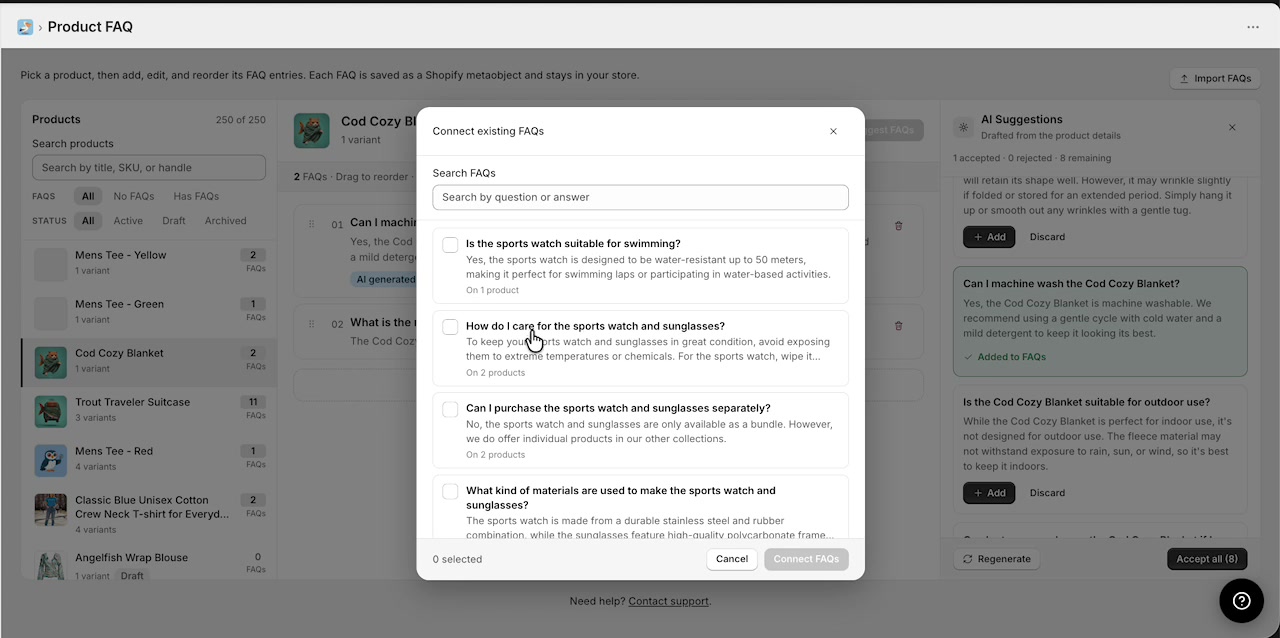
In the Connect existing FAQs modal, use Search FAQs to find reusable entries by question or answer text.
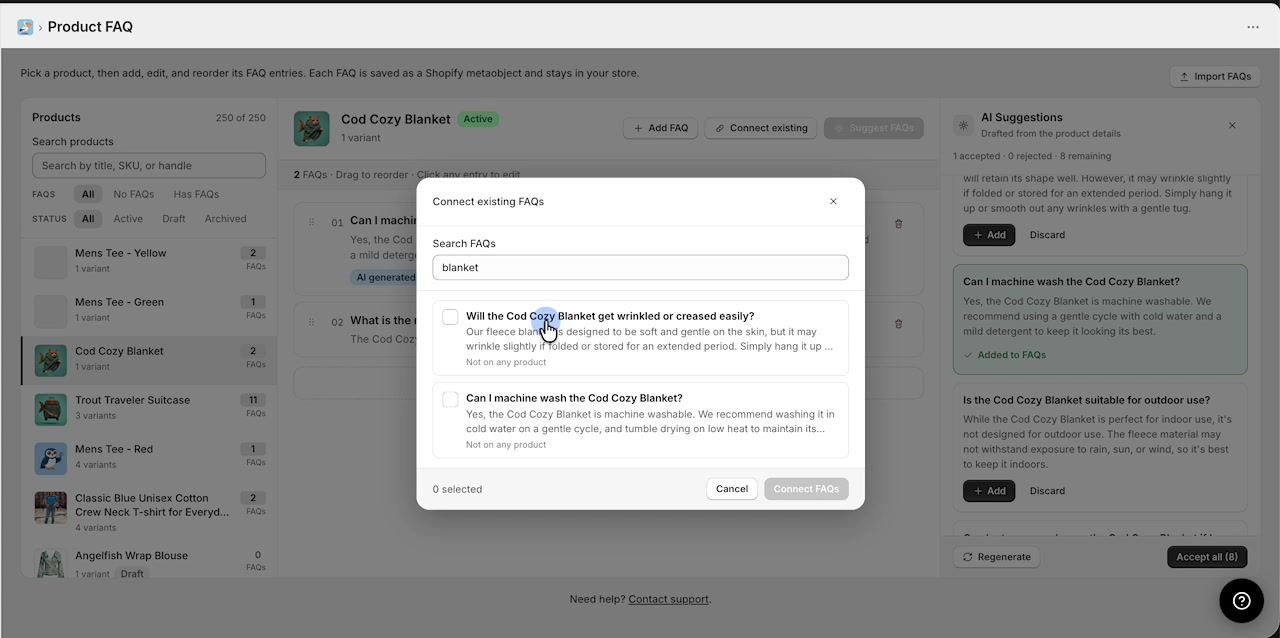
Tick the checkbox beside each FAQ you want to reuse, then click Connect FAQs. The selected FAQ is assigned to the current product without needing to rewrite it.
Bulk build out a product's FAQ list
After adding a few individual suggestions, you can switch to bulk acceptance for the rest of the product. This is useful when Product Pelican has already generated a strong set of relevant questions.
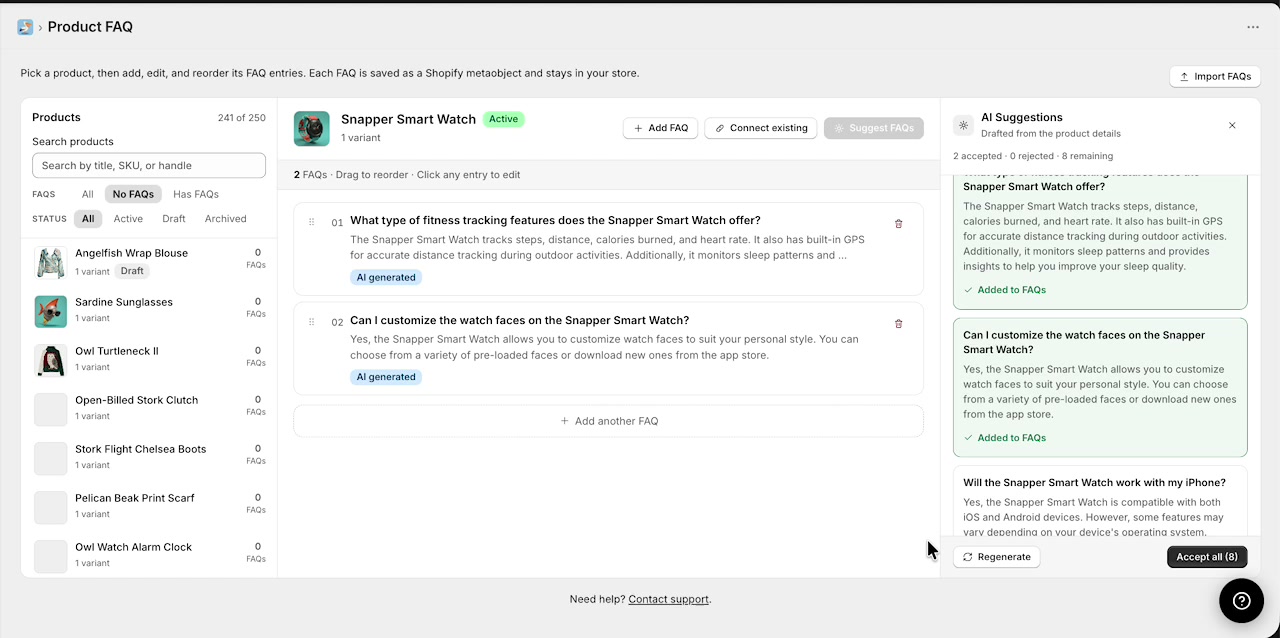
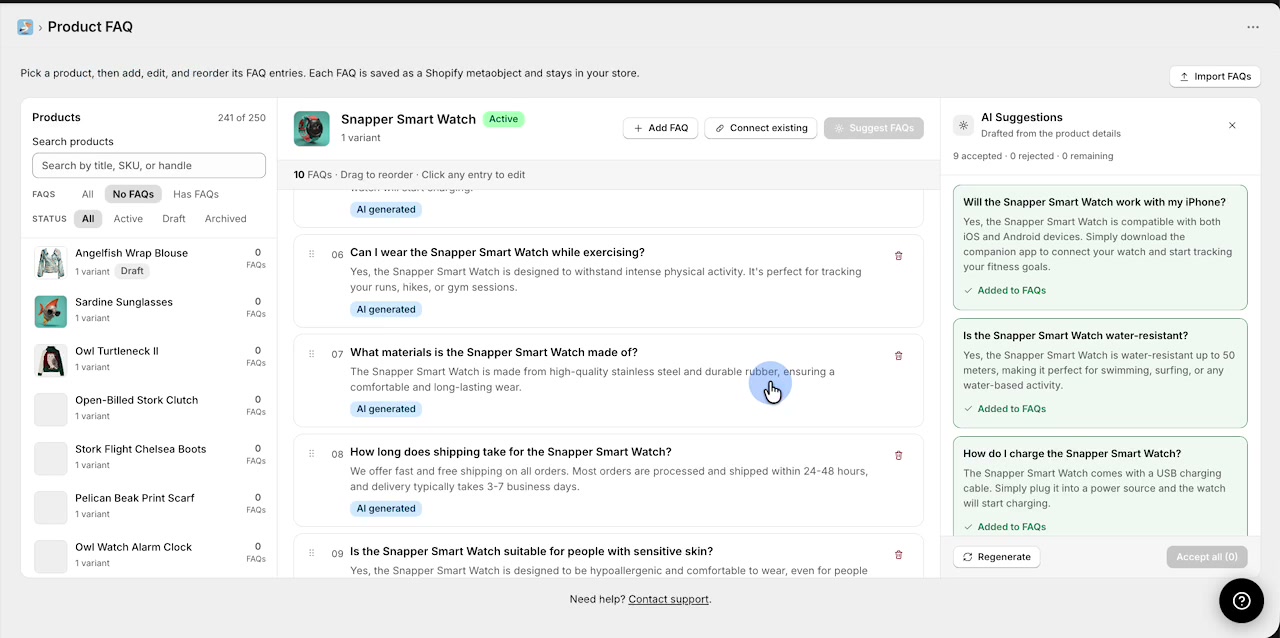
When you click Accept all, Product Pelican adds all remaining suggestions in the panel to the selected product. The product's FAQ count updates immediately, and the main list shows the newly assigned entries.
Edit and organize FAQs
In the selected product view, Product Pelican shows a short instruction above the list: Drag to reorder and Click any entry to edit.
- Click an FAQ entry to edit its question or answer.
- Drag entries to change the display order.
- Use the delete icon to remove an FAQ from the product if needed.
- Click + Add FAQ to create a brand-new FAQ manually.
- Use Add another FAQ at the bottom of the list to keep adding entries quickly.
Import FAQs from CSV
If you already have FAQ content in a spreadsheet, you can bring it into Product Pelican in bulk.
Click Import FAQs from the top-right corner of the Product FAQ screen.
The import modal requires one FAQ per row with these three columns:
product_idquestionanswer
The help text in the modal explains that product_id is the Shopify product ID and can be numeric or a full gid.
Drag your file into the upload area or click to choose a file, then click Import FAQs.
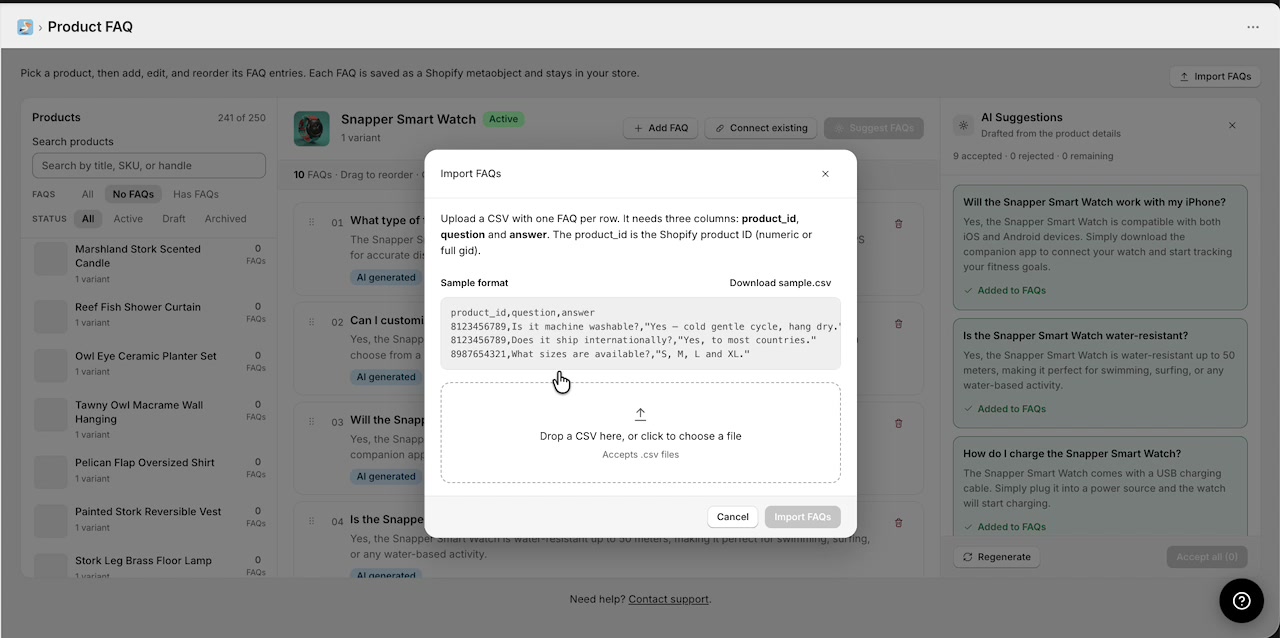
product_id. If the ID does not match a product in your store, the FAQ cannot be assigned correctly.Sample CSV structure
product_id,question,answer
8123456789,Is it machine washable?,Yes — cold gentle cycle and hang dry.
8123456789,Does it ship internationally?,Yes, to most countries.
8987654321,What sizes are available?,S, M, L and XL.
Recommended workflow for fast bulk setup
- Filter the sidebar to No FAQs.
- Select a product and click Suggest FAQs.
- Add the best suggestions or use Accept all.
- Click any FAQ to edit the wording if needed.
- Use Connect existing for FAQs that should be shared with other products.
- Repeat for the next product in the list.
- Use Import FAQs when you already have FAQ content prepared in CSV format.