
Merchandise Rulesets
Automate Shopify Collection sorting with Merchandise Rulesets
Merchandise Rulesets let you decide how products are ordered inside your collections, then apply that order automatically on a schedule. A ruleset combines a sort rule, optional promote and demote rules, stock and visibility controls, and a schedule, and you assign it to one or more collections.
Every ruleset you create is stored as a native Shopify Metaobject, so the data lives in your own store rather than locked away in an external database.
Start on the Rulesets list
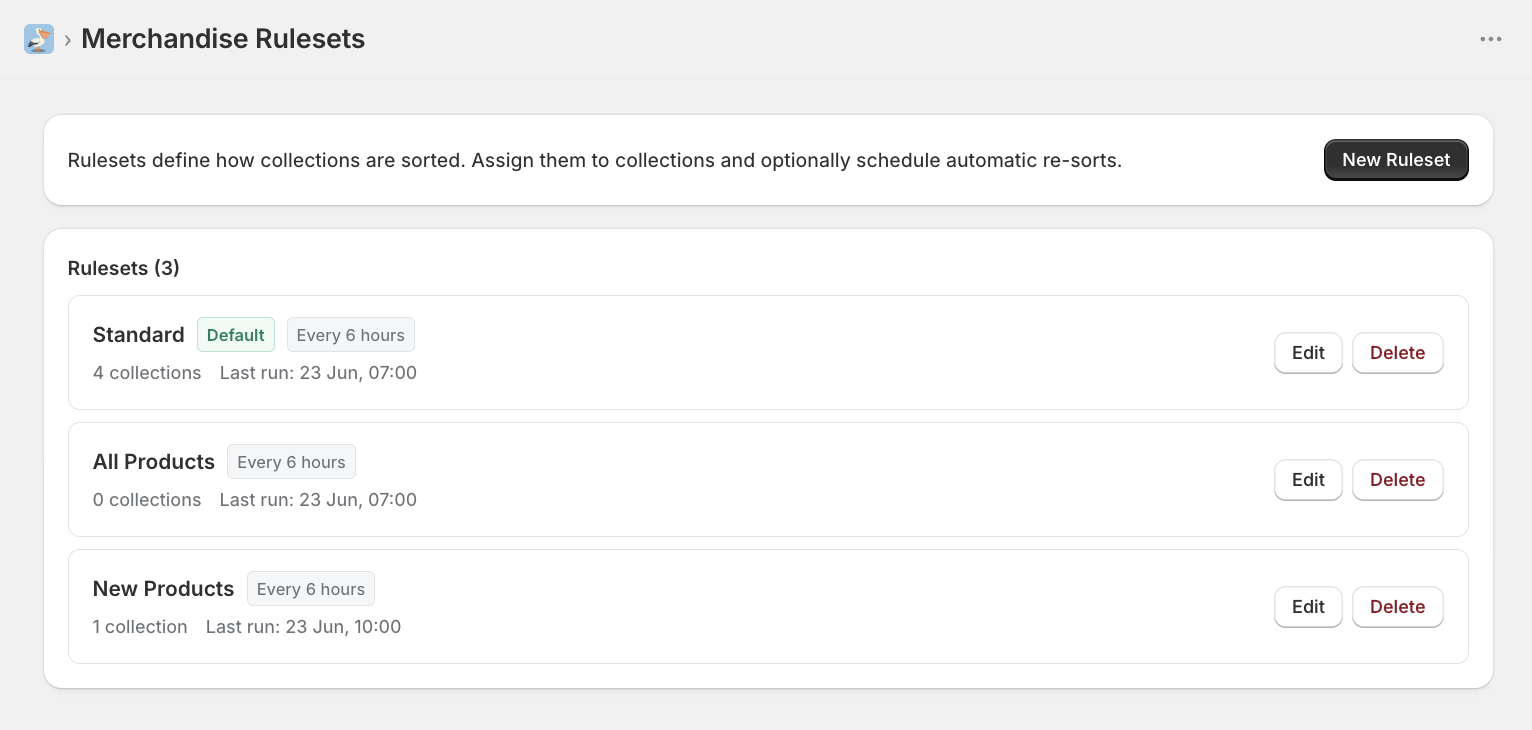
The main Merchandise Rulesets page lists every ruleset you have created. The banner at the top reminds you what rulesets do: they define how collections are sorted, you assign them to collections, and you can optionally schedule automatic re-sorts.
Each ruleset card shows:
The ruleset name
A Default badge, if it is the default ruleset
The schedule, such as Every 6 hours
The number of collections it is assigned to
The Last run time
Edit and Delete actions
To build a new one, click New Ruleset in the top right.
Name the ruleset and choose a sort rule
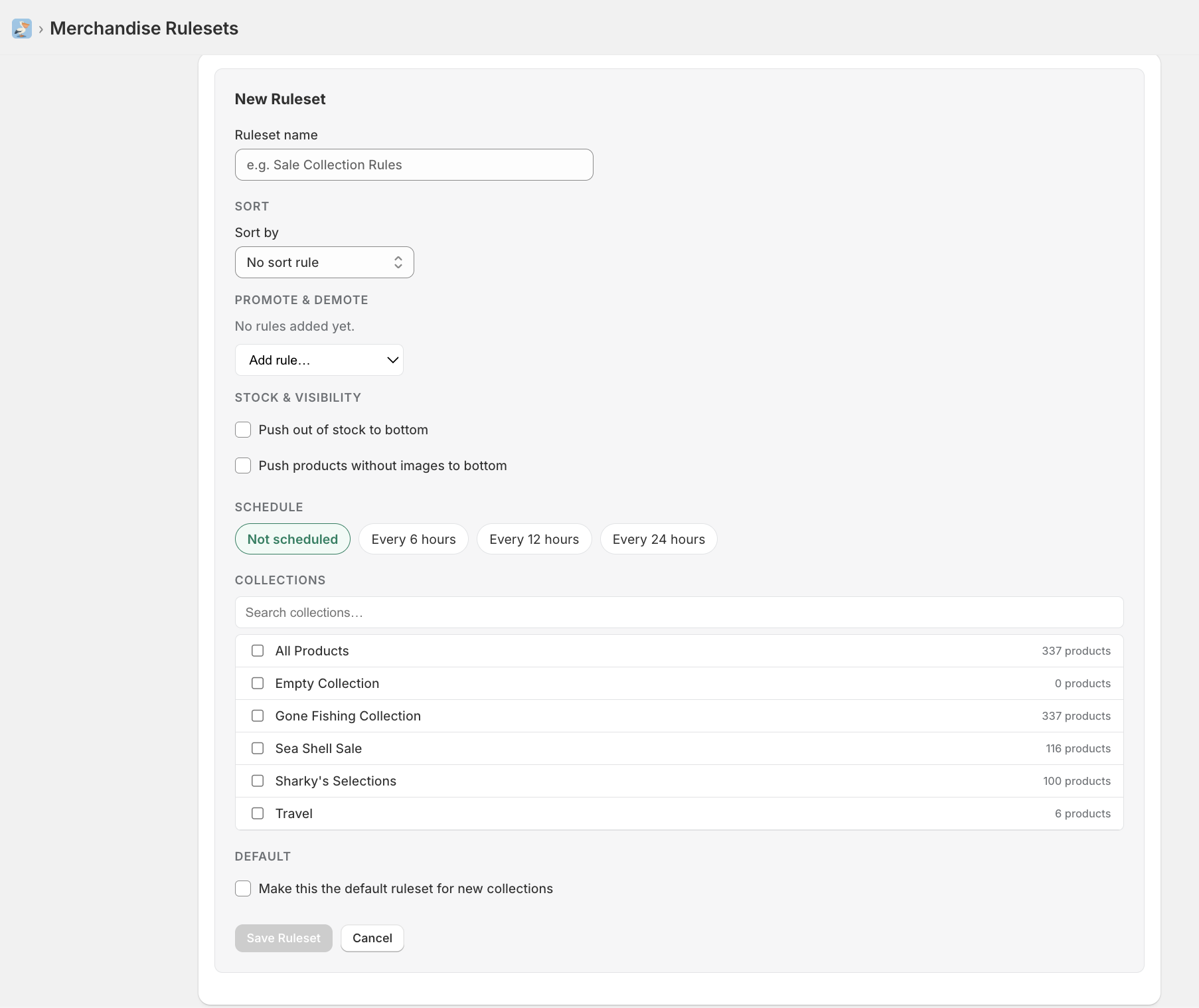
Give the ruleset a clear Ruleset name so you can recognise it later, for example New Products.
In the SORT section, open Sort by to choose the rule that orders products in the collection. It starts on No sort rule. When you pick a rule such as Publish date, a Direction dropdown appears so you can set the order, for example Newest first.
The sort rule is the backbone of the ruleset. Promote, demote, and stock rules all adjust the order on top of this baseline, so set your sort rule first.
Promote or demote products by tag
The PROMOTE & DEMOTE section starts empty with No rules added yet. Open Add rule... to add one.
When you add a Promote by tag rule, a PROMOTE BY TAG block appears with a Value field. Start typing and Product Pelican suggests existing product tags from your store, so you can pick one such as featured. Products carrying that tag are lifted towards the top of the collection.
You can also promote and demote products by Metafield or Vendor:
To remove a rule, use the red ✕ next to its block.
The tag value matches the product tags already on your products. If a promote rule does nothing, check that the tag, metafield or vendor is spelled exactly as it appears on your products in Shopify.
Push out-of-stock and imageless products down
The STOCK & VISIBILITY section has two toggles that keep weaker products out of the way:
Push out of stock to bottom moves sold-out products to the end of the collection.
Push products without images to bottom moves products with no image to the end.
Turning both of these on is a quick win for almost any collection. Shoppers rarely want to land on a sold-out product or one with no photo, and it costs you nothing to push them down.
Set the schedule
The SCHEDULE section controls how often the ruleset re-sorts its collections. Choose from:
Not scheduled
Every 6 hours
Every 12 hours
Every 24 hours
When a schedule is selected, Product Pelican confirms that the cron job applies this ruleset automatically to all assigned collections on the configured interval.
Choose Not scheduled if you only want the ruleset to run when you trigger it manually. Pick an interval if your catalogue, stock levels, or tags change often and you want the order to keep itself up to date.
Assign collections
In the COLLECTIONS section, tick the collections this ruleset should apply to. You can search by name, and each collection shows its product count. A running selected count appears in the top right of the section.

Decide whether this is the default ruleset
The DEFAULT section has one checkbox: Make this the default ruleset for new collections. The default ruleset applies to any collection that is not assigned to a ruleset of its own.
If another ruleset is already the default, Product Pelican warns you before you save, for example Saving will remove "Standard" as the current default. Only one ruleset can be the default at a time.
Setting a new default reassigns every unassigned collection to this ruleset on the next run. If you only want this ruleset on a specific set of collections, leave this unchecked and assign those collections in the section above instead.
Save the ruleset
When you are happy with the setup, click Save Ruleset. Product Pelican shows a Saved confirmation and returns you to the list, where your new ruleset now appears with its collection count.
To change a ruleset later, click Edit on its card. The form reopens with every field pre-filled, for example Edit: New Products, so you can adjust the sort rule, tags, stock options, schedule, or collections and save again.
Where the data is stored
Every ruleset is saved as a native Shopify Metaobject, written and owned by Product Pelican. You manage rulesets from inside the app, but it is worth knowing where the underlying data lives. You will find it in the Shopify admin under Content > Metaobjects > Merchandise Ruleset.
Each ruleset is a single entry. The list shows the Display name, the ruleset Name, its Schedule, whether it Is Default, the Last Run, who added it, and when it was updated.
Open an entry to see the stored fields: Name, Rules (the sort, promote, and demote logic stored as JSON), Schedule, Is Default, Last Run, and the assigned Collections, along with the metaobject Handle.
You can edit these fields directly in the Shopify admin if you ever need to, but in day-to-day use you should manage everything from the Rulesets screen in Product Pelican. The app keeps the metaobject in sync for you. This is the Native way: your data stays in your own Shopify store, in a structure you can read, export, and own.
How Product Pelican modifies your collections
When you create rulesets, Product Pelican uses these rules to update the sorting of your Collections in Shopify.
We make 2 edits to your collection data:
Change Sorting to Manual
Update the order of products
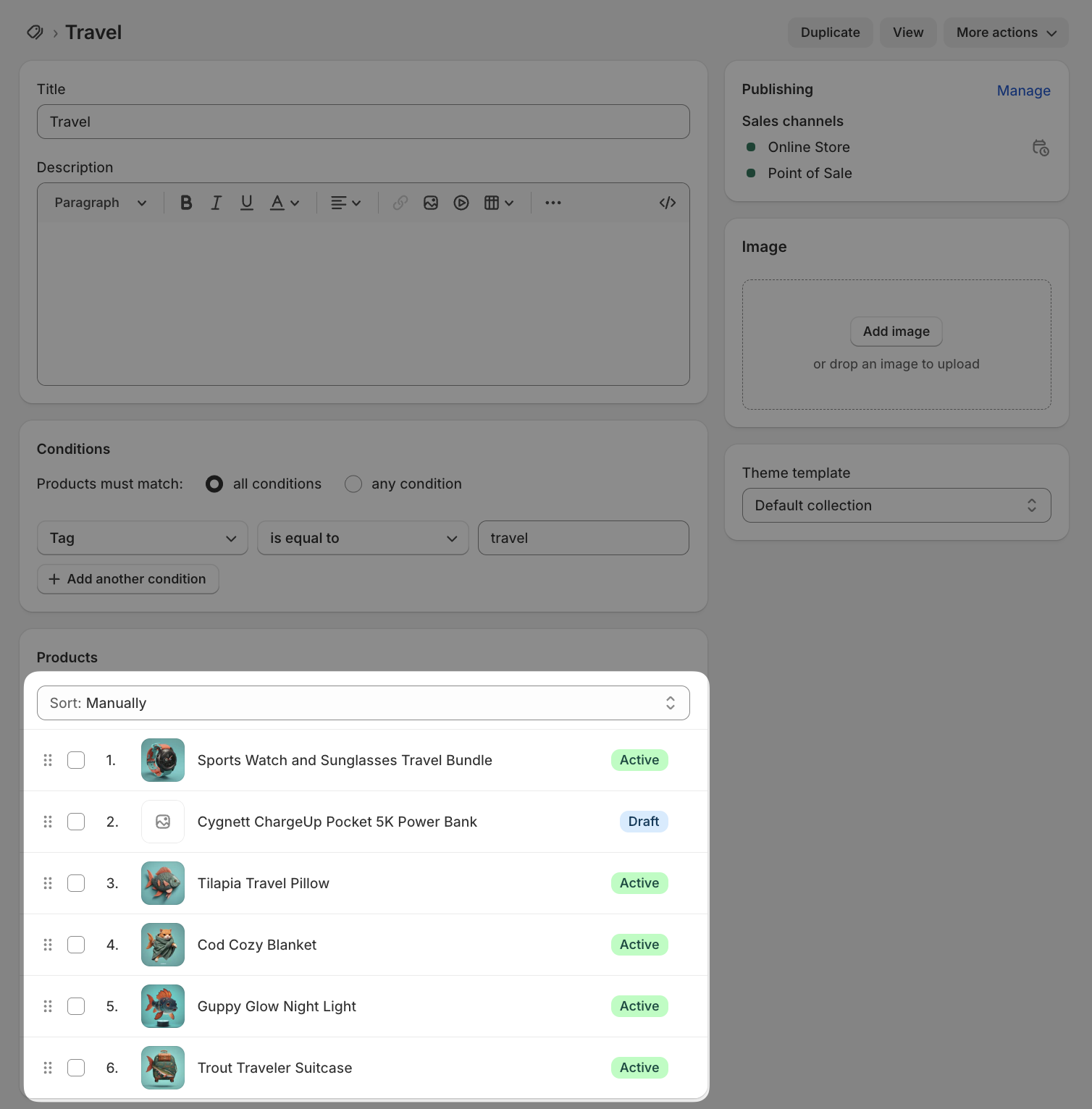
When you remove a ruleset from a collection or uninstall Product Pelican, the sorting will stop updating automatically and you can modify the sort order in Shopify however you wish.
Best practices
Set your Sort by rule first, then layer promote, demote, and stock rules on top.
Keep tag values consistent with the tags already on your products so promote rules actually match.
Turn on both stock and visibility toggles for most collections as an easy quality win.
Use Not scheduled for one-off sorts and an interval for collections that change often.
Only set a default ruleset when you genuinely want it to catch every unassigned collection.