
Product Pelican
What Product Pelican does
Product Pelican reviews the product data already in your Shopify store and highlights issues that can affect product quality, search visibility, and storefront completeness. There is no install setup inside the app flow shown here: once the app is added, it connects to your store data and runs a review automatically.
The app’s main workspace is Product Health, where you can see store-wide totals, open audit checks, and AI-powered suggestions you can apply directly from the app.
Start on the Product Health dashboard
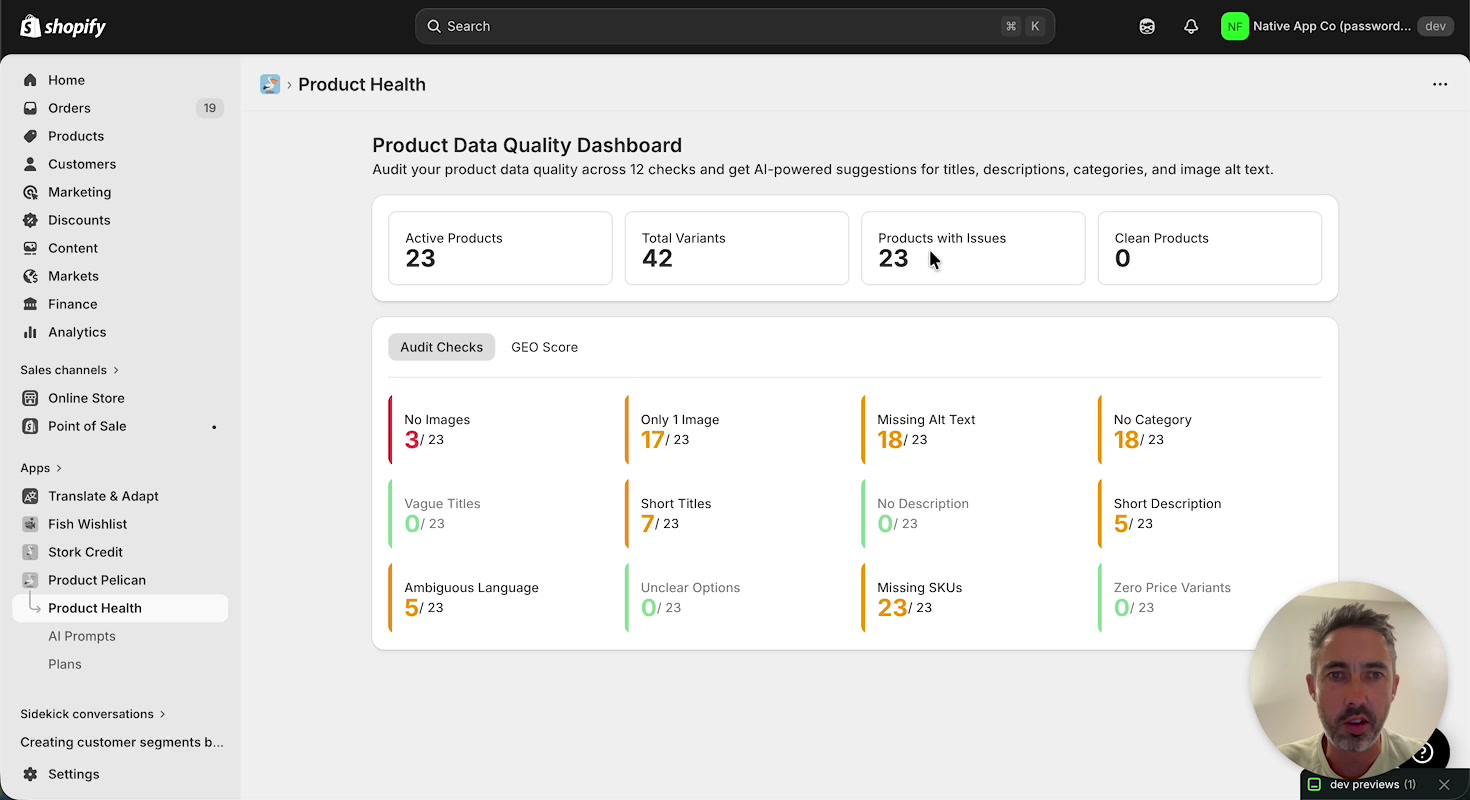
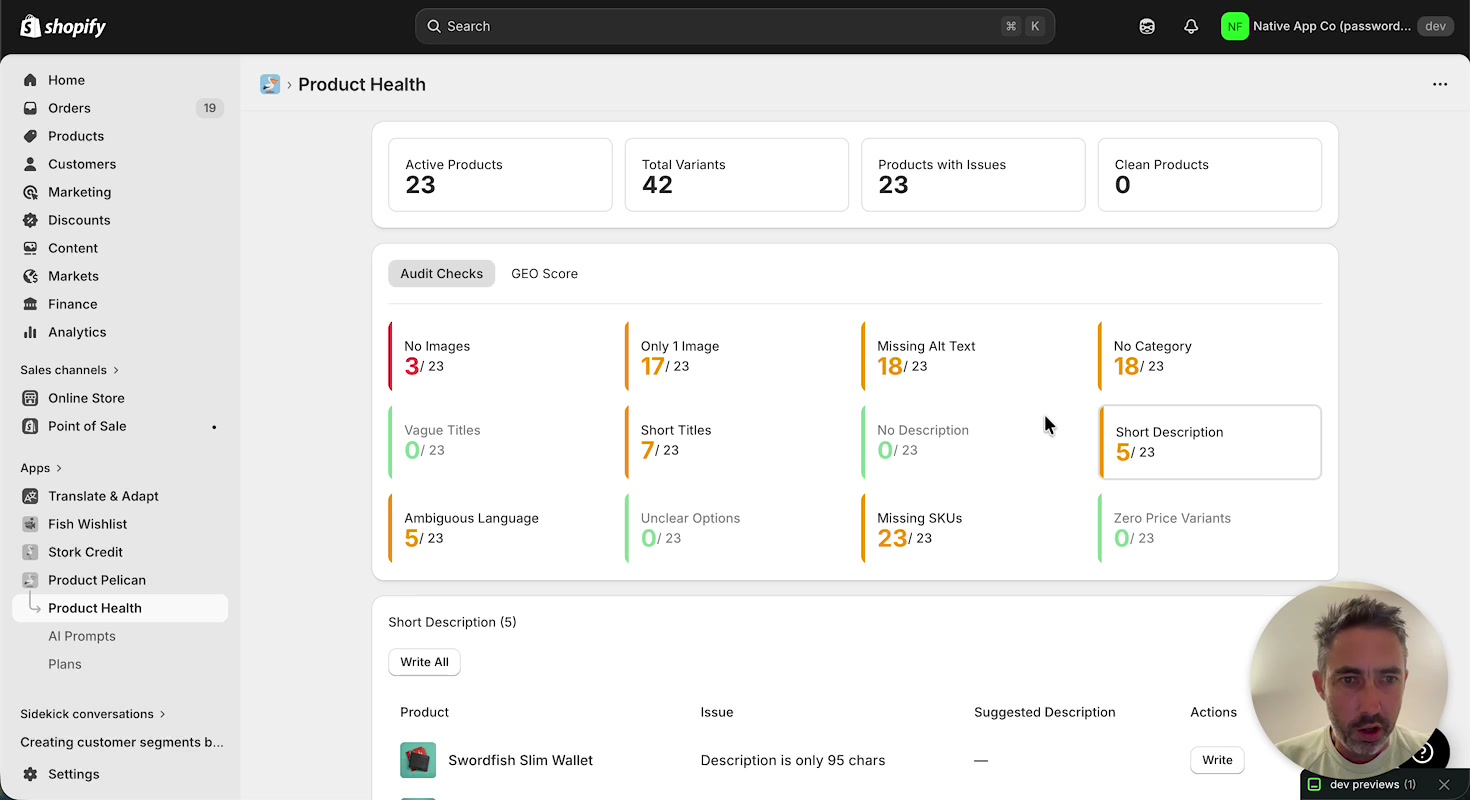
The Product Data Quality Dashboard gives you a quick view of overall catalog health. At the top of the page, summary cards show:
- Active Products
- Total Variants
- Products with Issues
- Clean Products
Below that, the Audit Checks tab groups issues into cards you can open. The walkthrough shows these checks:
- No Images
- Only 1 Image
- Missing Alt Text
- No Category
- Vague Titles
- Short Titles
- No Description
- Short Description
- Ambiguous Language
- Unclear Options
- Missing SKUs
- Zero Price Variants
You can also switch from Audit Checks to GEO Score from the same section.
Review image-related issues
No Images and Only 1 Image
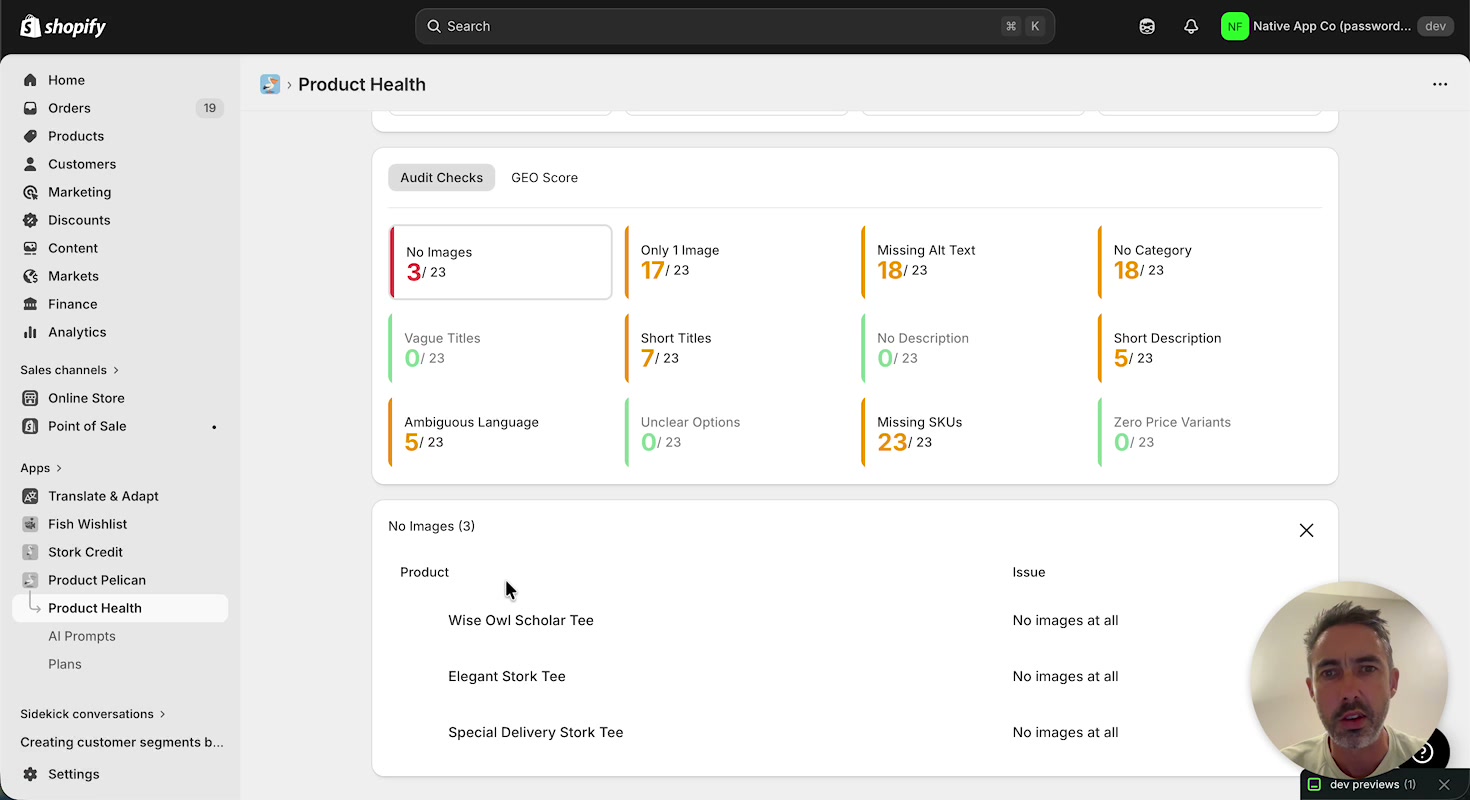
When you open No Images, Product Pelican expands a list of affected products and shows the issue for each one. In the walkthrough, products without images are listed with the issue No images at all.
These checks help you quickly find products that need manual media updates in Shopify.
Missing Alt Text
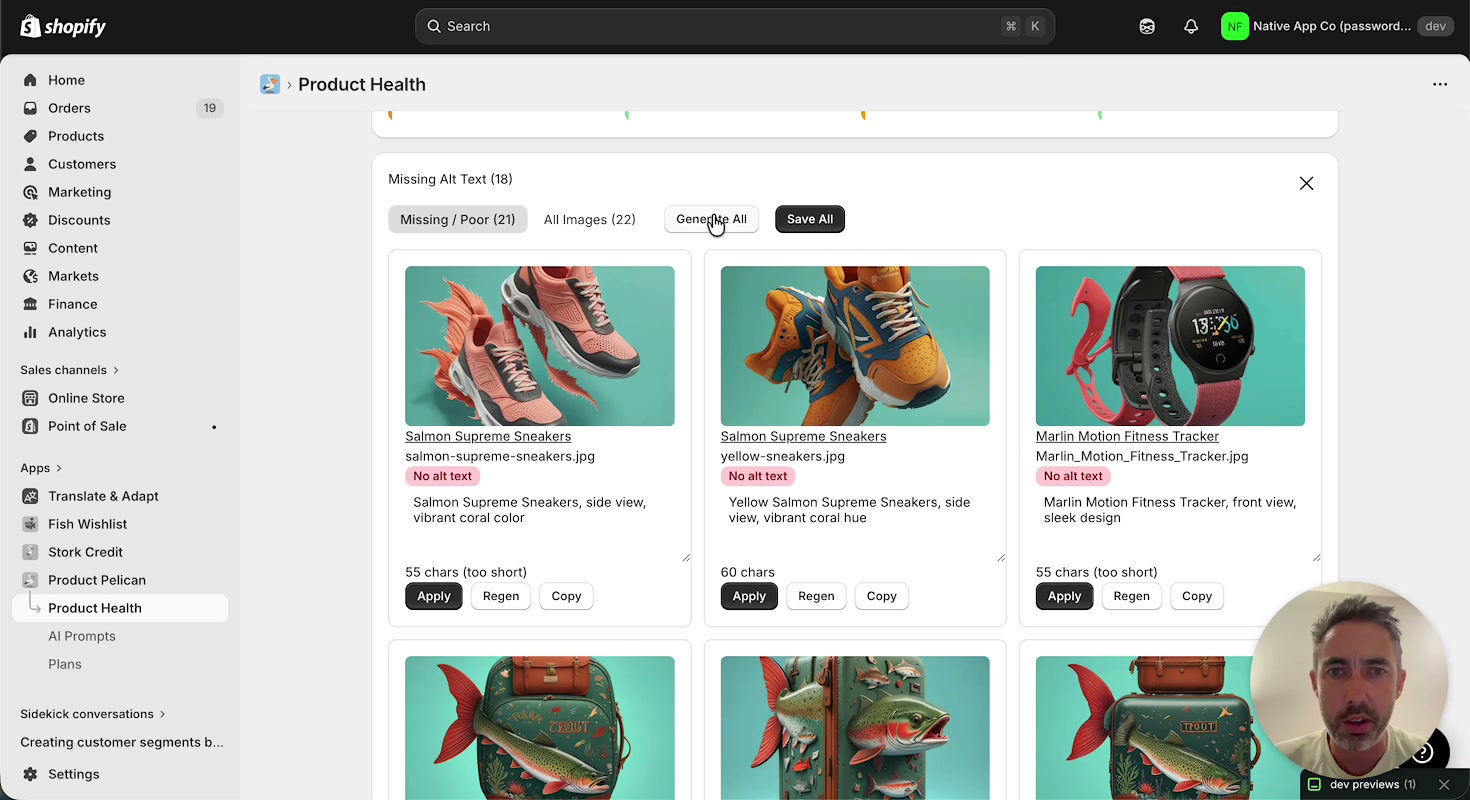
The Missing Alt Text check is one of the most hands-on workflows in the app. When expanded, it shows image cards with:
- The product name
- The image filename
- The current issue, such as No alt text
- A generated alt text suggestion
- A character count check
- Actions including Apply, Regen, and Copy
At the top of the section, you can switch between Missing / Poor and All Images. You can also use Generate All to create suggestions in bulk and Save All to save multiple approved changes.
Suggest missing Shopify categories
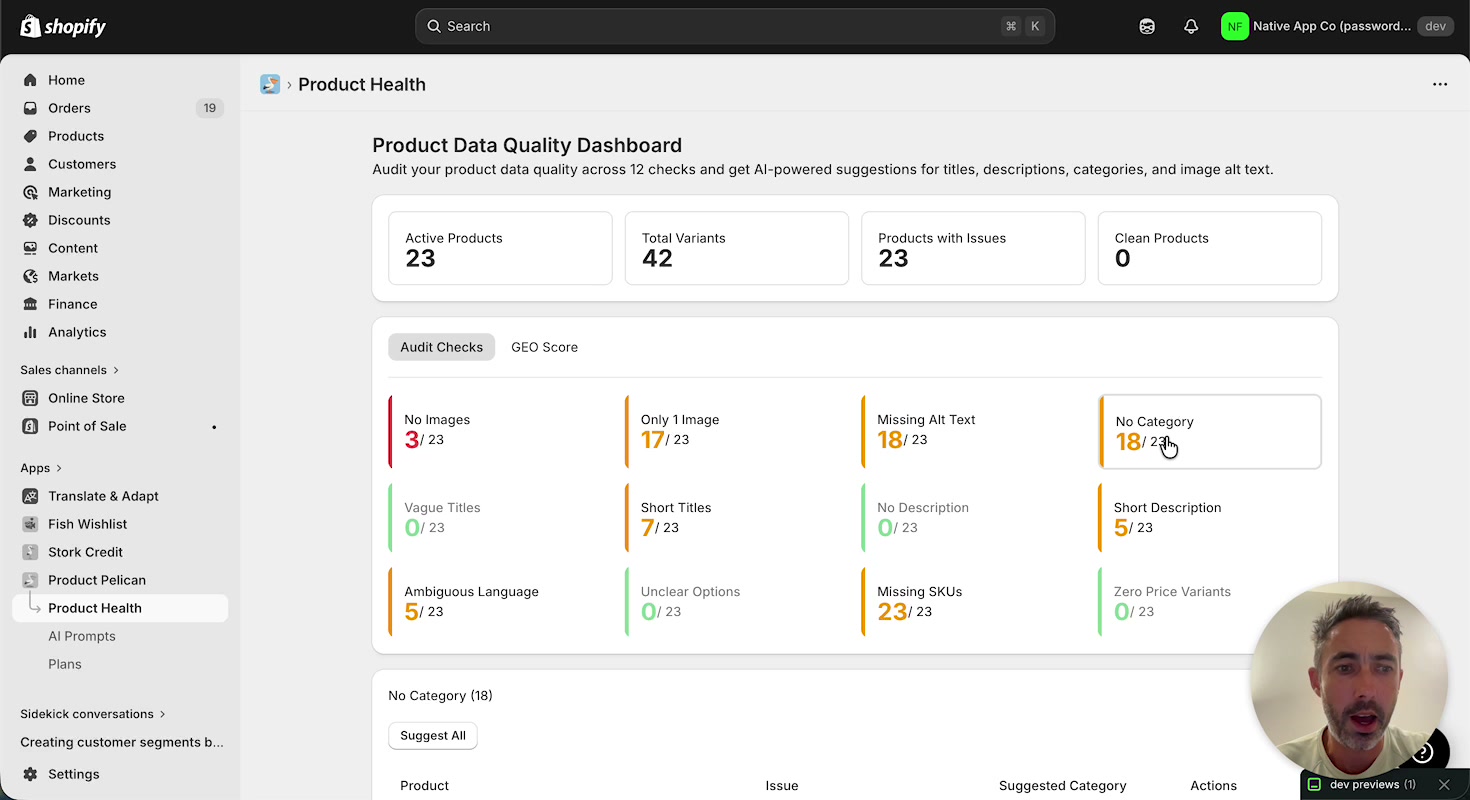
The No Category audit helps you fill the Shopify category field for products that do not yet have a category assigned. When you expand the check, Product Pelican displays a table with columns for:
- Product
- Issue
- Suggested Category
- Actions
You can run Suggest All to generate recommendations for the full list. The walkthrough also shows category suggestions with different confidence levels, such as High and Medium, so you can review the best fit before applying it.
Improve short product titles
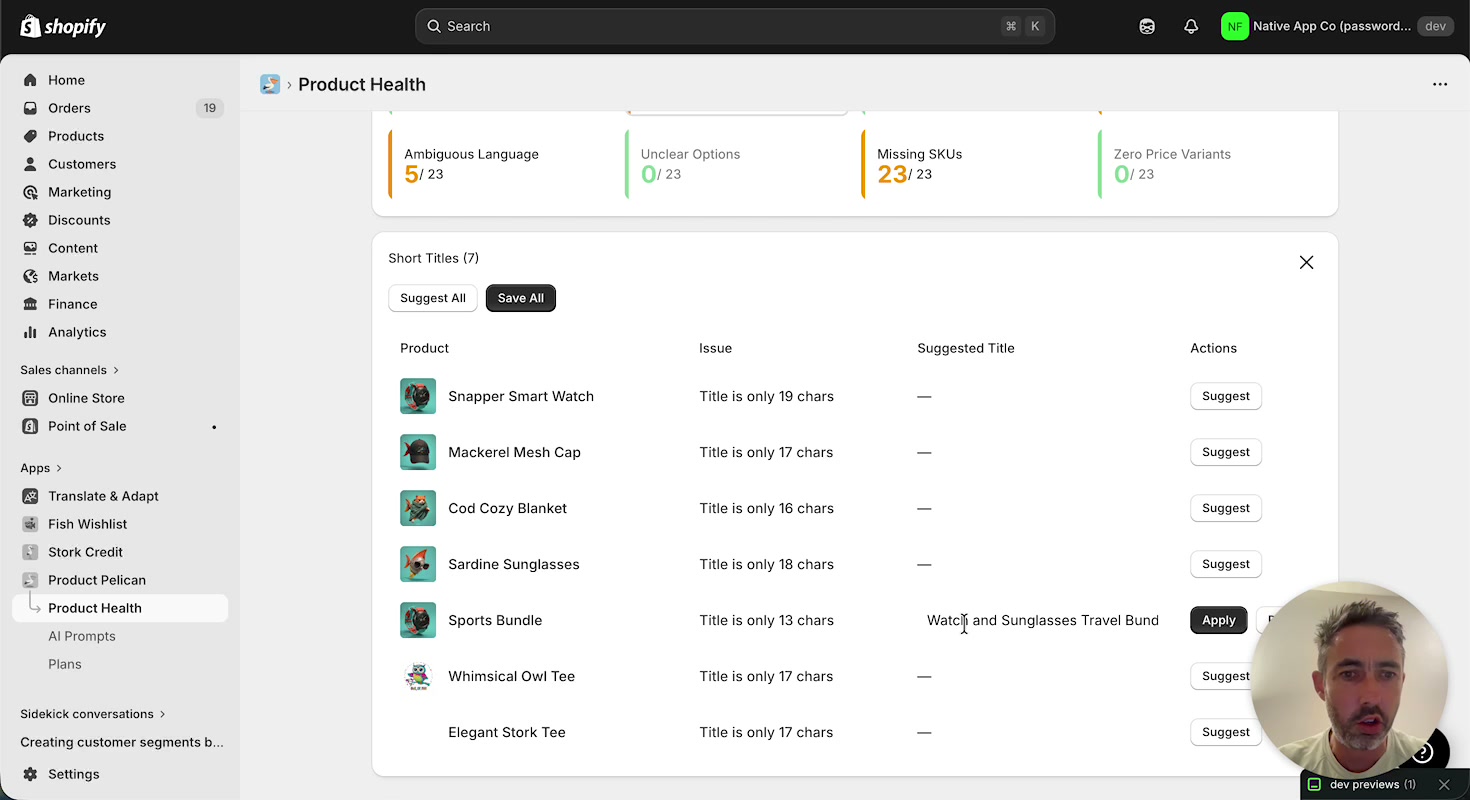
The Short Titles audit identifies titles that do not include enough detail. Each row shows the product, the issue, a Suggested Title column, and available actions.
In the walkthrough, Product Pelican expands a short title like Sports Bundle into a more descriptive replacement based on product details. This makes titles clearer for shoppers and gives you a faster way to standardize product naming.
Use Suggest to generate a title for one product, Apply to accept it, or Suggest All and Save All for bulk updates.
Generate longer product descriptions
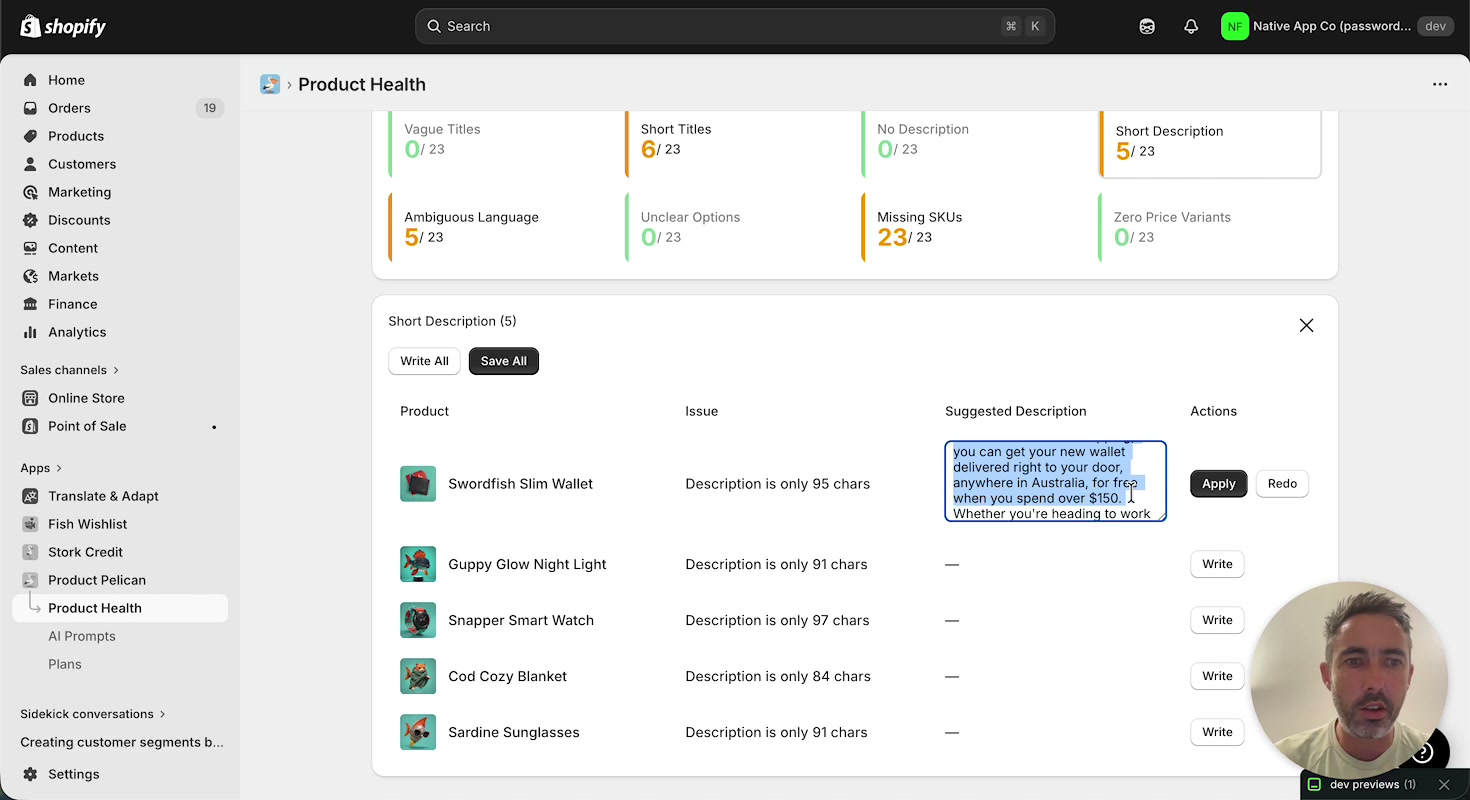
The Short Description and No Description audits help you add more complete product copy. When opened, the section lists products, shows the issue, and provides a Suggested Description area once content has been generated.
For short descriptions, the walkthrough shows a Write All option for bulk generation, plus individual row actions such as Write, Apply, and Redo. This lets you generate text in bulk, review it product by product, and then save the updates you want.
Customize AI Prompts
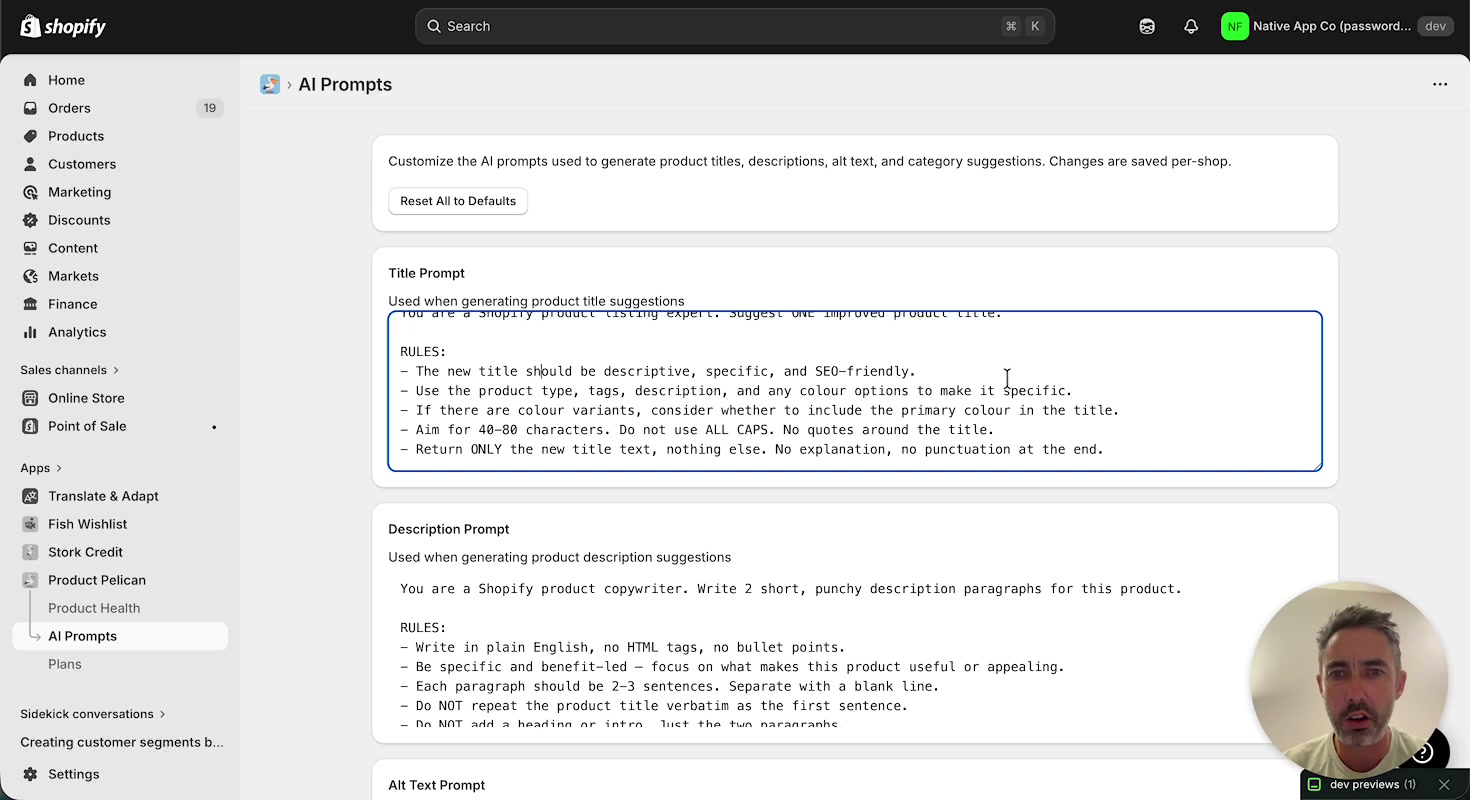
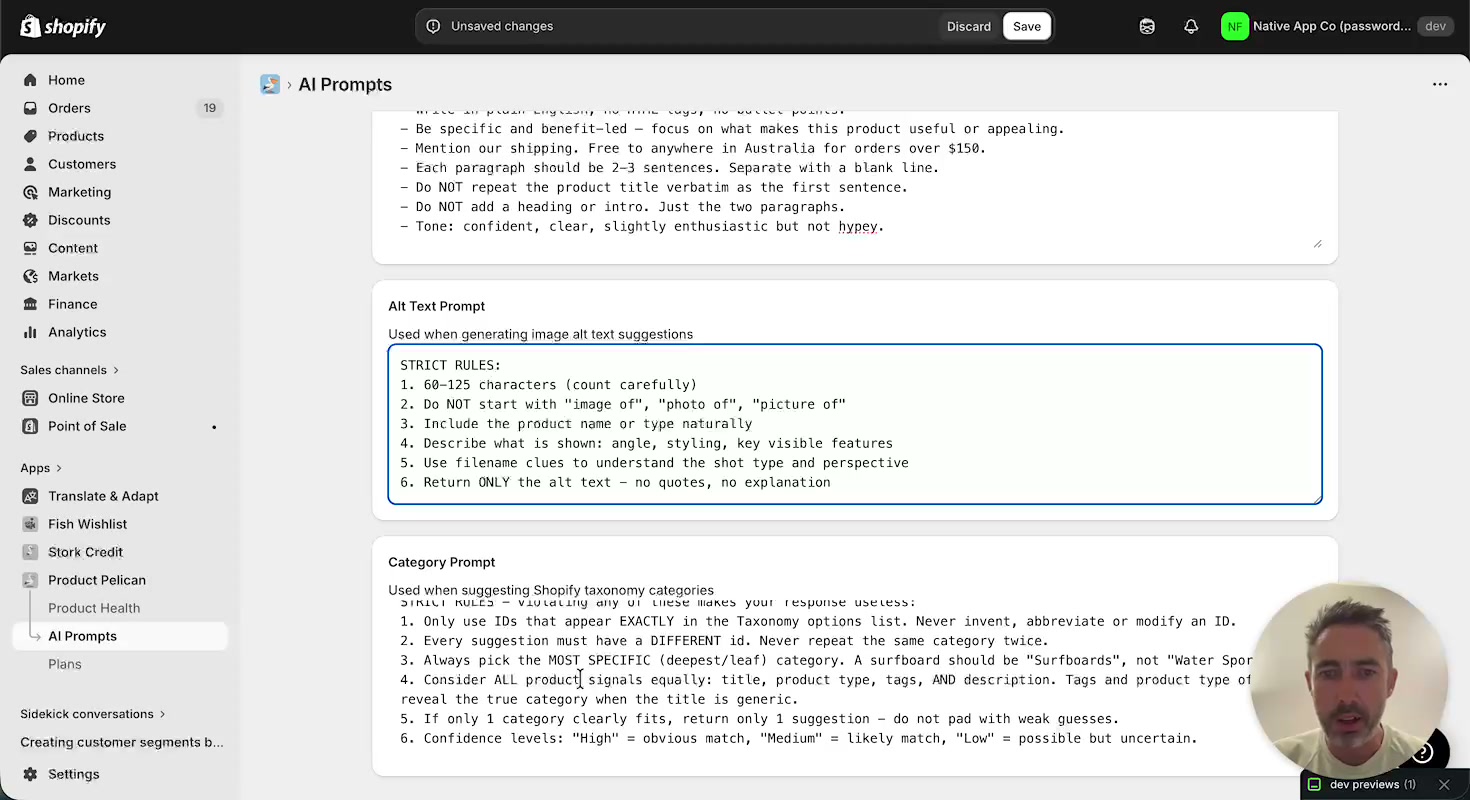
The AI Prompts page lets you control how Product Pelican writes suggestions for your store. In the app navigation shown in the walkthrough, this page appears directly under Product Health.
The page includes editable prompt sections for:
- Title Prompt
- Description Prompt
- Alt Text Prompt
- Category Prompt
There is also a Reset All to Defaults button if you want to remove custom instructions and go back to the default prompt set.
How prompt customization affects results
The walkthrough shows that you can add store-specific instructions, then return to an audit and generate new suggestions that follow those rules. For example, the description prompt is updated to mention free shipping in Australia for orders over $150, and the next generated product description includes that shipping message automatically.
This makes AI Prompts useful for keeping generated titles, descriptions, alt text, and categories aligned with your brand standards and merchandising rules.
Other checks on the dashboard
In addition to images, categories, titles, and descriptions, the walkthrough also shows audits for:
- Ambiguous Language for wording that may be unclear or unhelpful
- Unclear Options for confusing product option values
- Missing SKUs to help identify products missing SKU data
- Zero Price Variants for variants that do not have a price
These checks give you a single place to review both content quality and core merchandising data issues.
Typical workflow in Product Pelican
Why merchants use Product Pelican
Product Pelican is designed to help you find missing or weak product data quickly, improve listings in bulk, and keep suggestions aligned with your store’s rules. Instead of reviewing every product manually, you can work from the dashboard, open a specific audit, and apply improvements where they matter most.