
View product FAQs in Shopify admin
See a product's FAQs without leaving Shopify admin
Product Pelican adds a Product FAQs block to your Shopify product editor so you can quickly check which FAQs are attached to a product. From that same block, you can use Edit FAQs to open the matching product in Product Pelican and make changes.
What this walkthrough shows
The flow follows the same order as the screencast:
- Open a product in Shopify admin
- Scroll down to the Blocks section
- Review the Product FAQs app block on the product
- Select Edit FAQs to jump into Product Pelican's Product FAQ page for that product
Walkthrough
In Shopify admin, go to Products and open the product you want to review. In the walkthrough, the product is Mens Tee - Yellow.
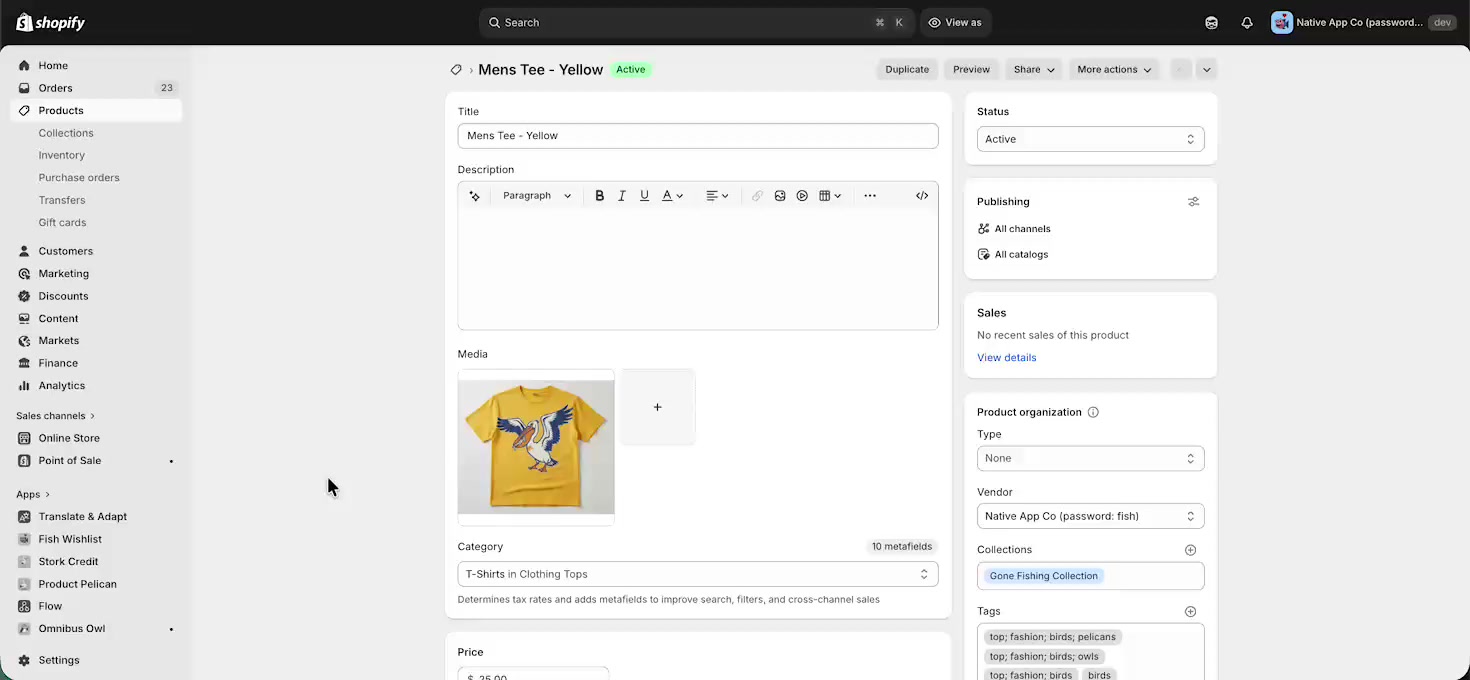
You can stay on the normal Shopify product editing screen. There is no need to open Product Pelican first.
Scroll down the product page until you reach Blocks. This is where Shopify shows app blocks added to the product editor.
If Product Pelican is installed and the block is available for the product, you will see a block titled Product FAQs.
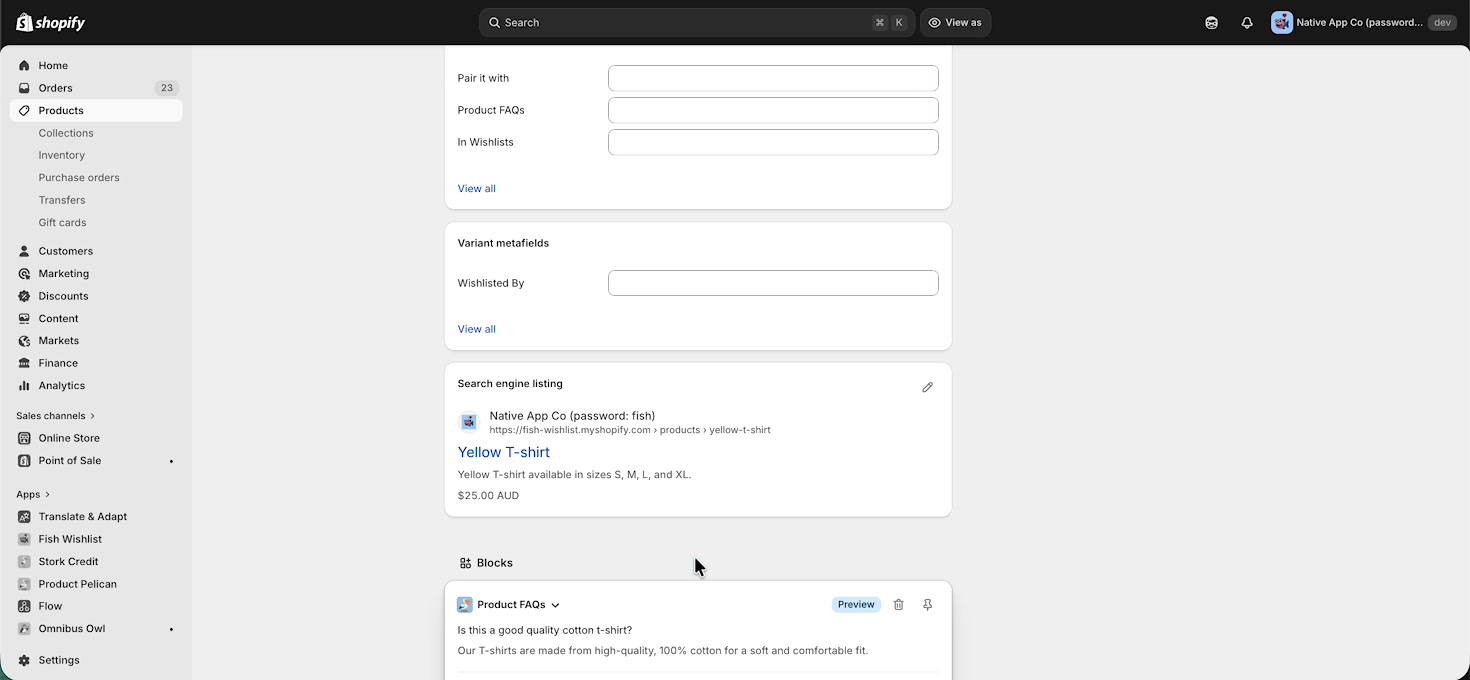
Expand the Product FAQs block to see the FAQs currently connected to that product. The block shows the FAQ questions and answers directly on the Shopify product page, so you can quickly confirm what shoppers will be able to read.
At the bottom of the block, select Edit FAQs when you want to update the list.
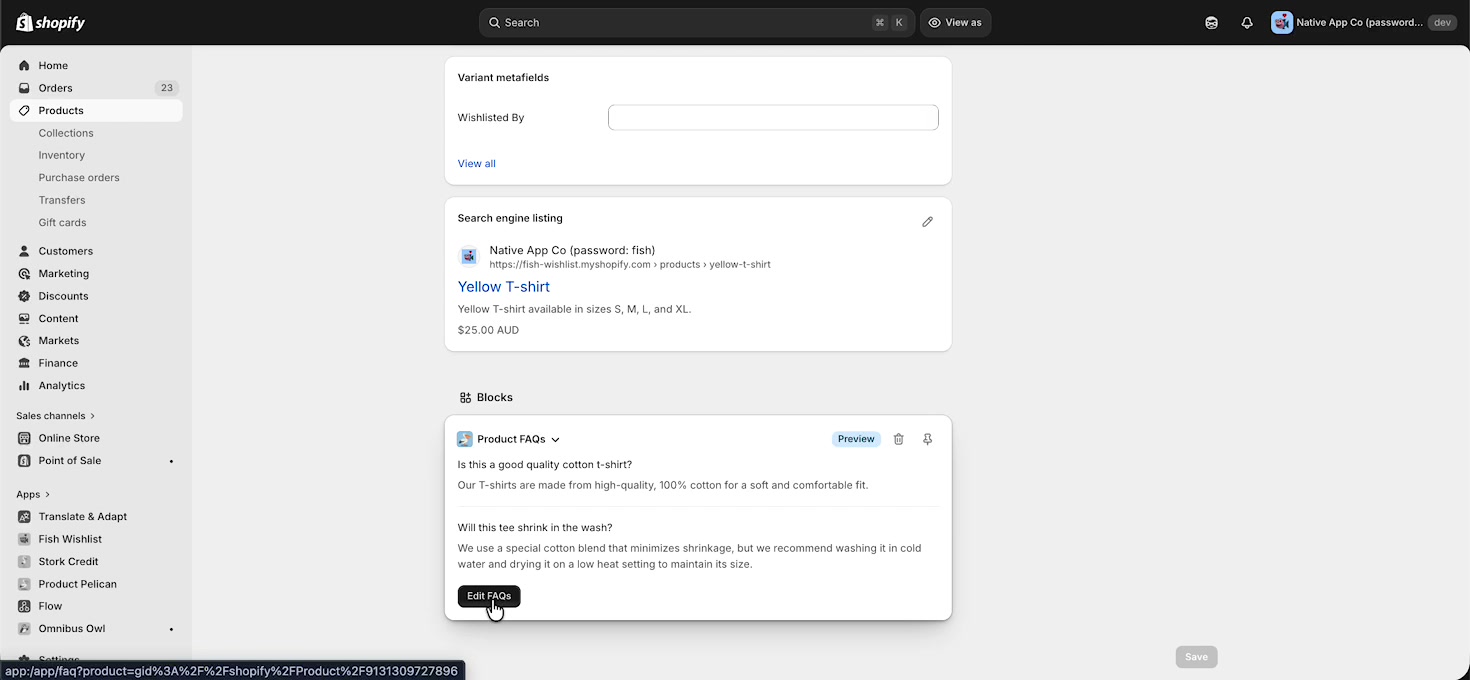
Selecting Edit FAQs opens Product Pelican on the Product FAQ screen for that exact product.
On this page, you can manage the product's FAQ list using the actions shown in the app, including Add FAQ, Connect existing, and Suggest FAQs. If needed, you can also use Import FAQs from the top right.
The left side of the page includes product browsing and filters such as All, No FAQs, and Has FAQs, plus status filters like All, Active, Draft, and Archived.
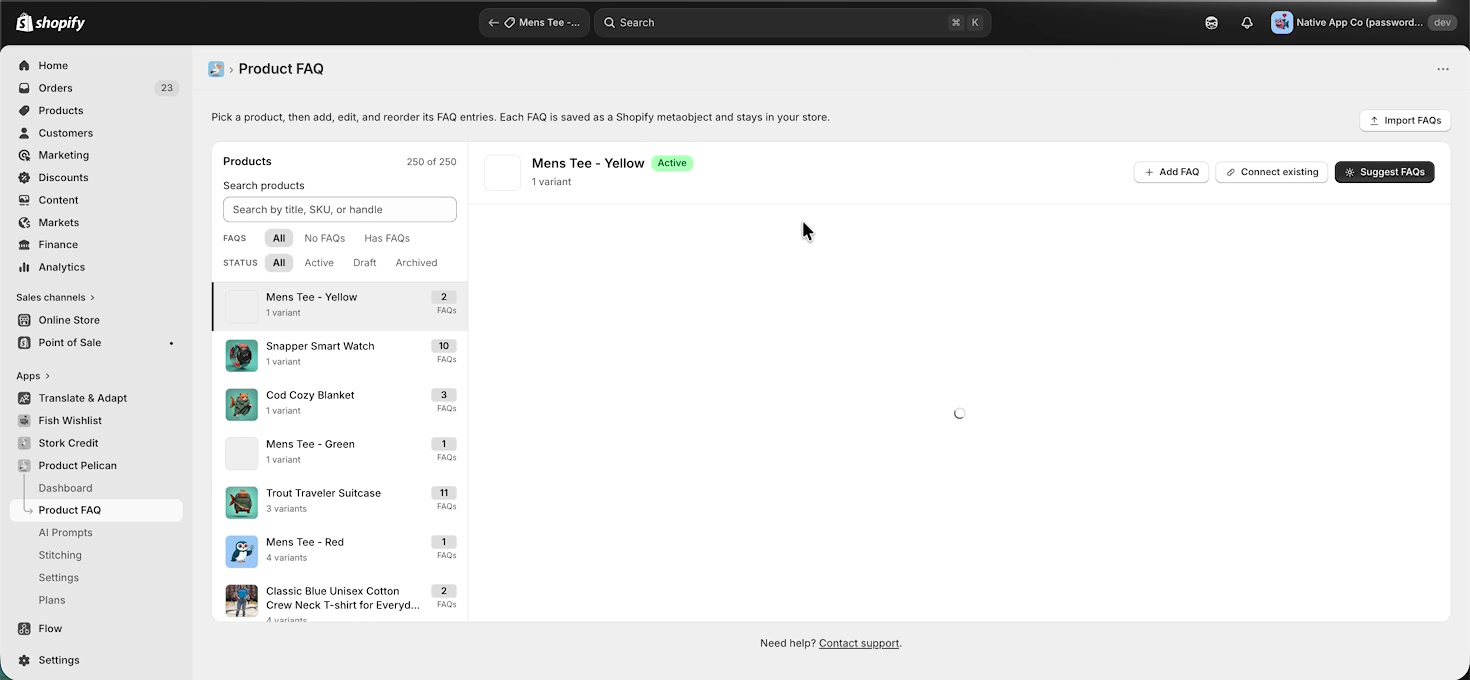
Because the product is already selected for you, you can start editing immediately instead of searching for it again.
What happens after you click Edit FAQs
The Edit FAQs link is designed to save time. Rather than opening Product Pelican separately and searching for the product, it takes you straight to that product's FAQ record on the Product FAQ page.
From there, you can:
- Add a new FAQ with Add FAQ
- Attach an existing FAQ with Connect existing
- Use Suggest FAQs to generate recommendations
- Bring in FAQ content with Import FAQs
When to use this workflow
- When merchandisers are already working inside Shopify admin
- When you want to confirm whether a product already has FAQs
- When you need a fast link from a product page to its FAQ management screen
- When reviewing product content before publishing changes